There are several ways to book a shipment quickly, whether it's a document, parcel or pallet: via a webshop system, an API connection or MyWuunder.
MyWuunder offers the most complete way to book shipments. In this user guide we briefly explain how it works. Stuck, or got a question? Just get in touch with our customer service.
ALL OPTIONS AT A GLANCE
Go to the Drafts page to book your shipments one by one or in bulk. This page shows all the shipments you want to book (“drafts”) or have booked. The first time you visit this page, the table is completely empty.
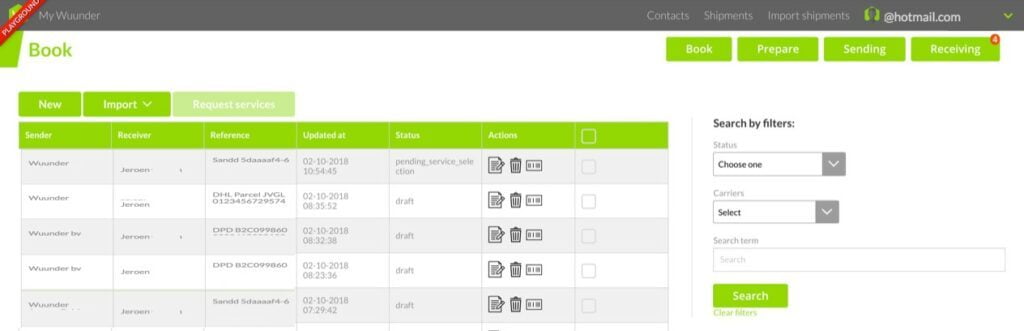
START BY CREATING A DRAFT SHIPMENT
There are several ways to do this:
- Manually: Press “New” and create an individual shipment. Read more about the next steps in Worry-free shipping.
- Importing drafts:Press “Import” and import shipments via StoreSync or CSV:
- Booking manually: Press “New”, or the “Edit” or “Copy” icon, and book the shipment straight away. More info in Preparing a shipment.
- Bulk booking drafts: Book several draft shipments in one go with Book multiple shipments at once.
ACTION BUTTONS
Wuunder tries to help you book quickly and save time. You can use the following icons for extra functions:
| Action | Icon | More information |
|---|---|---|
| Edit |  | Change the content of a draft. For example, if you want to add or change something. |
| Copy |  | This lets you create the same draft again. Handy if you want to send several orders with the same product to different recipients. |
THE STATUS OF YOUR BOOKING
As soon as you've booked a shipment, its status changes. Sometimes you need to refresh the page to see the latest information.
| Status | More information |
|---|---|
| Draft | These are all the shipments that haven't been booked yet. |
| Pending service selection | These are all the shipments that don't have a transport service selected yet. |
| Booking in progress | These shipments are being booked with a carrier for you right now. |
| Booking failed | These are shipments where something went wrong during booking. Book them manually by clicking the “Edit” icon in the action column. |
| Booked | These shipments have been booked with a carrier. We show them to you all day. After midnight we no longer show them, but you can always find them with the search function. |
Was this article helpful?
That’s Great!
Thank you for your feedback
Sorry! We couldn't be helpful
Thank you for your feedback
Feedback sent
We appreciate your effort and will try to fix the article