Import your orders via CSV / Excel and avoid retyping with the CSV import module. That way you can send all your documents, parcels and pallets super efficiently with the most suitable carrier. Can't get the import to work, or want us to help you? Just get in touch with our customer service.
IMPORTING SHIPMENTS
- Go to the Settings menu in MyWuunder (green dropdown menu). Here you set a "default service", volume and weight in case these details aren't included in the CSV file, or add your logo if you want to use packing slips. Read more about these default values.
- Then use the grey bar at the top to go to the "Shipments" overview and select "Book". This is where you can book all your new shipments.
- Select "Import" and then "CSV".

- Select "choose file" and select the CSV file with the shipments you want to import. Always use the required fixed format (see the next section). Download an example CSV file. The colours in it mean the following:
- Yellow = required.
- Green = required, unless these fields are filled in under the default settings. In that case, the columns in the CSV file can be left empty.
- Orange = optional.
- Blue = only required for export, except SKU/EAN code.

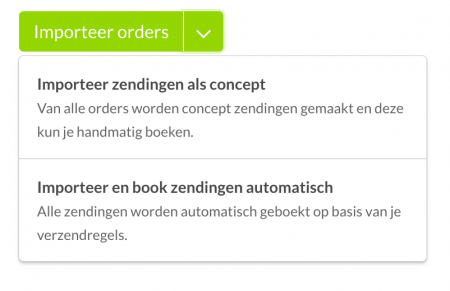
- You now have two choices (dropdown menu in the green button):
- Import all orders as drafts: you import all orders and then book them all in one go or one by one.
- Import and book all orders automatically: you import and book all orders in one go. This option is particularly useful if you work with import rules and shipping rules.

- You can use import rules and shipping rules to process orders automatically. More information about import and shipping rules.
- You'll find an overview of all booked shipments in the "Book" overview. Here you can also, for example, copy the details of a booked shipment to send another one. You'll find an overview of all shipping labels in the "Prepare" overview.
- Want to print all your shipping labels quickly? Read Save time printing shipping labels.
CONTENT OF THE CSV FILE
Every CSV file must be built in exactly the same way (fixed CSV template). If you like, you can leave the cells with shipment information and pickup address information empty and fill them in via the default settings. In the first row of the CSV, put the column names from the table below. In the second row of the CSV file, put the information you want to import.
Want to use packing slips to collect your orders (pick & pack), or sending international shipments that need commercial invoices? Then you can add as many order lines as you need (order_line_1, order_line_2, order_line_3, etc.).
| FIRST ROW OF YOUR CSV | EXPLANATION |
|---|---|
| delivery_address_business | Recipient's company name |
| delivery_address_given_name | Recipient's first name |
| delivery_address_family_name | Recipient's last name |
| delivery_address_street_name | Recipient's street name |
| delivery_address_house_number | Recipient's house number |
| delivery_address_address2 | Any addition, such as 2nd floor, room XYZ, etc. |
| delivery_address_zip_code | Recipient's postcode |
| delivery_address_locality | Recipient's town or city |
| delivery_address_country | Use the 2-letter ISO country code here. You can look up the code for each country here. |
| delivery_address_email_address | Recipient's email address |
| delivery_address_phone_number | International phone number, for example: +3112345678 |
| delivery_address_chamber_of_commerce_number | Recipient's Chamber of Commerce (KvK) number or customer number (optional) |
| pickup_address_business | Pickup address company name |
| pickup_address_given_name | Pickup address contact's first name |
| pickup_address_family_name | Pickup address contact's last name |
| pickup_address_street_name | Pickup address street |
| pickup_address_house_number | Pickup address house number |
| pickup_address_address2 | Any addition, such as 2nd floor, room XYZ, etc. |
| pickup_address_zip_code | Pickup address postcode |
| pickup_address_locality | Pickup address town or city |
| pickup_address_country | Use the 2-letter ISO country code here. You can look up the code for each country here. |
| pickup_address_email_address | Pickup address email address (we also send the shipping label here) |
| pickup_address_phone_number | International phone number, for example: +3112345678 |
| pickup_address_chamber_of_commerce_number | Chamber of Commerce (KvK) number or business unit / department number (optional) |
| customer_reference | Shipment reference number (optional) |
| description | Shipment description |
| height | Height in centimetres |
| length | Length in centimetres |
| width | Width in centimetres |
| package_type | package or pallet (use the English term) |
| value | Amount in euros (e.g. 1000) |
| weight | Weight in grams (e.g. 1000) |
| personal_message | Personal message for the recipient (optional). This message is used in the email to the recipient. Make sure you write this message in the recipient's language. |
| order_line_1_description | Description of the first item in your order |
| order_line_1_ean | EAN code of the first item in your order |
| order_line_1_sku | SKU number of the first item in your order |
| order_line_1_hs_code | HS code of the first item in your order |
| order_line_1_quantity | Quantity of the first item in your order |
| order_line_1_country_of_origin | Country of origin of the first item in your order |
| order_line_1_weight | Weight per unit of the first item in your order (in grams, e.g. 1000) |
| order_line_1_value | Value per unit of the first item in your order (in euros, e.g. 1000) |
| order_line_2_description | Description of the second item in your order |
| order_line_2_ean | EAN code of the second item in your order |
| order_line_2_sku | SKU number of the second item in your order |
| order_line_2_hs_code | HS code of the second item in your order |
| order_line_2_quantity | Quantity of the second item in your order |
| order_line_2_country_of_origin | Country of origin of the second item in your order |
| order_line_2_weight | Weight per unit of the second item in your order (in grams, e.g. 1000) |
| order_line_2_value | Value per unit of the second item in your order (in euros, e.g. 1000) |
Was this article helpful?
That’s Great!
Thank you for your feedback
Sorry! We couldn't be helpful
Thank you for your feedback
Feedback sent
We appreciate your effort and will try to fix the article