Importing your Bol.com orders into Wuunder is pretty easy, because you don't need to install anything. At the push of a button, you can send all your orders as a document, parcel or pallet with the most suitable carrier. Once you've booked the orders, we send an update to Bol.com with the track & trace information and the chosen carrier. Follow this short guide and you'll have it set up in a few minutes for one or more online shops (multishops). Can't get the connection to work? Just get in touch with our customer service. You can book shipments on your own transport contract, Wuunder's contract or via "Verzenden via Bol.com" (Shipping via Bol.com).

BOL.COM STORESYNC
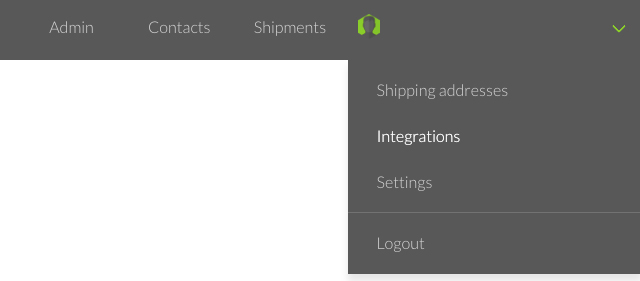
- Go to the Settings menu in MyWuunder (green dropdown menu). Here you set a "default service", volume, value and weight, because Bol.com doesn't pass on these details. Read more about these default values here. Please note: if you don't set these up, you'll have to add these details manually for every order.
- Set a default pickup address so it's added to every order automatically, via the following link. Don't use an email address in the pickup address if you don't want to receive a shipping label by email.
- Then go to the Integrations overview in the grey bar. Select "New".
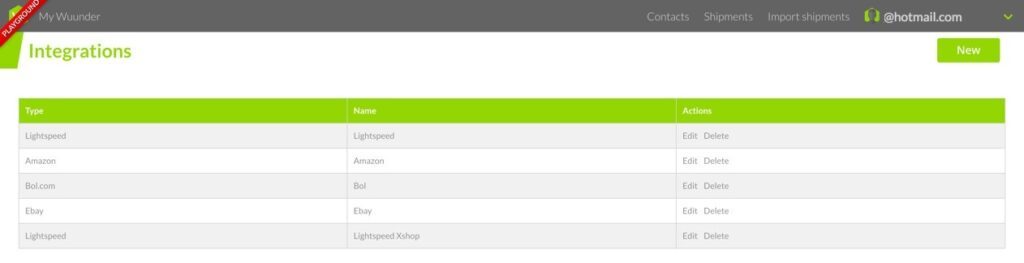
- Then select "Bol.com".
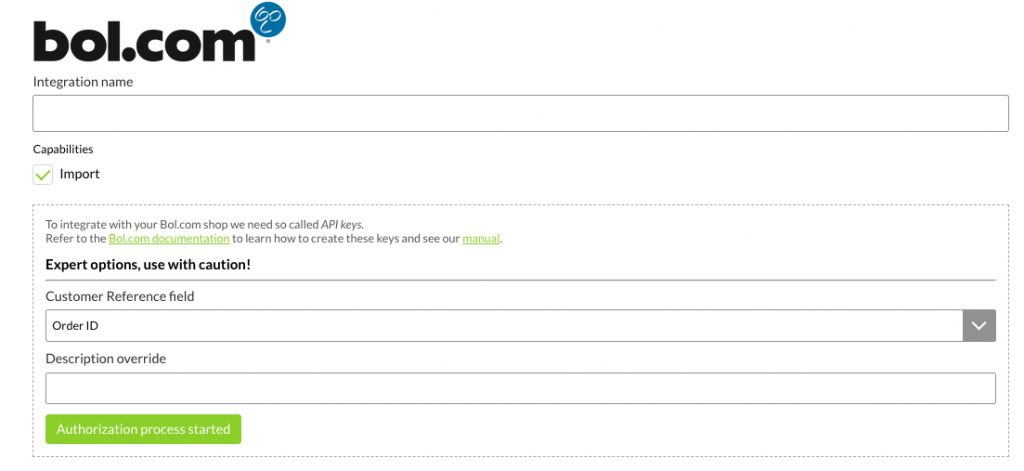
- You can now give the integration a name, so you know later which data you're importing. Now click "Authorization process started".
- You'll then be taken to the Bol.com login screen. Enter the email address and password of your Bol.com seller account here.
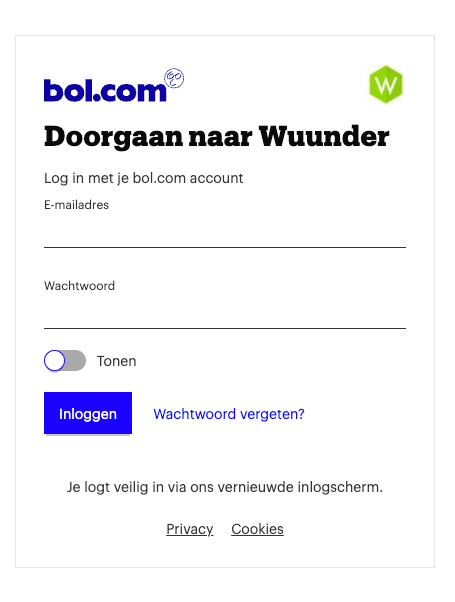
- You'll then see a screen asking you to approve the connection between your account and Wuunder.
- You're then taken back to MyWuunder, the integration is created and the orders can be imported.

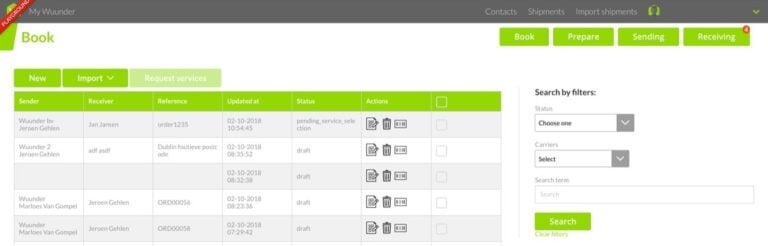
- Then use the grey bar at the top to go to the "Shipments" overview and select "Book". This is where you can book all your new shipments.
- Want to connect several shops? Repeat these steps (from step 2) until all your shops are connected.
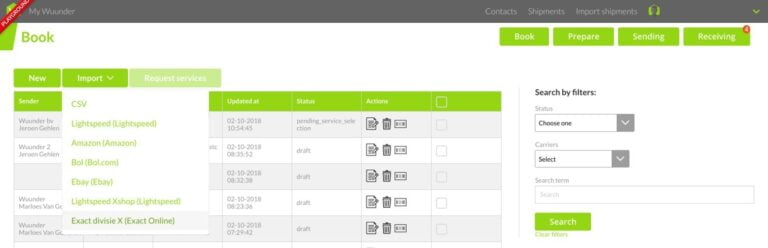
- Select "Import" and then the "Bol.com" shop you want.
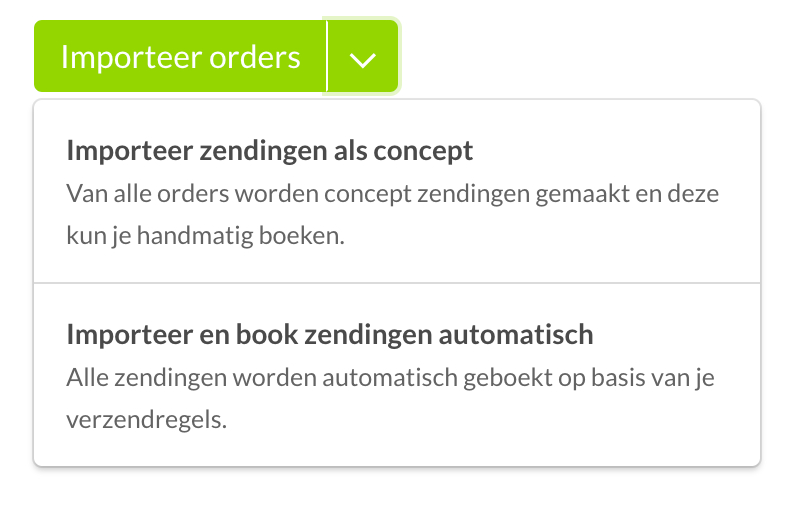
- You now have two choices (dropdown menu in the green button):
- Import all orders as drafts: you import all orders and then book them all in one go or one by one.
- Import and book all orders automatically: you import and book all orders in one go. This option is particularly useful if you work with import rules and shipping rules.
- This page also shows an overview of all recent imports. Handy for checking when you last imported Bol.com orders. You can also see the number of orders we're importing, so you can check for yourself that everything's going smoothly.
- We import in the background, so you can carry on straight away. Refresh the page now and then to see the latest imported orders and/or booked shipments.
- You'll find more information about the checks we run and possible error messages, such as a missing pickup address, in Preparing a shipment.
- You'll find an overview of all booked shipments in the "Book" overview. Here you can also, for example, copy the details of a booked shipment to send another one. You'll find an overview of all shipping labels in the "Prepare" overview.
- As soon as you've booked the shipments, we update your shop. That way you stay in control of which orders you still need to process.
- Want to print all your shipping labels quickly? You'll find all the info in Save time printing shipping labels.
Was this article helpful?
That’s Great!
Thank you for your feedback
Sorry! We couldn't be helpful
Thank you for your feedback
Feedback sent
We appreciate your effort and will try to fix the article