Once you've imported your orders into MyWuunder, there are several ways to send documents, parcels or pallets in larger numbers and create lots of shipping labels at once with Bulk booking. Want to use several carriers or transport services? You can set this up exactly the way you want and automate it with "Shipping rules". This automates your entire shipping process and saves you time.
Want to adjust the content of an order while importing it? You can do that with import rules. This is especially handy if your customers choose their own shipping method at your webshop checkout. With import rules you can still adjust your customer's choice if needed. For example, if you want to insure shipments above a certain value.
Stuck, or got a question? Just get in touch with our customer service.
ALL OPTIONS AT A GLANCE
Go to the shipping rules page to set up your shipping rules. Select "New". You can of course combine different rules. You can build shipping rules with the following variables:
- Length, width and height (in cm)
- Weight (in grams)
- Value (in euros)
- Number of items (in packaging units)
- Sender's or recipient's country
- Integration the orders were imported with (for example WooCommerce or Magento)
- Business or residential delivery address (if the company field is empty, the recipient is a consumer)
Please note: shipping rules never change the information you send through the Wuunder shipping module or API. If your customer chooses PostNL at checkout, we consider that choice more important than any shipping rule or default shipping method (preferred service). Still want to change the information that was sent? You can do that with import rules.
HANDY EXAMPLE 1: INSURE VALUABLE SHIPMENTS AUTOMATICALLY
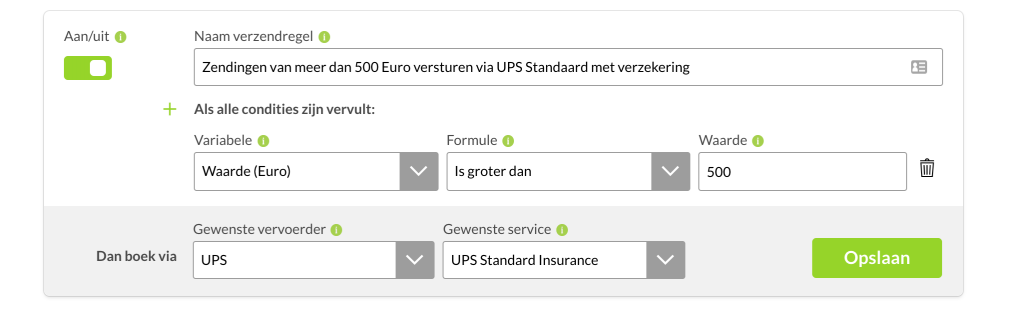
In the overview below you can see a shipping rule that sends orders worth more than 500 euros as UPS Standard Insurance.
HANDY EXAMPLE 2: MAXIMISE YOUR CARRIER DISCOUNT
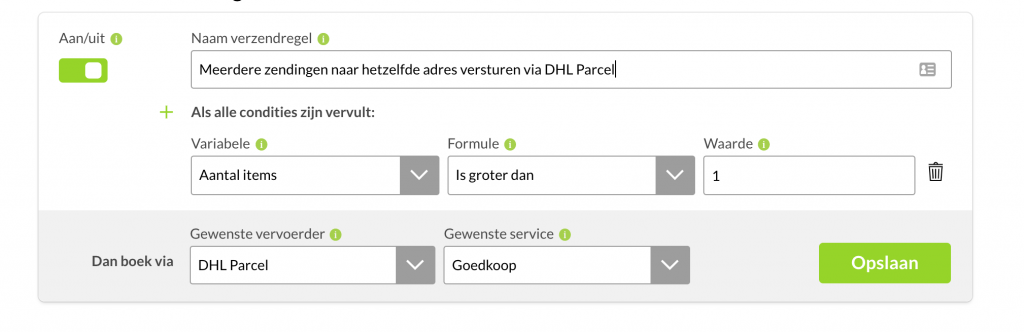
With shipping rules, the possibilities are almost endless. Say DHL Parcel gives you a discount when you send several items to the same address (multi-parcel). You could then set up all your multi-parcel shipments to go with DHL Parcel. With import rules, you can turn any order into a multi-parcel order based on its product description.
HANDY EXAMPLE 3: CHOOSE YOUR FAVOURITE CARRIER
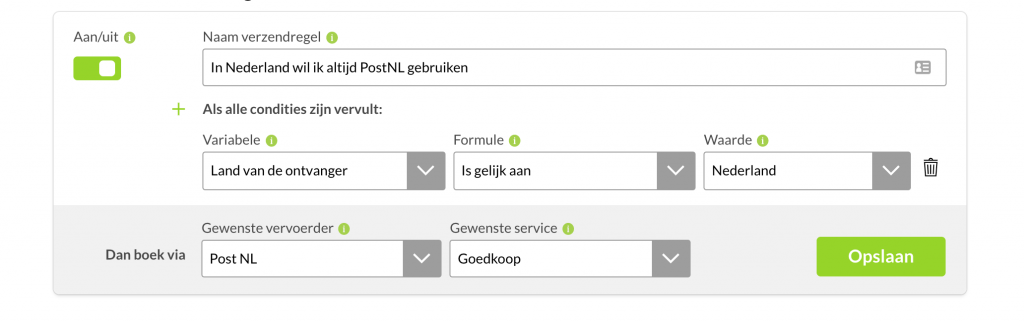
Choose your favourite carrier per country, for example PostNL for shipments within the Netherlands, DHL to Germany and UPS to America. You can do the same for light or heavy shipments.
CREATING SHIPPING LABELS (FULLY) AUTOMATICALLY
Once you've set up your shipping rules, import your orders with the Import button in MyWuunder. During the import, we adjust the orders based on your import rules.
You can then use the dropdown menu to book the orders automatically according to your shipping rules, or do it manually with Bulk booking. If no shipping rule applies to an order, we'll book it with the default shipping method (preferred service).
If you import your orders through an API, you can set the orders to be booked straight away. You then don't need to press a single button to create the shipping labels. Turn on this fully automatic way of booking in the settings menu by sliding the toggle (see below) to the right (it turns green).

While booking, we check for mistakes in the address details, such as a missing town or city. If booking isn't possible, the order will get the status "Booking failed" or "Pending service selection". For example, if the chosen service isn't available with a carrier. Read more about order validation in the article Preparing a shipment.
Save even more time with Scan & print. Simply scan the barcode on your packing slip and the right shipping label is printed straight away. Easy as that!
Was this article helpful?
That’s Great!
Thank you for your feedback
Sorry! We couldn't be helpful
Thank you for your feedback
Feedback sent
We appreciate your effort and will try to fix the article