We've developed an import service for the accounting software Exact Online: Wuunder StoreSync. At the push of a button, you can import Exact Online data and send documents, parcels and pallets with the most suitable carrier. The StoreSync module works with all Exact Online versions that include "stock": Exact Online Wholesale and Exact Online Manufacturing. Working with a different version, or can't get the connection to work? Just get in touch with our customer service.
STORESYNC
- Go to the Settings menu in MyWuunder (green dropdown menu). Here you set a "default service", volume and weight in case these details aren't received via StoreSync. Read more about these default values here.
- Set a default pickup address so it's added to every order automatically, via the following link. Don't use an email address in the pickup address if you don't want to receive a shipping label by email.
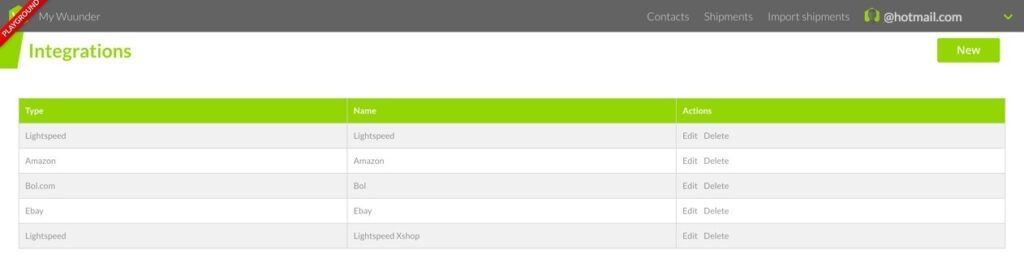
- Then go to the Integrations overview in the grey bar below the green dropdown menu. Select "New".
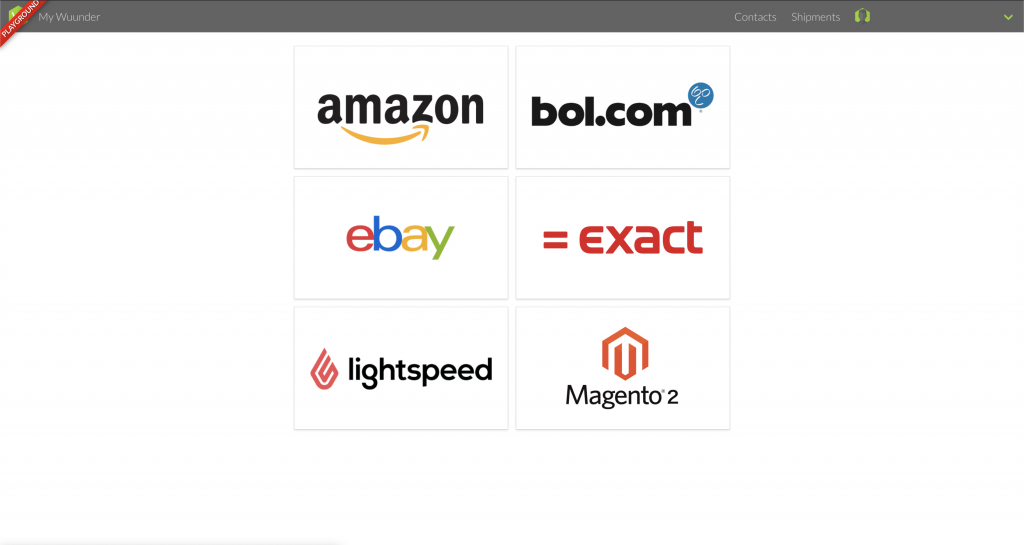
- Then select "Exact".
- You can now give the integration a name, so you know later which data you're importing.
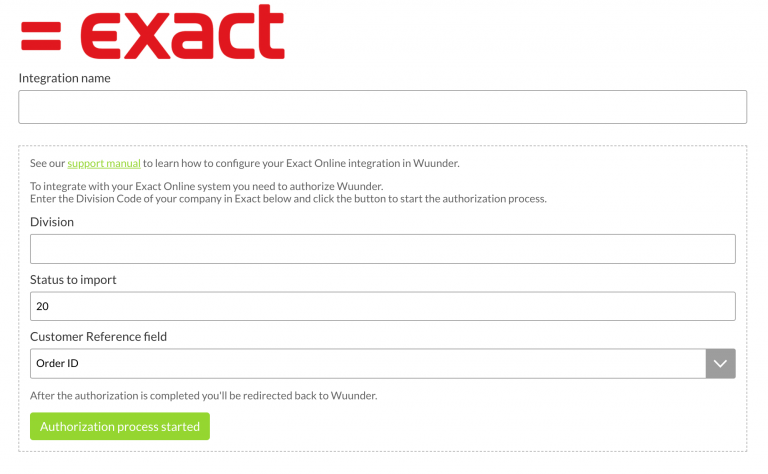
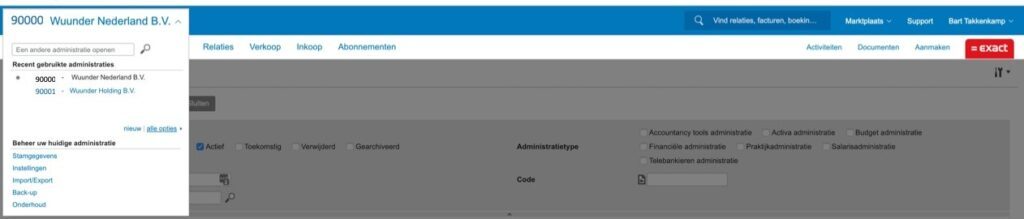
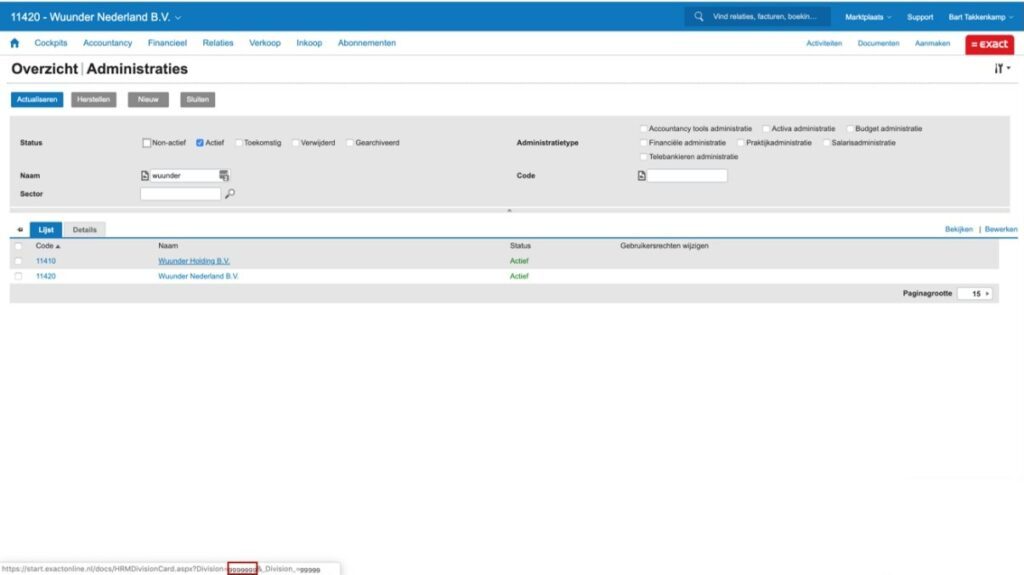
- You can find the division code by logging in to Exact. Then open a new, empty tab and copy and paste the following URL into it: https://start.exactonline.nl/docs/XMLDivisions.aspx. Here you'll see the division code between the quotation marks at: Code="123456". You can also see the division code in Exact itself. Click the company name at the top left (in the example "90000 Wuunder Nederland B.V.") and then go to "all options".
- Hover your mouse over the administration you want to import. As soon as you hover over the name of the administration, a blue bar appears below the name and a URL appears at the bottom left of the screen. The characters after the first "=" sign in the URL are the division code (marked here with a red line at the bottom left of the screen). Then go back to MyWuunder.
- Decide which orders you're going to import. You can do this by choosing different order statuses:
- 12 is Open
- 20 is Partial (this is the default status)
- 21 is Complete
- 45 is Cancelled
The "Customer reference" field is shown on the shipping label. You can choose between the order number and the description. The latter is especially handy if you use the shipping label as a packing slip.
- Select "Authorization process started" and log in to your Exact environment. As soon as you've entered the right username and password for Exact, the connection is ready to use.
- Then use the grey bar at the top to go to the "Shipments" overview and select "Book". This is where you can book all your new shipments.
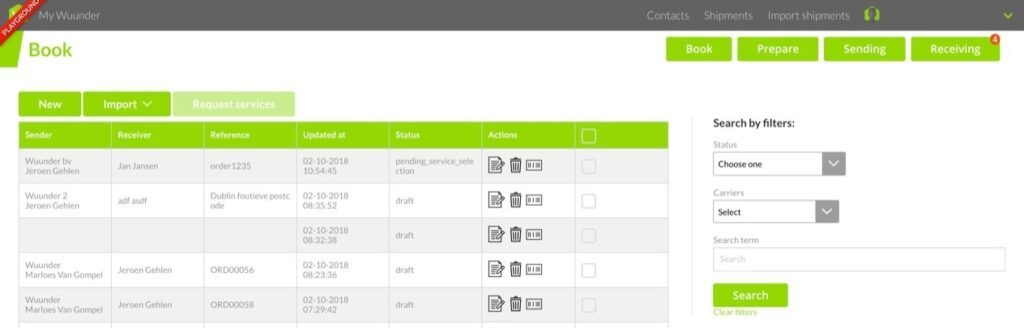
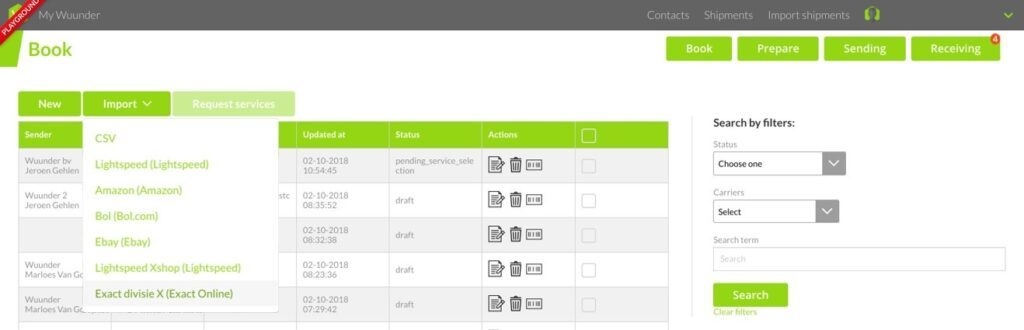
- Select "Import" and then "Exact". We then import all orders in Exact with the status "Partial". Orders in Exact with the status "Open" or "Complete" are not imported.
If you get the error message "Forbidden User division is not within division scope", Wuunder can't access the division you want to import in Exact. In that case, follow these steps.
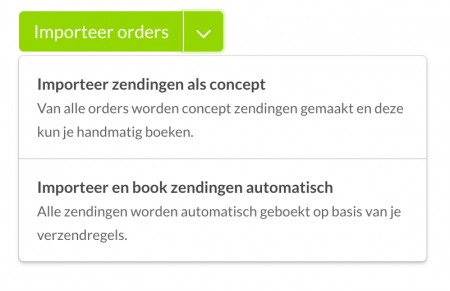
- You now have two choices (dropdown menu in the green button):
- Import all orders as drafts: you import all orders and then book them all in one go or one by one.
- Import and book all orders automatically: you import and book all orders in one go. This option is particularly useful if you work with import rules and shipping rules.
- You'll find more information about the checks we run and possible error messages, such as a missing pickup address, in Preparing a shipment.
- You'll find an overview of all booked shipments in the "Book" overview. Here you can also, for example, copy the details of a booked shipment to send another one. You'll find an overview of all shipping labels in the "Prepare" overview.
SCAN YOUR PACKING SLIP AND PRINT THE SHIPPING LABEL
- Activate a Code 128 barcode on your packing slip in Exact Online and work even faster and more efficiently. Scan the packing slip and print the right shipping label straight away. Read more about activating a barcode on your packing slip here.
- Want to print all your shipping labels quickly? You'll find all the info in Save time printing shipping labels.
Was this article helpful?
That’s Great!
Thank you for your feedback
Sorry! We couldn't be helpful
Thank you for your feedback
Feedback sent
We appreciate your effort and will try to fix the article