Once you've booked a shipment, there are several ways to print the packing slips, shipping labels and commercial invoices: via a webshop system or MyWuunder. You can create the packing slip directly in MyWuunder, or we'll put the content together for you automatically if we receive the order lines from your webshop system.
PRINT ALL PACKING SLIPS FROM ONE OVERVIEW
- Once you've booked a shipment, you can quickly print all your packing slips, shipping labels and commercial invoices from the Prepare overview in MyWuunder (go to Shipments and select Prepare). Here you'll see all the shipments you've booked successfully that have a packing slip, shipping label or commercial invoice ready to print.
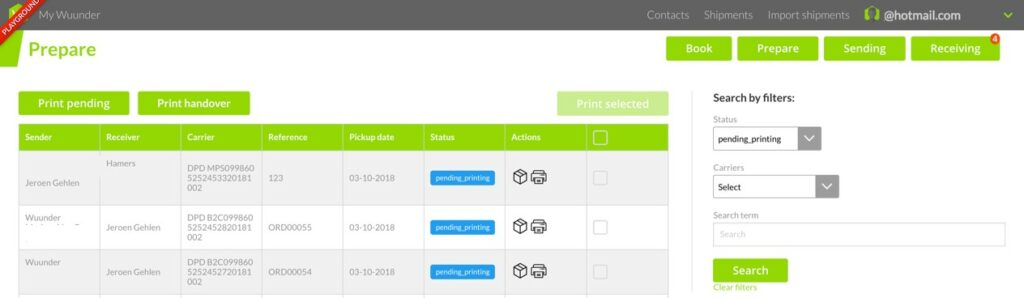
- You can print all (not yet printed) packing slips in one go with “Bulk printing”. We'll then print all the packing slips you haven't printed before. Of course, you can also print each packing slip individually or in groups. Simply select the packing slips you want to print and click “Print selected”.
- Before you print the packing slips, you can also use the filters to sort them by order content. For example, you can first print all packing slips for orders that contain product X.
- You can also use the filter to select orders with the same content. For example, by selecting orders that only contain product X, you don't need packing slips at all. You simply print all the shipping labels for these orders straight away.
Was this article helpful?
That’s Great!
Thank you for your feedback
Sorry! We couldn't be helpful
Thank you for your feedback
Feedback sent
We appreciate your effort and will try to fix the article