Once you've booked a transport service for a document, parcel or pallet, all that's left is to print the shipping label and get the shipment ready. You can do this via a webshop system, an API connection or MyWuunder.
MyWuunder offers the most complete way to add labels to your shipments. You can also print a handover list per location / carrier for the driver here. That way you always have proof that you handed over a shipment, and getting shipments ready becomes really easy. In this user guide we briefly explain how it works. Stuck, or got a question? Just get in touch with our customer service.
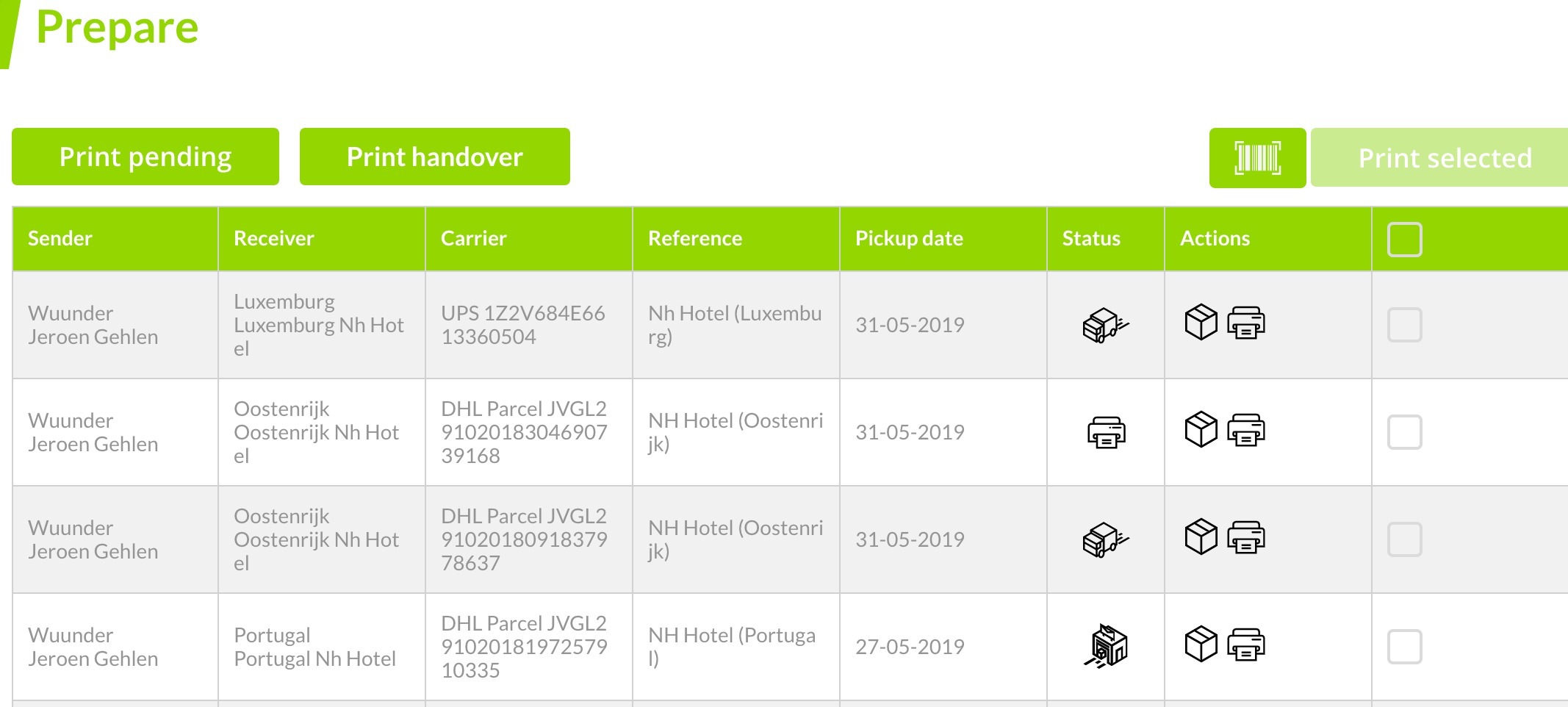
ALL OPTIONS AT A GLANCE
Go to the Prepare page to get your shipments ready. This page shows all the shipments you want to print or have already printed, so you can see straight away what's left to do. We also show whether the shipment will be collected by the carrier or whether you need to take it to a parcelshop yourself. The first time you visit this page, the table is completely empty.
- Start by printing shipping labels. You can do this one by one, in bulk or with a scanner. Read more about the ways to print labels in Save time printing shipping labels.
- Then print the handover list for the driver. That way you always have “proof” that the driver took your shipments. Tip: of course you can also use this list to check that all your shipments are ready.
- Is a shipment not ready to hand over to a carrier? Set it to “not ready”. You can do this by clicking the closed package icon in the “action” column.
- Then follow all your shipments until they're delivered in the Shipment Overview.
OVERVIEW OF ACTION BUTTONS
Wuunder helps you save time by getting a shipment ready quickly. You can use the following icons for extra functions:
| Action | Icon | More information |
|---|---|---|
| Not ready |  | Clicking “Not ready” sets a shipment back to “Ready” and puts it back on the handover list. |
| Ready |  | Clicking this icon switches the shipment to “not ready”. This keeps a shipment off the handover list. |
| Delete |  | You can delete a shipment that's set to “Not ready” by clicking this icon. This cannot be undone. |
 | This lets you create the same draft again. Handy if you want to send several orders with the same product to different recipients. |
THE STATUS WHILE GETTING READY
As soon as you've booked a shipment, it appears in the Prepare overview. Sometimes you need to refresh the page to see the latest information.
| Status | Icon | More information |
|---|---|---|
| Pending printing |  | These are all the shipments that haven't been printed yet. |
| Not ready |  | These are all the shipments that aren't ready. This also shows you that you still need to do something with the shipment. |
| Ready for pick-up |  | These shipments are ready and will be collected by the carrier. |
| Drop at parcelshop |  | These are shipments you need to take to a parcelshop or postbox yourself. |
SEARCHING FOR A SHIPMENT
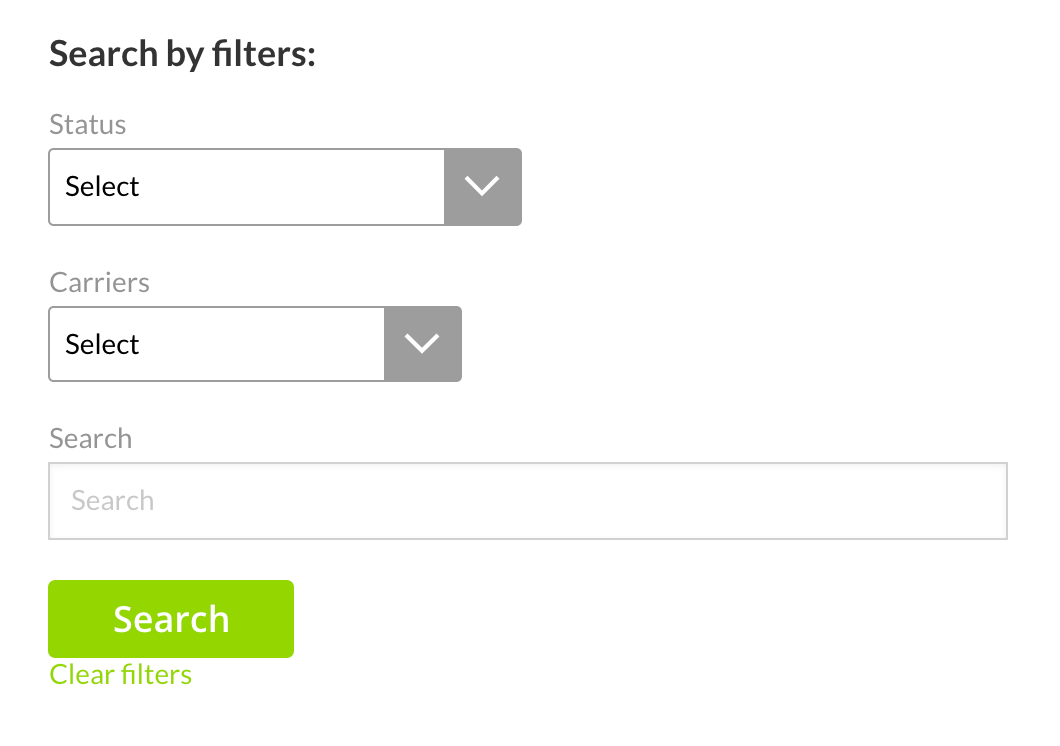
On the MyWuunder Prepare page you can quickly find the right shipment by searching with “Search by filter”.
- Search by a status, such as “Not ready” or “Pending printing”.
- Use the “carriers” dropdown menu to show shipments per carrier.
- Or use a search term to look up shipments by, for example, order number, order content, or town or country of collection.
Was this article helpful?
That’s Great!
Thank you for your feedback
Sorry! We couldn't be helpful
Thank you for your feedback
Feedback sent
We appreciate your effort and will try to fix the article