
Do you sell products through Bol.com? Then you can also send those orders using Bol.com's transport contract with several carriers: “pakketzegels via Bol.com” (Bol.com parcel stamps) or “Verzenden via Bol.com” (Shipping via Bol.com). This lets you send your DPD, PostNL and DHL eCommerce shipments via Bol.com. Unfortunately, these sharp rates only apply to shipments you take to a parcelshop yourself.
From 26 February 2025, it's no longer possible to ‘let the customer choose a different (later) delivery moment’ with Verzenden via bol Standard (drop off yourself). This delivery option is still available for the other Verzenden via bol options.
Connecting Bol.com to Wuunder is pretty easy, because you don't need to install anything. At the push of a button, you can send all your orders with the most suitable carrier.
Once you've booked the orders, we send an update to Bol.com with the track & trace information and the chosen carrier. This guide explains how to do it. You'll find more information about Verzenden via Bol.com and the Bol.com parcel stamps on the Bol.com Partner Platform.
CONNECTING BOL.COM
- First, connect your Bol.com account to Wuunder. Read more about this in Import and sync your bol.com orders. Want to test some orders before you start “for real”? You can do that in our test environment.
ACTIVATING BOL.COM TRANSPORT CONTRACTS
- To use the Bol.com transport rates, we need your “Client ID” and “Secret key”. You can find these in your bol.com seller account.

- Under the heading “Services” on the right of the screen, click “API settings”.
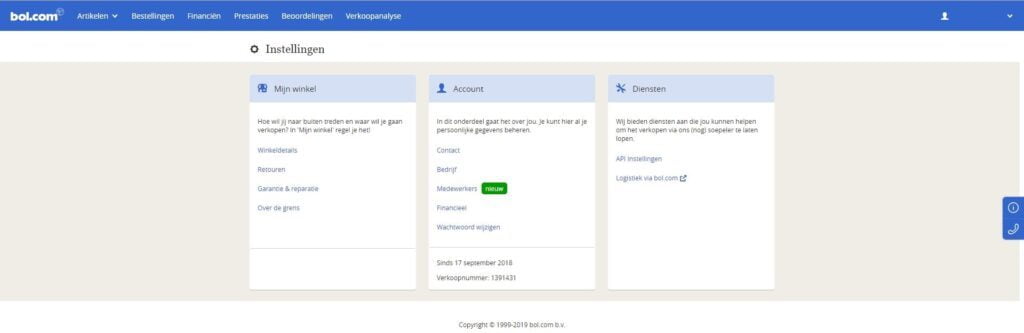
- You're welcome to enter Wuunder as the “Technical contact” for Bol.com. Then choose “Create”. When asked “Do you want to add client credentials for a new API user?”, choose “Wuunder”. If you like, create test keys for the test environment and production keys for the live environment.
- Send the keys to our customer service and we'll make sure you can get started straight away. Please state clearly whether you're sending us the keys for the test and/or production environment.
IMPORTING BOL.COM ORDERS
- Select “Import” and then the “Bol.com” shop you want in MyWuunder.
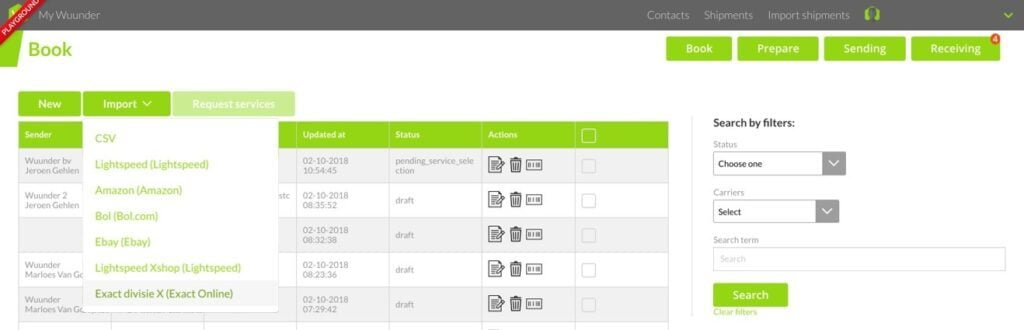
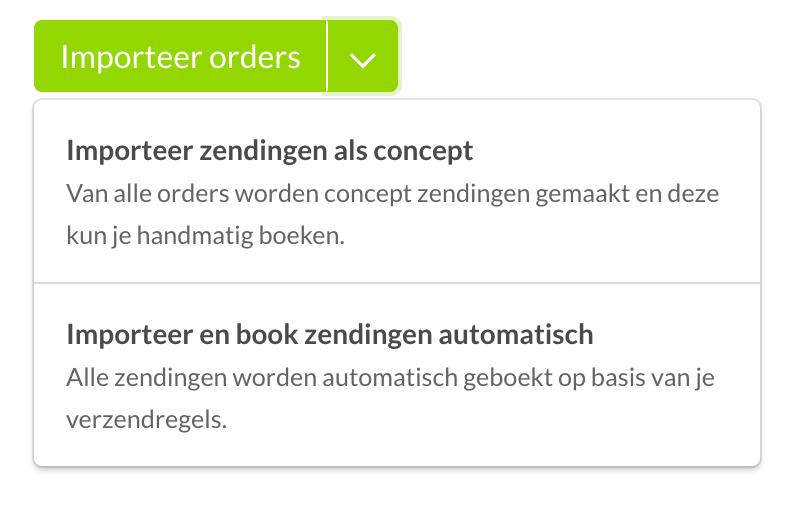
- You now have two choices (dropdown menu in the green button):
- Import all orders as drafts: you import all orders and then book them all in one go or one by one. Use this option if you want to use “Verzenden via Bol.com”.
- Import and book all orders automatically: you import and book all orders in one go. This option is particularly useful if you work with import rules and shipping rules.
- You'll find more information about the checks we run and possible error messages, such as a missing pickup address, in Preparing a shipment.
- Want to know how to send these imported drafts easily in one go? Read Book multiple shipments at once.
With “Verzenden via Bol.com”, we show the imported shipment in the “Book” overview on the day you need to send the order. In the filter (to be booked on), you can see which orders are ready to be sent at a later date. Bol sometimes changes the delivery time if carriers need longer to deliver shipments. We therefore recommend deleting the old orders (with a delivery date in the future) and importing them again before you import new orders. That way you can be sure you'll send the shipments at the right moment.
- When booking, choose the carrier “Bol.com”. Your shipments will then be booked via Bol.com with DPD, PostNL or DHL eCommerce, just as if you were booking directly with that carrier through Wuunder. You'll find the shipping label in the usual place (Preparing a shipment).
- Once you've booked a Bol.com order, you can't book the same order with Bol.com again. Bol.com checks whether a label has already been issued for the order and doesn't allow two labels for the same order.
- Want to print all your packing slips, shipping labels and commercial invoices quickly? You'll find everything you need in Save time printing shipping labels.
Was this article helpful?
That’s Great!
Thank you for your feedback
Sorry! We couldn't be helpful
Thank you for your feedback
Feedback sent
We appreciate your effort and will try to fix the article