Work even more efficiently by booking all your draft shipments with your favourite carriers in one go. Once you've imported your orders with a simple CSV import or webshop plugin, or entered them manually, you can book several shipments at the same time. In this user guide we briefly explain how it works. Stuck, or got a question? Just get in touch with our customer service.








SELECT ALL THE SHIPMENTS YOU WANT TO BOOK
- Set your preferred default service once via the Settings menu. Read more about the settings menu in Completing missing details. Let us know if you can't find your favourite carrier and service in the overview. We use this preferred service if you don't specify a transport service in the shipping tool or API.
Set up import rules and/or shipping rules if you don't always want to use the same service. That way you can, for example, always use DHL Parcel for Germany, PostNL for letterbox parcels within the Netherlands, or add extra insurance to a valuable shipment. Selecting transport services automatically saves you a lot of time. - Select all the orders you want to book a shipping label for with a carrier. The drafts are shown in the Book overview in MyWuunder. Select all the shipments you want to send (using the tick box in the last column of the table) and click “Book Selection”.
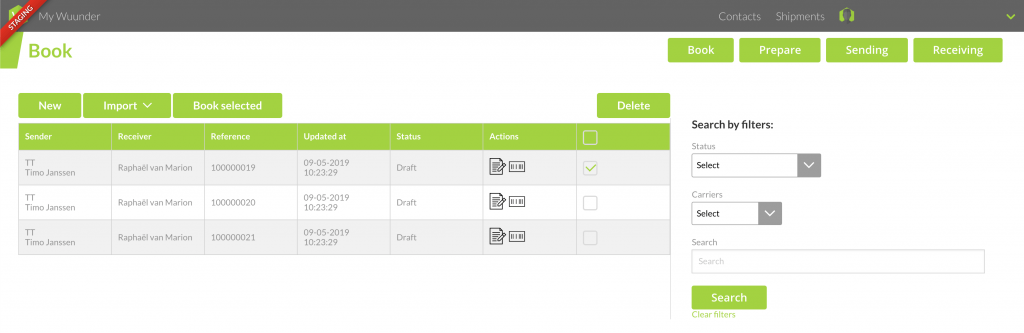
- Want to book all orders in one go? Tick the box in the last column of the green selection bar. This selects all orders on the first page. To book all open drafts, select the green underlined text in the grey bar (“select all”). Then press the green “Book Selection” button. We'll then request the chosen service for all drafts on all pages.

- You can also make specific selections with the search function (“search by filters”) next to the table. This lets you select specific drafts by, for example, order number, order content, or town or country of delivery. Once a shipment has been booked, you can also search for shipments booked with a specific carrier, or shipments where we've found an issue (“Pending service selection”).
- We then show an overview of all the shipments and the service we want to book for you. If you like, you can take out shipments you'd rather book differently (PostNL letterbox, PostNL, etc.). Click the bin icon next to these shipments. They're then removed from the overview but kept as drafts.
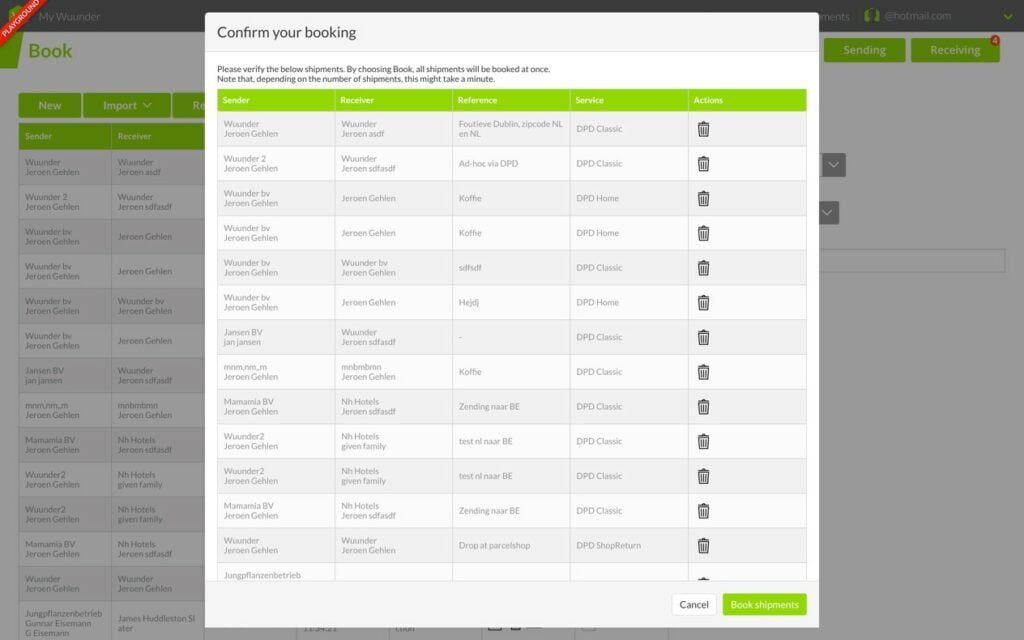
- Then choose “Book shipments” and all shipments are booked straight away. If you book dozens of shipments at once, this can take a little while. But you can simply carry on working, because we book these shipments in the background. In the draft overview you'll see the booked shipments appear with the status “booked”. While a shipment is being booked, you can't take any action on it. This prevents you from accidentally booking a shipment twice.
- If we can't book a shipment, we'll let you know (“Booking failed”) and you can book it the normal way in the Book overview (where you can, for example, correct a wrong postcode). More information in Quickly book a shipment.
- Curious about the checks we run and possible error messages, such as a missing pickup address? Read more in Worry-free shipping.
- Once you've booked the shipments, we pass this status on to the platform you booked them from via Wuunder StoreSync (Bol.com). This way you can see in every platform that all shipments are ready for transport. As well as the updated status in your shop, we also pass on the track & trace details so you can easily follow the shipment within the platform.
- Want to know how to print these bookings easily? Read Save time printing shipping labels.
Was this article helpful?
That’s Great!
Thank you for your feedback
Sorry! We couldn't be helpful
Thank you for your feedback
Feedback sent
We appreciate your effort and will try to fix the article