Once you've booked a shipment, there are several ways to print the shipping labels: via the Wuunder browser, a webshop system or MyWuunder. If you add an email address to the sender address, we'll also send a shipping label there straight away.
ONE CLICK PRINTING
Want to print lots of shipping labels at once? Then One Click Printing is the fastest way. Because you install the application on your computer, you don't have to open a browser page with the shipping label: you send it straight to your printer. Activating One Click Printing on your computer is super easy.
SCAN AND PRINT
Have a scanner? Then you can save loads of time. With scan and print, you only scan the packing slips and the shipping labels roll out of your chosen printer automatically, without touching your PC. Find out exactly how scan and print works in Scan and print shipping labels in a flash.
PRINT ALL SHIPPING LABELS FROM ONE OVERVIEW
- Once you've booked a shipment, you can quickly print all your labels from the Prepare overview in MyWuunder (go to Shipments and select Prepare). Here you'll see all the shipments you've booked successfully that have a shipping label ready to print.
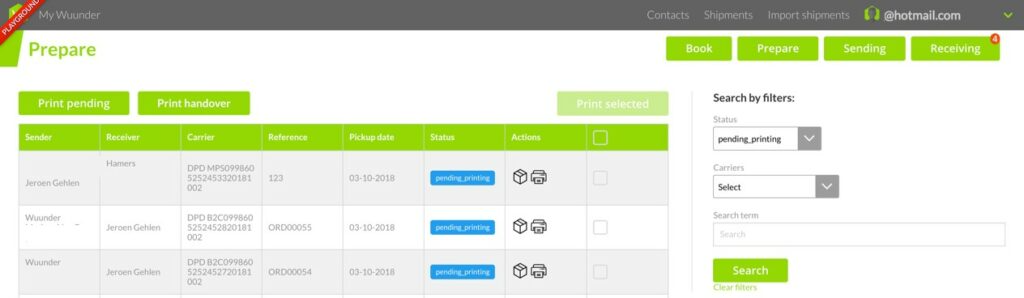
- You can print all (not yet printed) labels in one go with "Print pending". We'll then print all the shipping labels you haven't printed before. Of course, you can also print each shipping label individually or in groups. Simply select the labels you want to print and click "Print selected".
- Want to print a shipping label in even fewer steps? Install the Wuunder One Click Printing application on your PC. It prints a label straight to a printer of your choice, such as a Zebra (ZPL) or Dymo printer. No more switching between your normal printer and your label printer. Easy as that! You can install the One Click Printing application via the Settings menu in MyWuunder. More info in One Click Printing.
- If you connect a (Bluetooth / USB) scanner to your PC, you can even scan packing slips and print in MyWuunder without touching your PC, with Scan and print.
- Using a normal printer with sticker sheets? Then you'll probably want to print 4 labels on one A4 sheet. In the section "Printing 4 labels on one A4 sheet (Mac or Windows)" below, we explain how to do this easily.
- Stick the shipping labels on the longest side of the package. Read our tips on attaching labels.
- We don't show return labels in the Prepare overview in MyWuunder, because we email them to the sender. Still want to download or print return labels yourself? In the "Receiver overview", click the chat bubble of the return shipment and then the link to the shipping label. Please note: shipping labels for DHL Europlus must be larger (102×210 mm) than the standard shipping labels for, for example, PostNL, DPD and DHL For You.
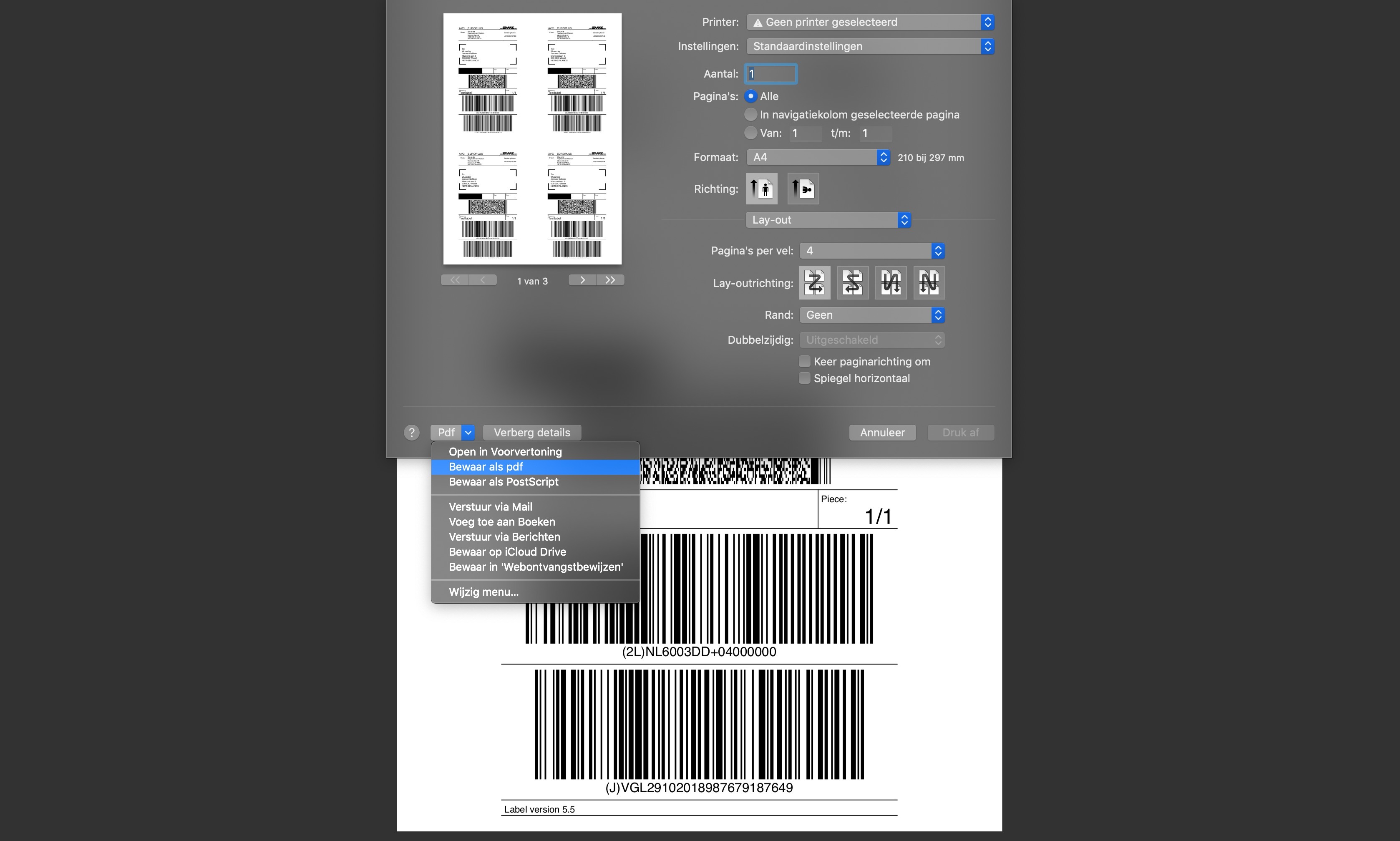
PRINTING FOUR LABELS ON ONE A4 SHEET (MAC)
Have A4 sticker sheets and want to print 4 labels on each? That's pretty easy.
- First, open the PDF file containing all the labels.
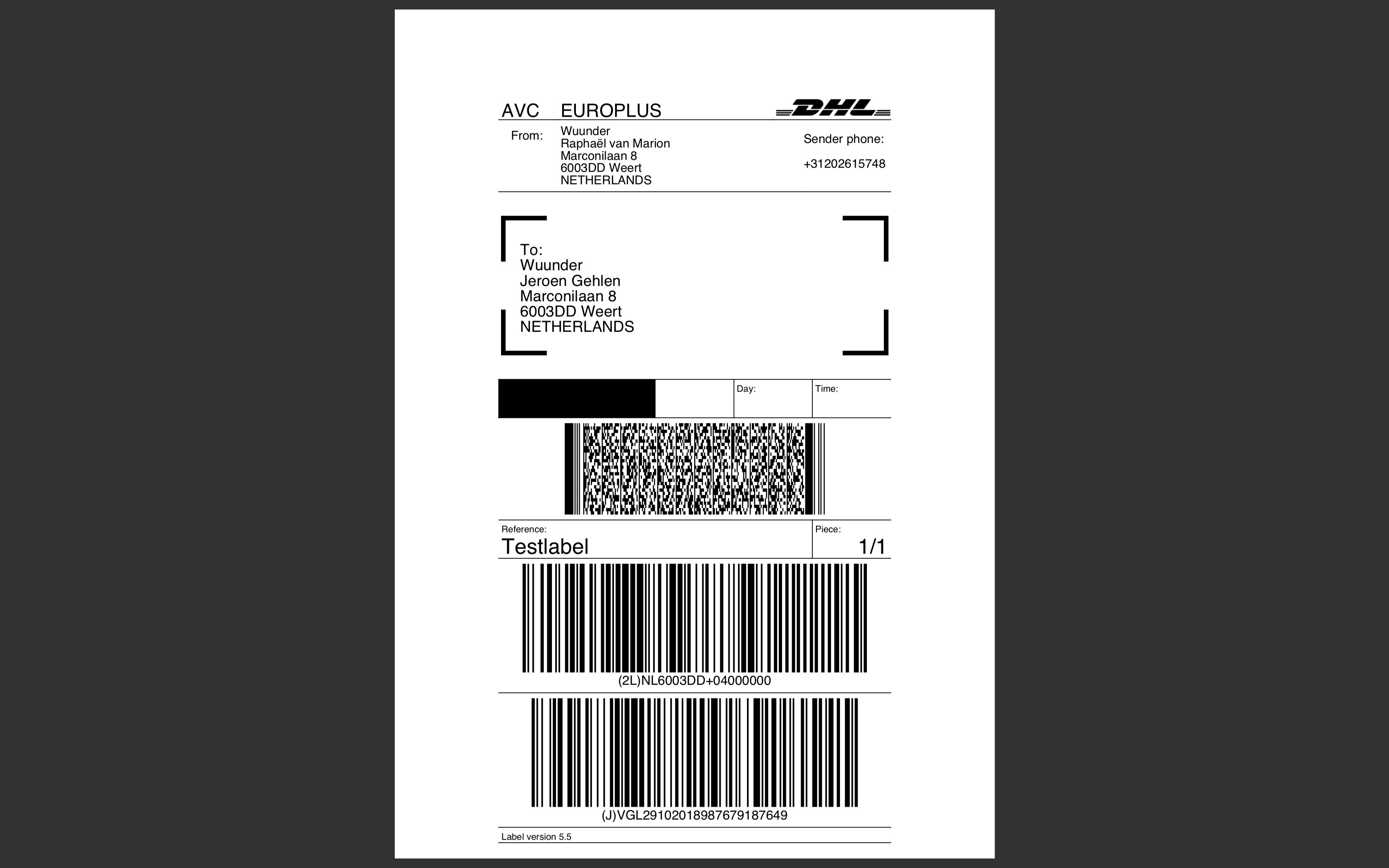
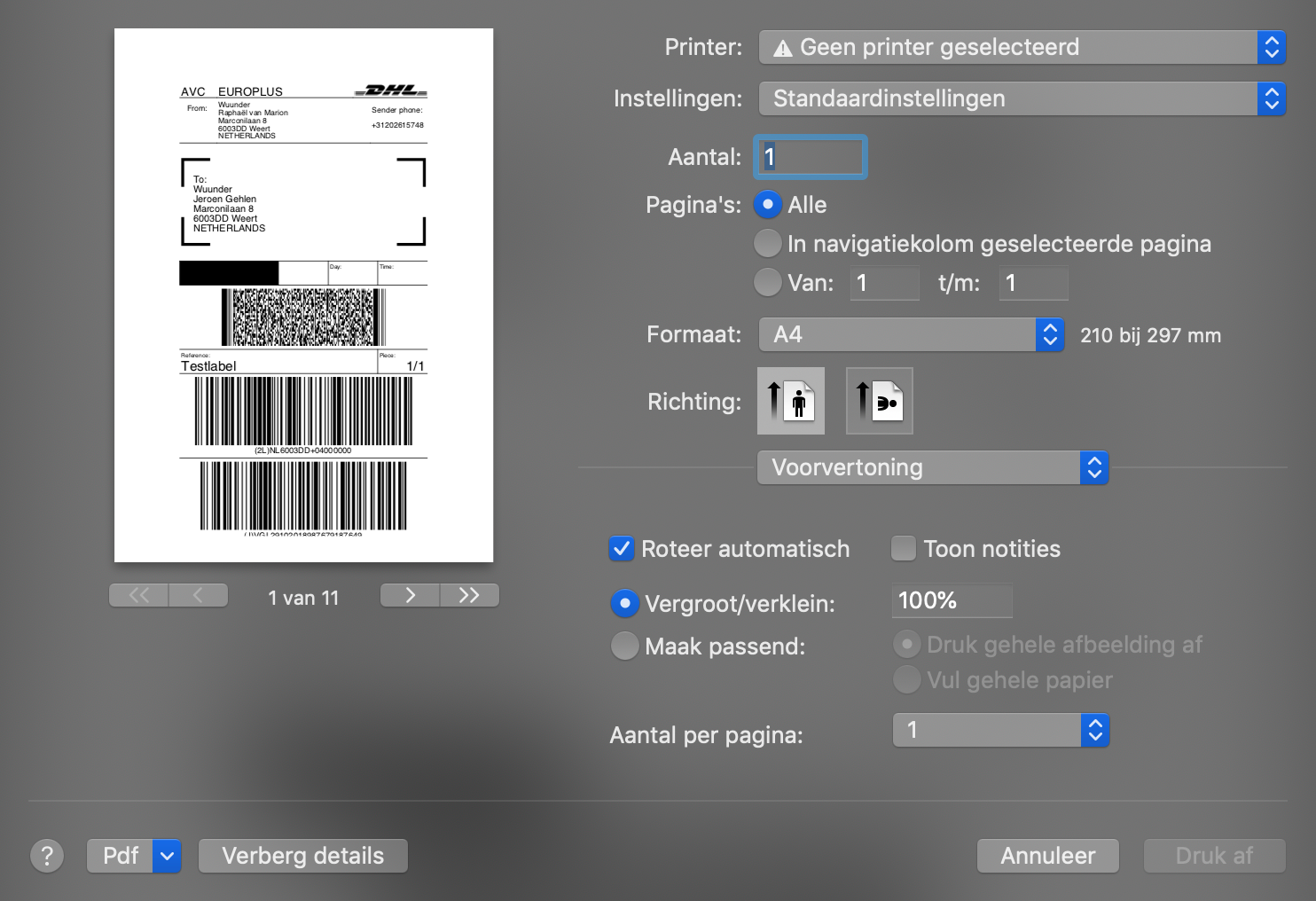
- Then press COMMAND + P to open the print dialogue.
- In the dropdown menu that says "Preview", choose "Layout". Then under "Pages per Sheet", choose how many pages you want on one sheet (in this example, 4 pages per sheet).
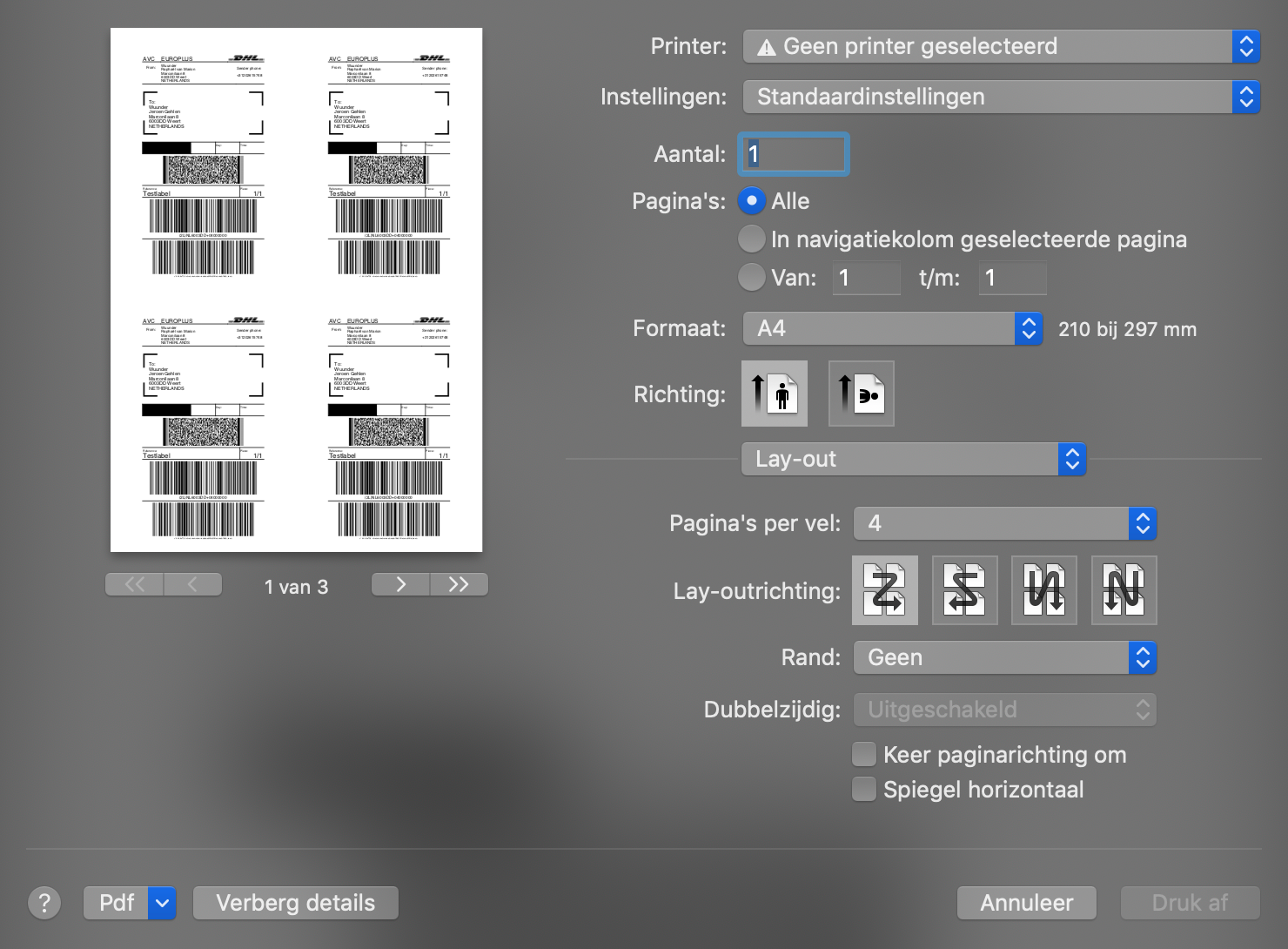
- Finally, click "Save as PDF" at the bottom left of the window. You can then give the PDF file a new name and save it somewhere.
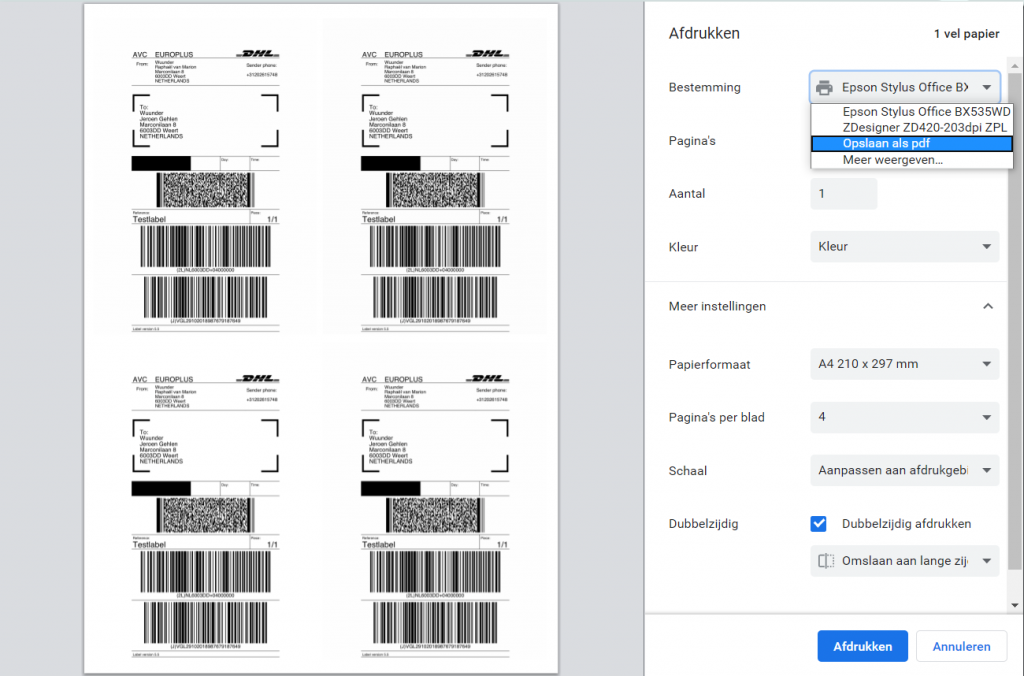
PRINTING FOUR LABELS ON ONE A4 SHEET (WINDOWS)
Have A4 sticker sheets and want to print 4 labels on each? That's pretty easy.
- First, open the PDF file containing all the labels.
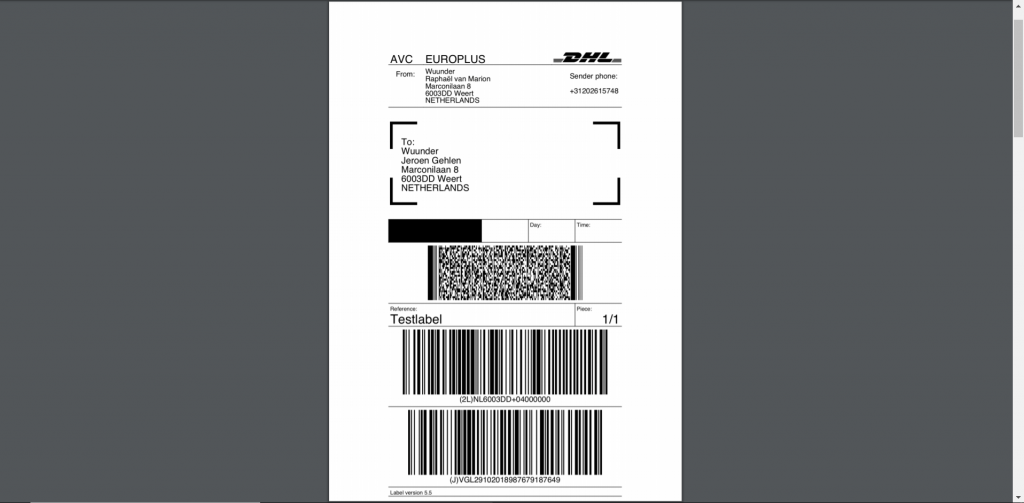
- Then press Ctrl + P to open the print dialogue.
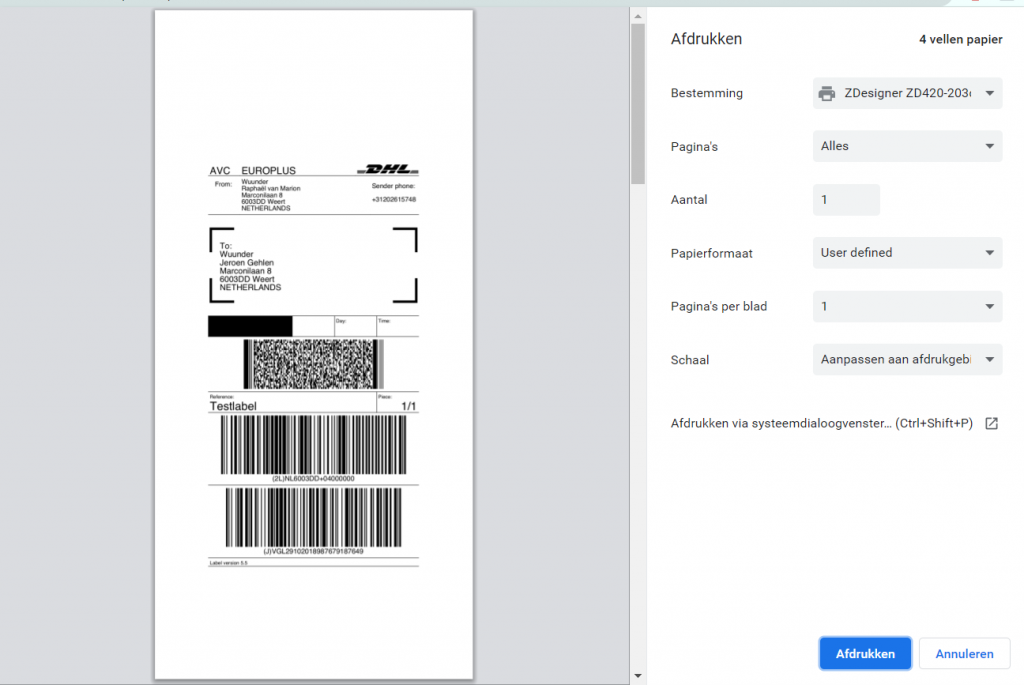
- In the dropdown menu, choose "More settings". Then under "Pages per sheet", choose how many pages you want on one sheet (in this example, 4 pages per sheet).
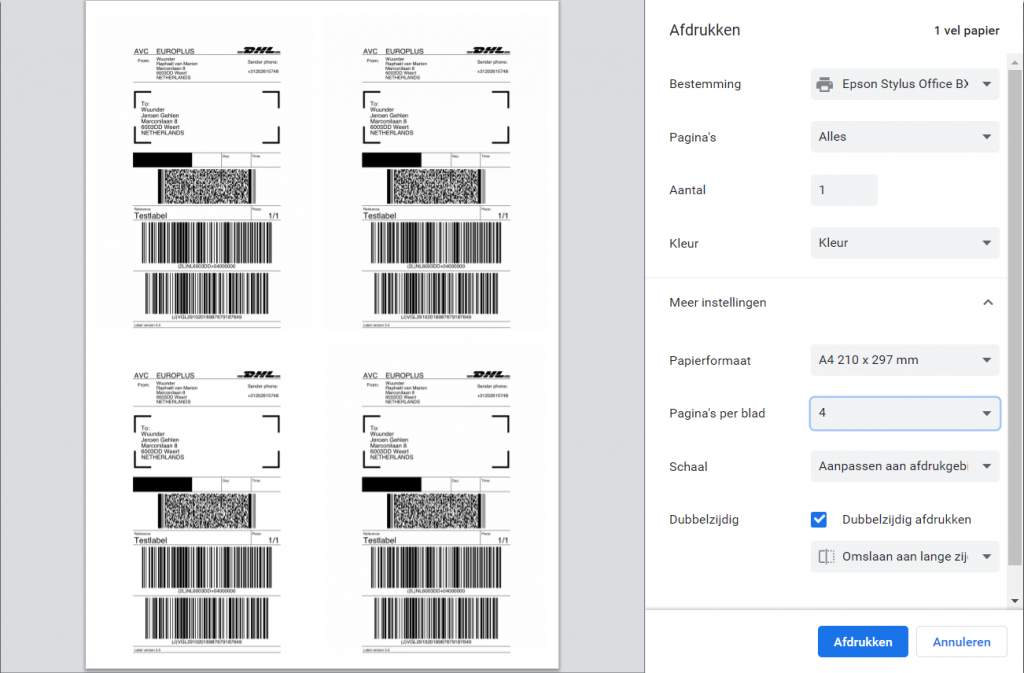
- Finally, under "Destination", select "Save as PDF". You can then give the PDF file a new name and save it somewhere.
Was this article helpful?
That’s Great!
Thank you for your feedback
Sorry! We couldn't be helpful
Thank you for your feedback
Feedback sent
We appreciate your effort and will try to fix the article