There are several ways to send (non-EU) shipments quickly and without worries: via a webshop system, an API connection or MyWuunder. It's fully automatic. Want to check or complete the content of an order? Click an unbooked order in the “Book” screen. This takes you to an overview page with all the details needed to book a shipment.
CHECK THE CONTACT DETAILS AND AVOID A RETURN
- We try to keep the number of returns in your business down by checking all contact and order details during booking. If required details are missing, we automatically show error messages (in red), and if we think details are incorrect, we make suggestions (in orange). We also offer possible solutions, such as the correct street name or town.
Please note! Sending something to the United Kingdom? Then two extra fields appear under ‘Shipper’ where you need to enter your EORI and VAT number. These numbers have been required for shipments to the UK since 1 January 2021. You can find out how to request them from the Dutch Tax and Customs Administration (Belastingdienst). If you use the API to book shipments, read more about sending these details automatically in the technical API guide.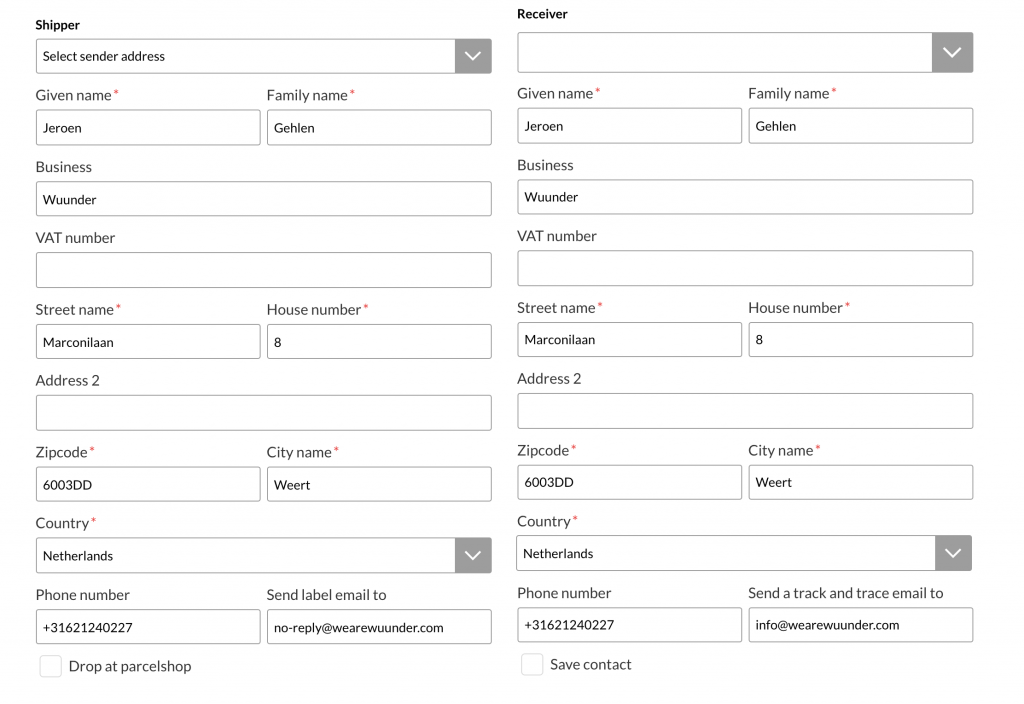
- Pickup details: Check the contact details and the address where the shipments can be collected. If needed, select a different pickup address from the dropdown menu or edit it. By selecting “Drop off at a parcelshop”, you indicate that no collection by a driver is needed.
You can easily select pickup addresses where you regularly have shipments collected from the dropdown menu by creating them under Shipping addresses. You can also add your VAT number and EORI number here, so you don't have to enter them for every shipment. This page also shows any regular pickup arrangements made with carriers. For each pickup address, you can see which carriers collect shipments there, and on which days and at what times.
Having a shipment collected from a supplier (drop shipment), or want a shipment returned? Remember to include the email address. We'll then automatically send the shipping label to that person. - Delivery details: Check the contact details and the address the shipments are going to. Use the dropdown menu to search for saved contact details. Create new contact details by saving them, or go to contacts. Here you can change details and add new contacts, for example by importing them via CSV.
Please note: sending to PO Box numbers is only possible with local postal services such as PostNL, not with express carriers such as UPS, TNT, FedEx and DHL. - We check whether postcodes are in the right format. Some carriers, for example, don't accept the Belgian postcode B-1234 but require 1234. Wuunder automatically removes the letters for you. Don't find this useful? You can switch it off via the import rules in your MyWuunder account settings.
- Try to add email addresses wherever possible, so we can let the recipient know the shipment is on its way (track & trace) and give a specific delivery time (depending on the carrier). A phone number helps the driver deliver the shipment more easily if they can't find the right address (depending on the carrier).
CHECK THE PACKAGING
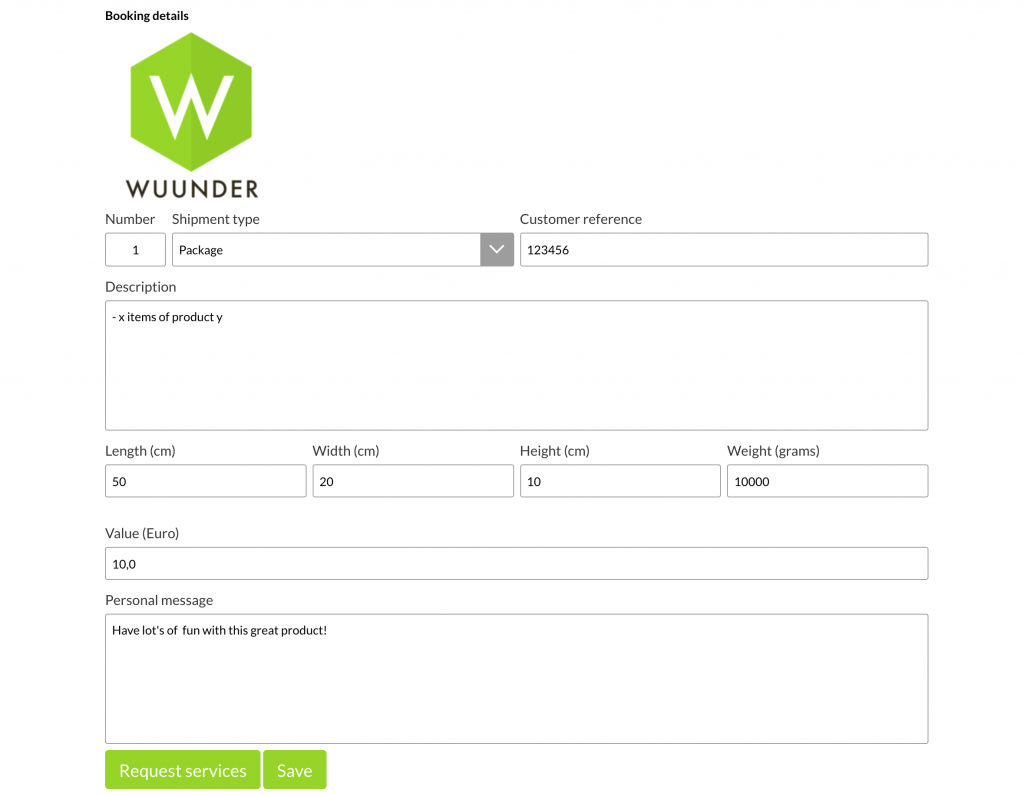
Want to send several packages to the same address? Enter this under “Number”. For example, enter 2 and you'll receive 2 shipping labels.
- Check that the type of packaging is right: is the shipment a document, parcel or pallet? Shipments over 30 kg usually need to go on a pallet. If the customer has placed several orders (with the same delivery address), you can of course also send them as one parcel or pallet. Decide which outer box you need to send everything together and adjust the details.
- By default, we take the order number from your webshop, marketplace, or the number you sent through the API. This number also appears on the shipping label. If there's no reference number, we show the text from the description of the goods. We also use this text in the email to the recipient. Want a standard text here, such as “thank you for your order”? You can add it via the Settings menu.
- Are the dimensions, weight, value and content correct? If you don't use these details in your webshop, you can use default values. You set these up via the Settings menu. The value is only used for specific carriers, such as UPS, for example to insure shipments.
Please note: if the volume and weight aren't correct, most carriers will charge a surcharge. - Use the Chat message to make your communication with your customer more personal. We show this message in the email to the recipient, together with the first picture you use for the item in your webshop (if possible via your webshop system).
- Want to include your company logo or another picture in the email to your customer by default? You can upload that picture in the Settings menu.
CHECK THE CUSTOMS DETAILS
- If you want to send shipments to a destination outside the EU, customs needs a commercial invoice and sometimes you need permits.
- At the bottom of the page, under order line details, select “New” and enter for each item:
- Number of identical items
- Short description of the item in English
- Product code and EAN code (optional, handy for the people getting the shipment ready for transport)
- Value (excluding VAT)
- Weight
- HS code
- Country of origin
Always sending the same products? Then you can have the details filled in automatically. You set this up via the import rules in the Settings menu. Here you can also add a blue signature to every sales invoice.
Want to know more about the commercial invoice? Read on in Clear customs with ease.
Click “Save” if you want to book later, or click “Request rates” if all the details are correct. You'll then go to the page where you can choose from the different transport services. You'll find more information about this in Quickly send a shipment.
Was this article helpful?
That’s Great!
Thank you for your feedback
Sorry! We couldn't be helpful
Thank you for your feedback
Feedback sent
We appreciate your effort and will try to fix the article