Process orders as efficiently as possible by printing your shipping label straight away with a (USB or Bluetooth) barcode scanner. Scan a barcode with the order number on your packing slip using the Wuunder desktop app, and the matching shipping label is printed immediately. Incredibly handy for a warehouse that sends lots of shipments.
Want to know more? Feel free to get in touch with our customer service colleagues, with no obligation.
THE STEPS ARE SIMPLE
- Start by booking your orders via MyWuunder, a webshop module or our API. Make sure you use a unique order number/reference number for every booking. You'll need this number later to print your order quickly.
- Next, print the packing slips Wuunder creates for every shipment. Want to use your own packing slips? Just make sure there's a barcode in Code 128 or UPC-A format on the packing slip. This barcode must contain the order number/reference number you used when booking the shipment.
- You'll also need the One Click Printing app, which you install on the PC where you want to scan and print the shipping labels. With this app you can use a chosen label printer and/or normal printer at every workstation.
- Connect the scanner to the PC where you've installed the Wuunder One Click Printing app.
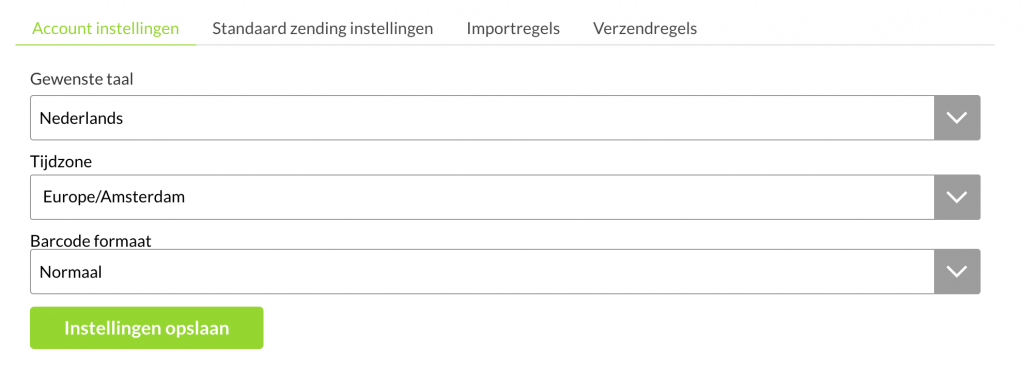
5. Want to work with UPC-A barcodes that include a check digit? You can change the barcode format in the settings menu under Account settings.
START SCANNING!
- Create a packing slip via MyWuunder, your webshop or another system you work with.
- Open the desktop app you've just installed on your PC and go to ‘Prepare’ in the ‘Shipments’ tab. Click the scan icon next to ‘Print selected’ and scan the barcode on the packing slip.
- The shipping label is printed straight away on the printer you've chosen. Super handy if you want to process your orders one by one, and also to make sure you use the right label for each order.
- Then print the commercial invoice that Wuunder creates for every order to a non-EU country.
Please note: you can only print shipping labels for booked orders that haven't been collected by the carrier yet.
NEVER SEND AN ORDER TWICE AGAIN
Scan and print is designed so that you can only print each shipping label once. This stops you from accidentally printing a shipping label twice. If you've booked a shipment made up of two items (packages), the first scan rolls ‘label 1’ out of the printer and the second scan ‘label 2’. If you then scan a third time, we immediately warn you that all labels have already been printed. Easy as that!
Was this article helpful?
That’s Great!
Thank you for your feedback
Sorry! We couldn't be helpful
Thank you for your feedback
Feedback sent
We appreciate your effort and will try to fix the article