Importing contacts via CSV is easy in MyWuunder. That way you never have to retype addresses or other details again. Can't get the import to work, or want us to help you? Just get in touch with our customer service.
IMPORTING CONTACTS
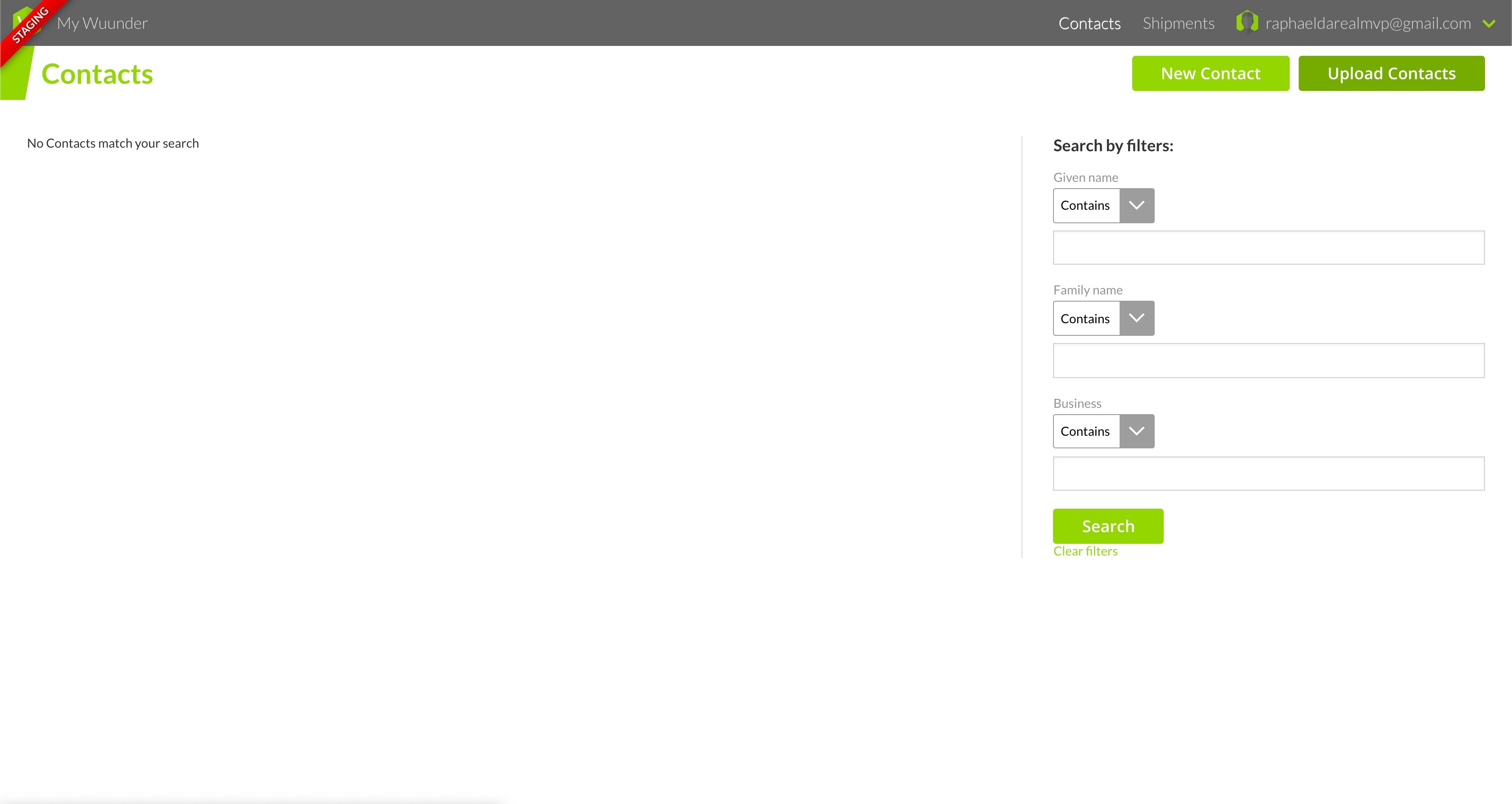
- In MyWuunder, use the grey bar at the top to go to the "Contacts" overview and click "Upload contact" at the top right.
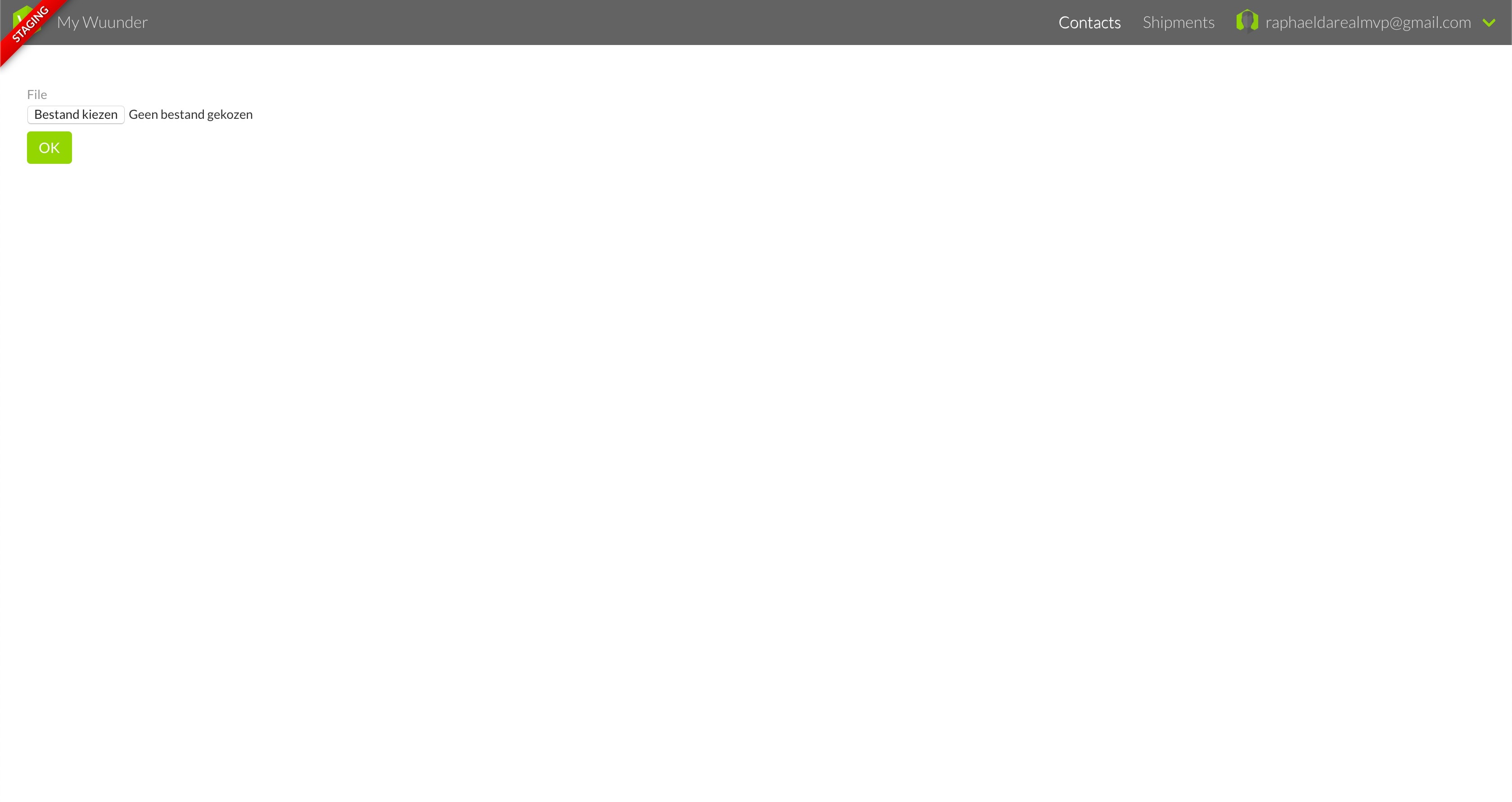
- Select "Choose file".
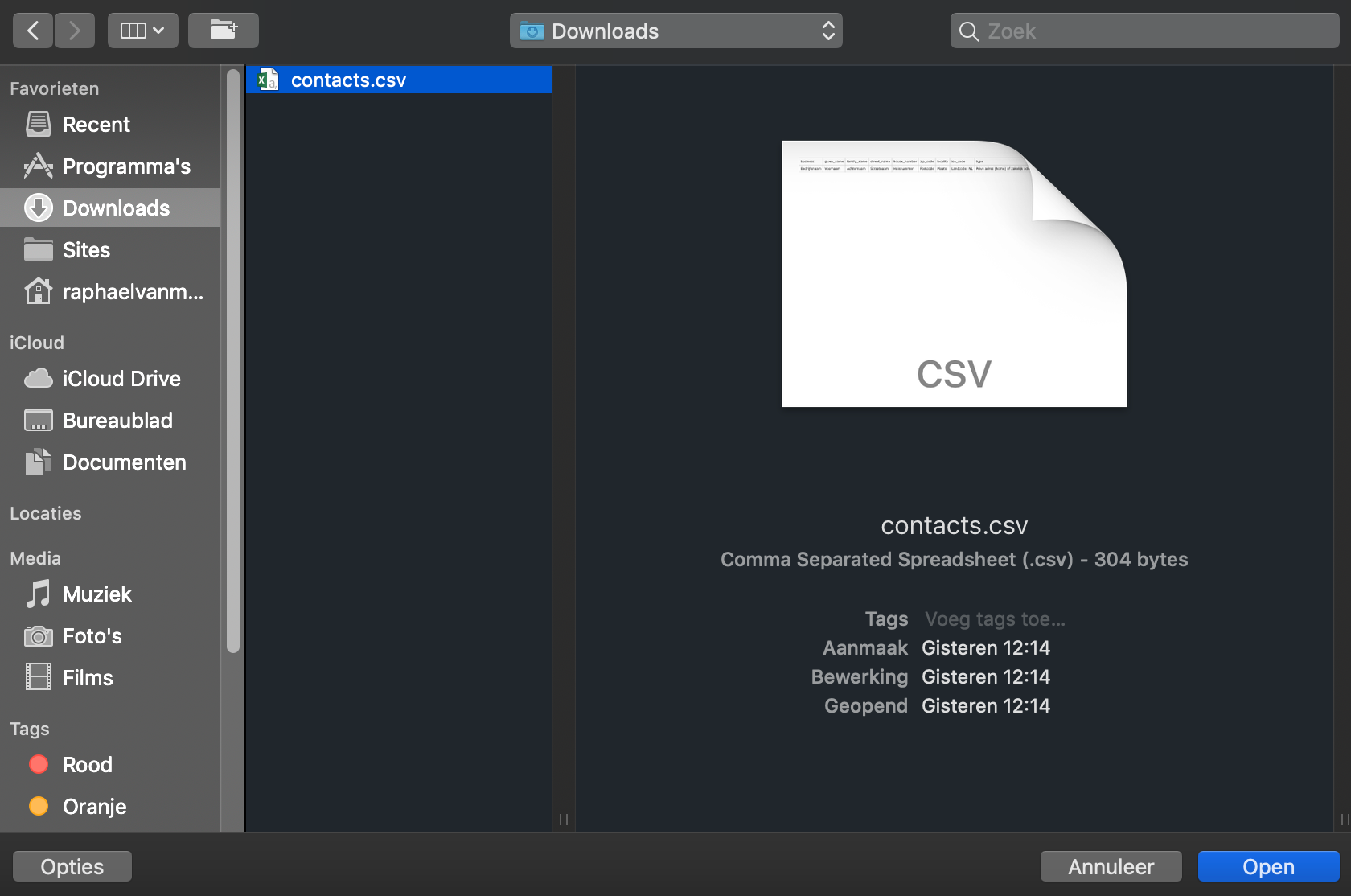
- Select the CSV file with the contacts you want to import. Always use the required fixed format (see the next section).
CONTENT OF THE CSV FILE
Every CSV file must be built in exactly the same way. In the first row of the CSV, put the first column of the table below. In the second row of the CSV file, put the information you want to import.
| FIRST ROW OF YOUR CSV | EXPLANATION |
|---|---|
| business | Company name |
| given_name | First name |
| family_name | Last name |
| street_name | Street name |
| house_number | House number |
| zip_code | Postcode |
| locality | Town or city |
| country_code | Use the 2-letter ISO country code here. You can look up the code for each country here. |
| type | Residential address (home) or business address (business) |
| phone_number | Mobile number including country code (+31612345678) |
| email_address |
Was this article helpful?
That’s Great!
Thank you for your feedback
Sorry! We couldn't be helpful
Thank you for your feedback
Feedback sent
We appreciate your effort and will try to fix the article