Before using Paazl Scan & Print, you will have to configure it to work with your webshop and printer. Paazl Scan & Print's "Settings" screen also allows you to specify shipping options for specific countries.
Click "Settings" to configure Paazl Scan & Print for your particular situation.
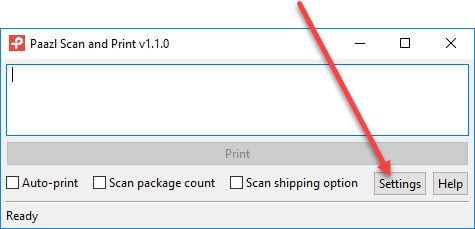
You will see two tabs that you can use to configure Paazl Scan & Print.
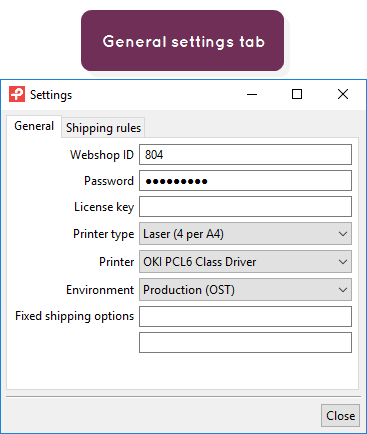
General
Use the "General" tab to specify which webshop Paazl Scan & Print should connect to, which printer to use, and which shipping options cannot be changed.
| Setting | Explanation |
|---|---|
| Webshop ID | Your webshop's unique ID. You will find it in your Paazl account under Settings > Account > My account 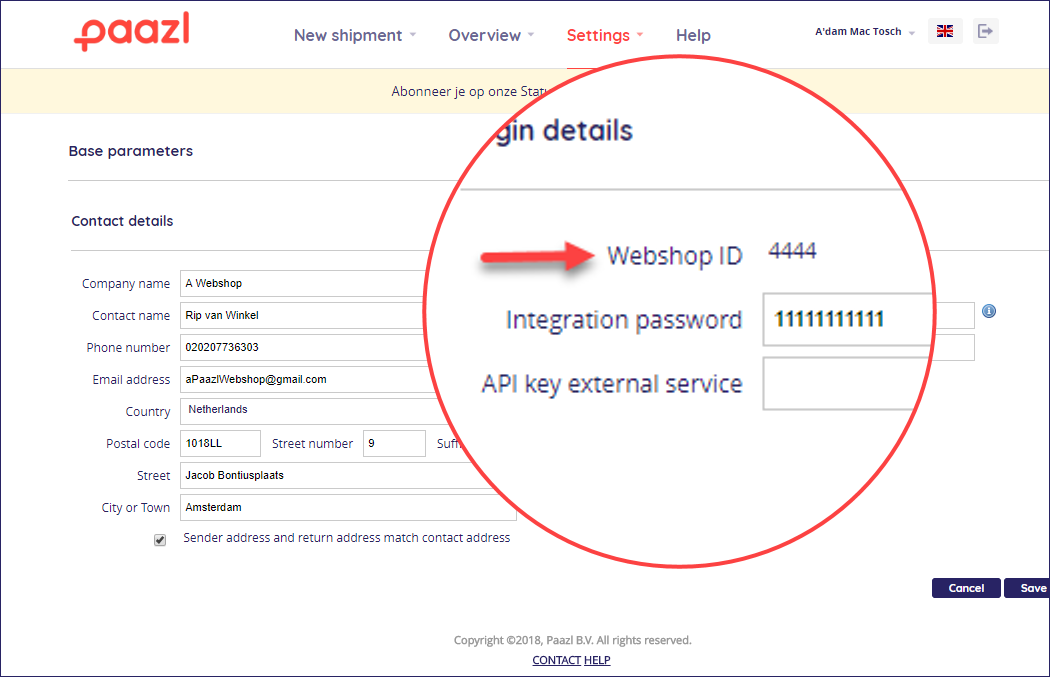 |
| Password | Your webshop's integration password (not your login password). You will find it in your Paazl account under Settings > My account 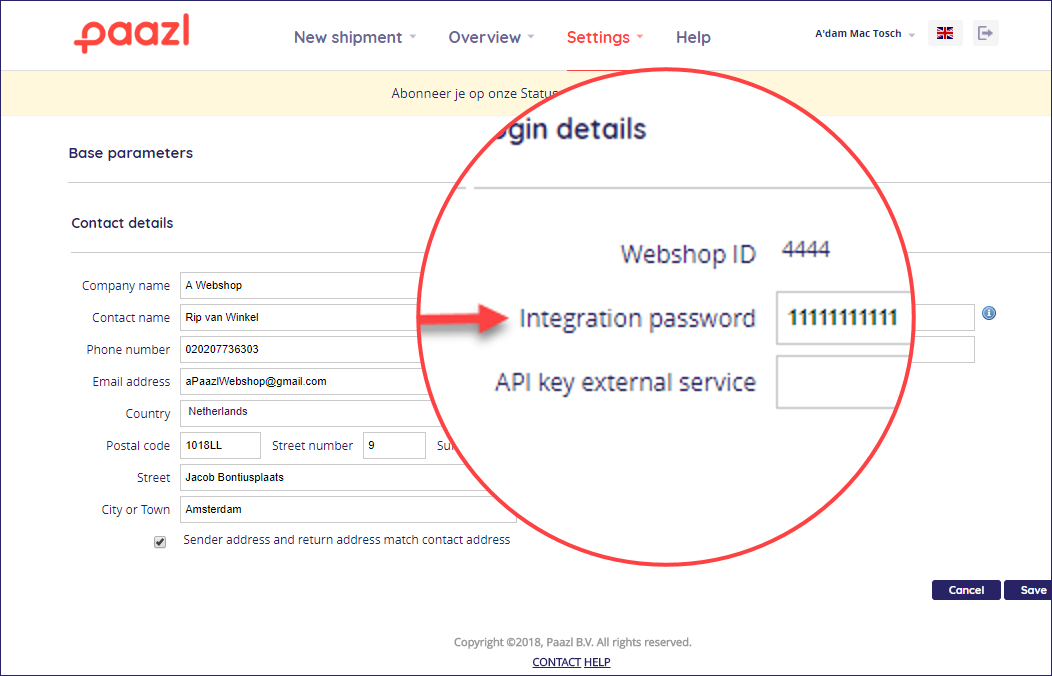 |
| License key | (Legacy) Some clients may still prefer to type in their Paazl Scan & Print license code here but this is no longer required. |
| Printer type | Either a laser or a Zebra printer |
| Printer | The specific laser or Zebra printer model. The list to choose from contains the Windows printers you have installed. |
| Environment | Choose whether you want to connect to:
Note Web services—such as those used by Paazl Scan & Print—use ost.paazl.com as their production address. However browser users will see that they are re-directed to ship.paazl.com, which is the address of Paazl's production user interface. |
| Fixed shipping options | It is possible to use Paazl Scan & Print to change a shipment's shipping option (see Scan shipping option). "Fixed shipping options" lets you specify which shipping options should not be changed. Use Paazl's own shipping-option identifiers to indicate which shipping options you want to fix. You will find them in your Paazl account under Settings > Account > Overview of shipping options. 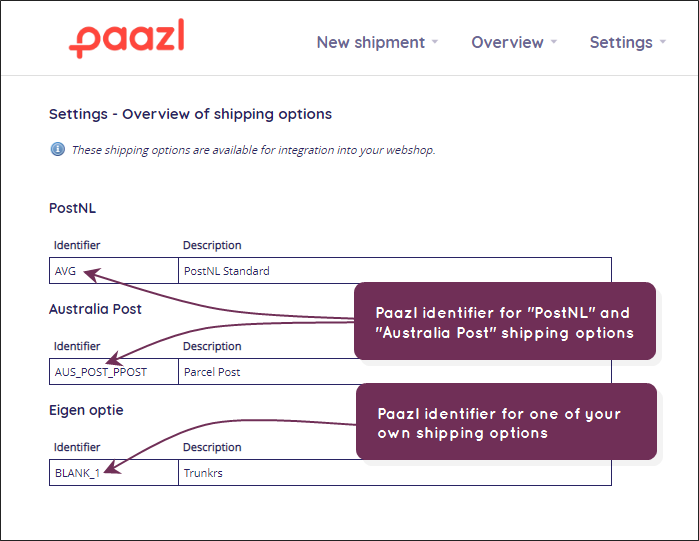 |
Shipping rules
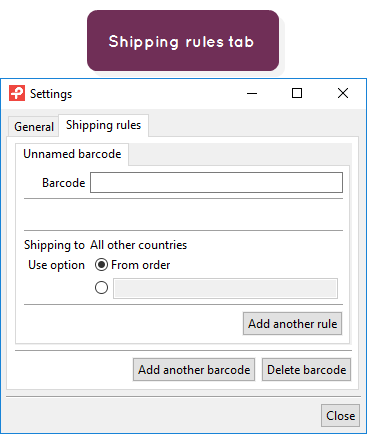
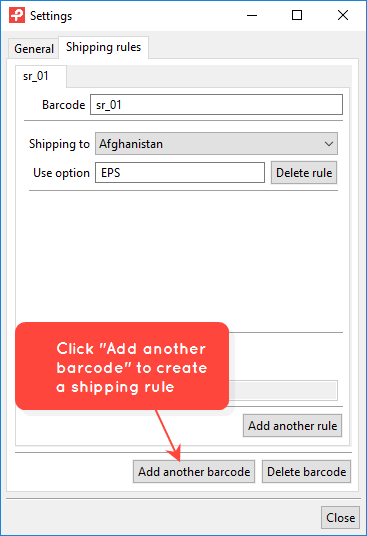
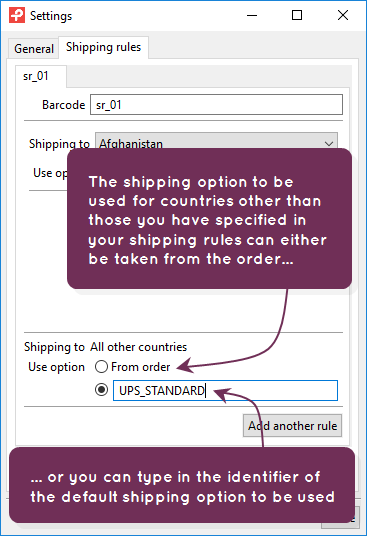
Use the Paazl Scan & Print Shipping rules tab to create sets of rules specifying which shipping options should be used for specific countries.
Each set of rules has a name you assign to it. If you scan a barcode generated with this name, Paazl Scan & Print will follow the rules associated with that name to decide which shipping option to use. See Using Paazl Scan & Print for information on how this works in practice.
Note
You have to have "Auto-print" in the home screen disabled if you want to use the shipping rules you define in this tab. Otherwise, Paazl Scan & Print will use the shipping option defined in the order.
Note
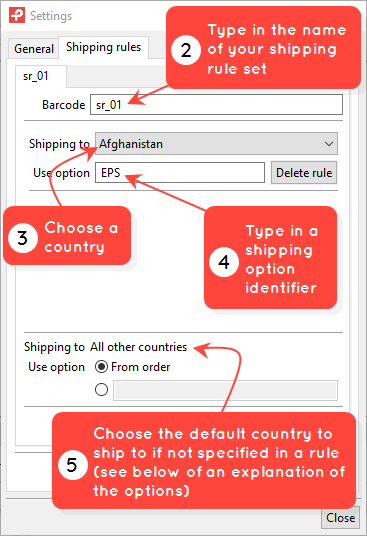
You will find the shipping option identifiers to type into the "Use option" fields in your web app account under Carriers > Shipping options.
The steps below describe how to work with this tab.
Was this article helpful?
That’s Great!
Thank you for your feedback
Sorry! We couldn't be helpful
Thank you for your feedback
Feedback sent
We appreciate your effort and will try to fix the article