This article explains how to insert changeable information into your email notifications. This might be the name of your webshop, the name of the carrier concerned, or address information.
Check out our Email templates video tutorial for an introduction to customizing your email notifications.
You can access Paazl's notification editor by clicking on the "Edit template" links in the web app under Carriers > Notifications > Email templates.
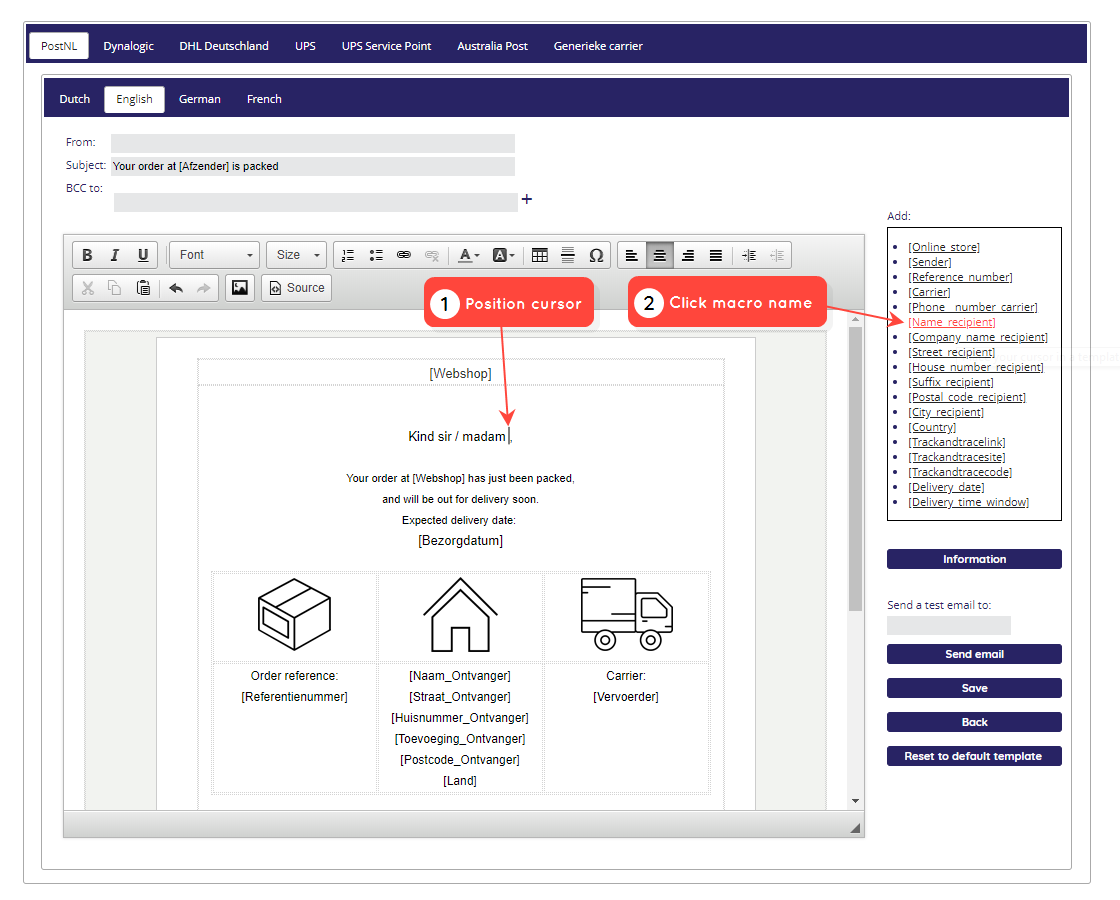
You will see a list of macro names on the right-hand side of the notification editor. To insert a macro in your notification, place your cursor where you want the macro to be inserted, and click the macro name on the right.
Note
Don't drag the macro to the template! Simply place your cursor where you want it, and click the macro's name.
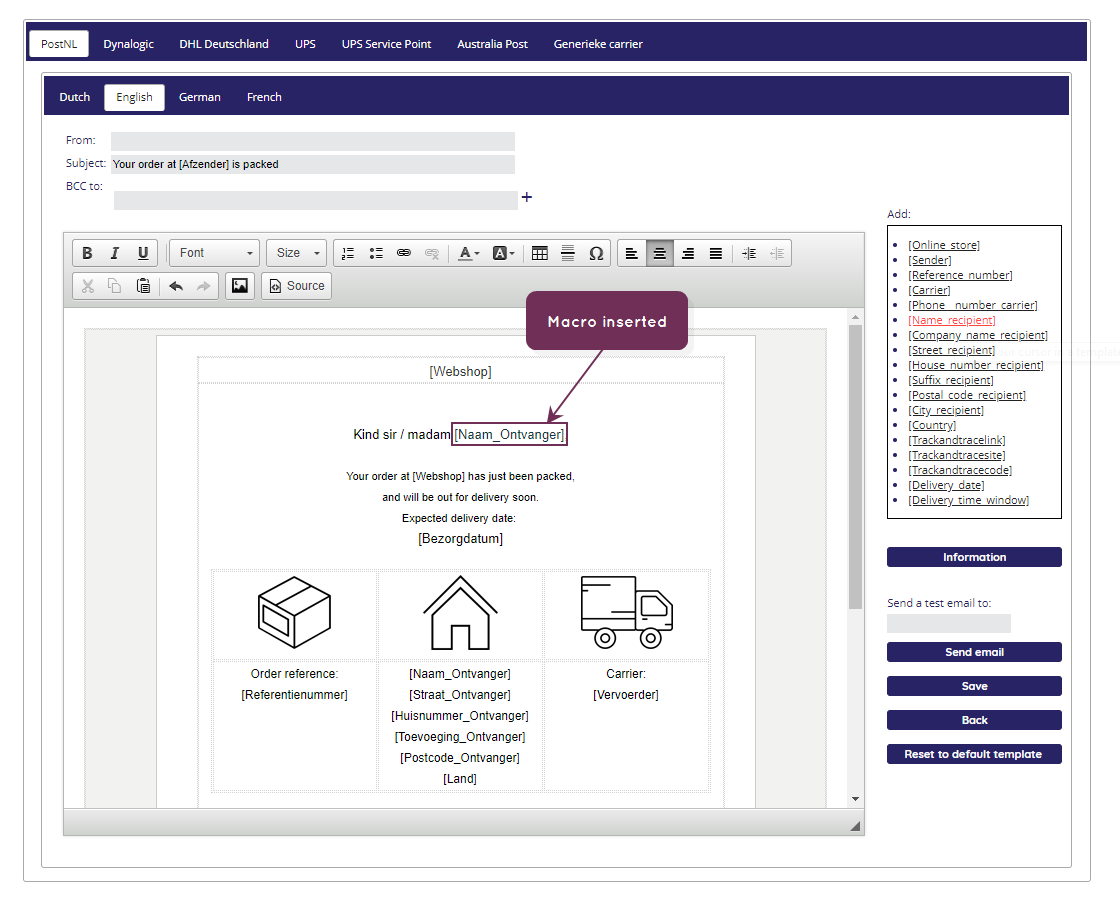
The values of the macros are taken from data stored in the Paazl database when an order is committed, or, in some cases, from static data configured for your webshop account.
Note
The macro names you see on the right will either be in English or Dutch. However, the inserted macros will always show the Dutch name. This will not affect the inserted value.
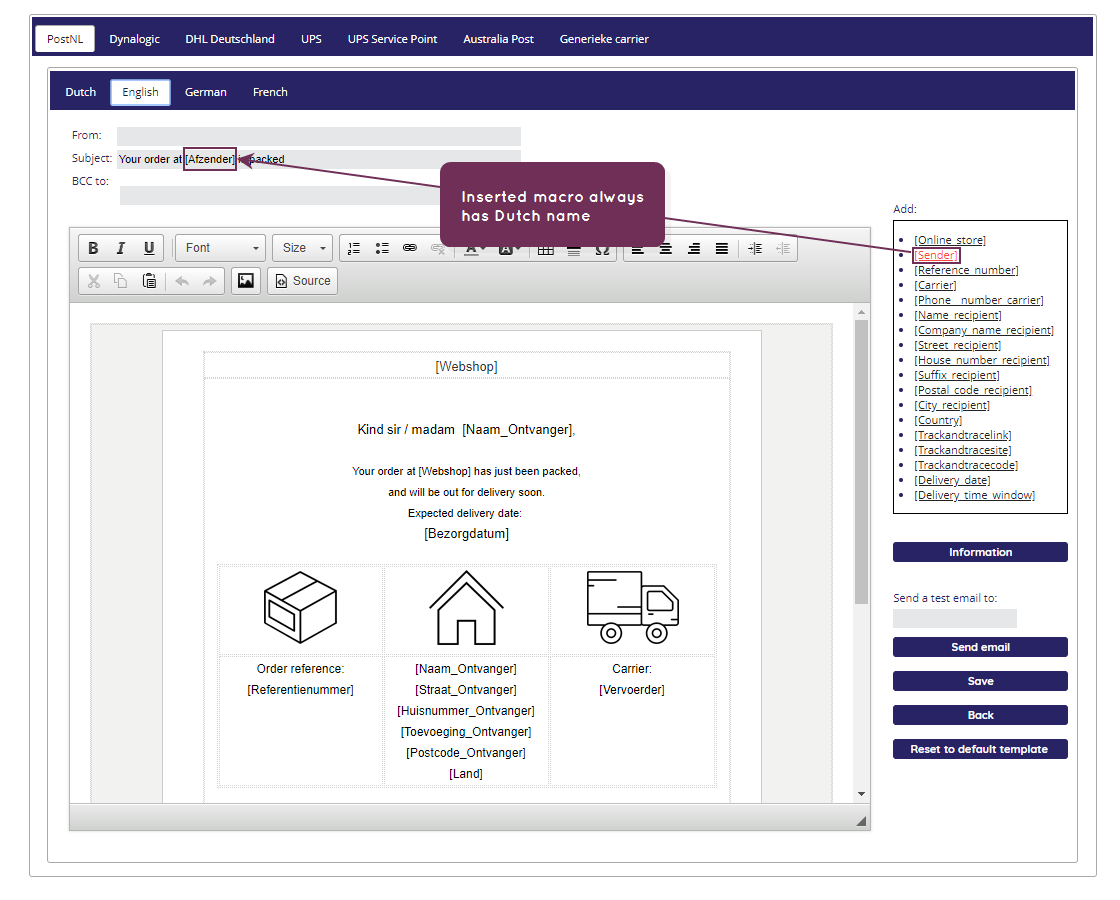
The table below contains a mapping of Dutch and English macro names.
| Dutch | English | Source | Meaning |
|---|---|---|---|
| [Webshop] | [Online_store] | Static data | The name of your webshop (Web app: Settings > My account > Company name). You can override this using the webshop element of the commitOrder SOAP API call. |
| [Afzender] | [Sender] | Static data | The name of the sender (Web app: Settings > Account > My address book > Return address > Name). You can override this using the returnaddress.adresseeLine element of the commitOrder SOAP API call. |
| [Referentienummer] | [Reference_number] | Order data | The order's reference number |
| [Vervoerder] | [Carrier] | Order data | The name of the carrier concerned |
| [Telefoon_vervoerder] | [Phone__number_carrier] | Static data | The telephone number of the carrier's support desk (maintained by Paazl) |
| [Naam_Ontvanger] | [Name_recipient] | Order data | The consignee's name |
| [Bedrijfsnaam_Ontvanger] | [Company_name_recipient] | Order data | The name of the consignee's company (not always available) |
| [Straat_Ontvanger] | [Street_recipient] | Order data | The consignee's street address |
| [Huisnummer_Ontvanger] | [House_number_recipient] | Order data | The consignee's house number |
| [Toevoeging_Ontvanger] | [Suffix_recipient] | Order data | The consignee's house number suffix (e.g. the 'a' in '4a') |
| [Postcode_Ontvanger] | [Postal_code_recipient] | Order data | The consignee's postal code |
| [Woonplaats_Ontvanger] | [City_recipient] | Order data | The consignee's city or town |
| [Land] | [Country] | Order data | The consignee's country |
| [Trackandtracelink] | [Trackandtracelink] | Order + Static data | A URL that directly leads to the carrier's Track & Trace page with information on a particular shipment (created dynamically by Paazl) |
| [Trackandtracesite] | [Trackandtracesite] | Static data | The URL that leads to the carrier's general Track & Trace page. This is meant as a back-up in case the [Trackandtracelink] URL is broken (maintained by Paazl) |
| [Trackandtracecode] | [Trackandtracecode] | Order data | The barcode customers can enter to get Track & Trace information |
| [Bezorgdatum] | [Delivery_date] | Order data | The expected delivery date (only some carriers supply this) |
| [Tijdvak] | [Delivery_time_window] | Order data | The expected delivery time range (only some carriers supply this) |
Was this article helpful?
That’s Great!
Thank you for your feedback
Sorry! We couldn't be helpful
Thank you for your feedback
Feedback sent
We appreciate your effort and will try to fix the article