Configuring Magento 1 product parameters
This article explains how to configure product parameters in Magento 1 in order to provide specific product details to carriers. For a number of carriers, some of the parameters are required.
Product parameters are primarily used to determine which delivery matrix to use, as configured by you in your Paazl web app account. In some cases, product details are also forwarded to the carrier concerned.
Where to configure the parameters
You will find the configuration parameters for Paazl's Magento extension in Magento Admin under Catalog > Manage Products > Edit > Paazl.
You will see the following list of parameters.
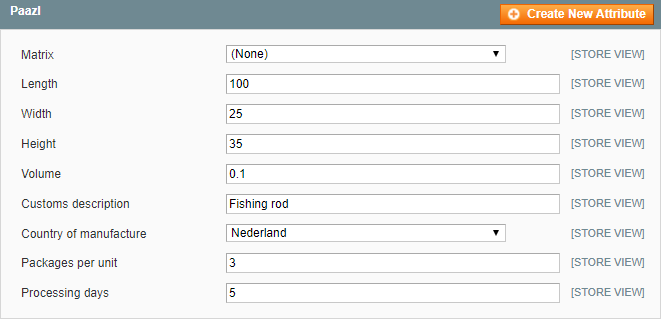
Product parameters
All the parameters in the table below are optional in principle. Where they are required by particular carriers, this is indicated.
Tip
To set a particular parameter value for several products at once:
- Go to Catalog > Manage Products.
- Select the products you want to update.
- Select "Update Attributes" from the actions drop-down menu.
- Click "Submit".
- Set the parameter value you want.
- Click "Save".
| Parameter | Explanation |
|---|---|
| Matrix | Specify the delivery matrix that Paazl has to use when determining eligible shipping options. Normally Paazl decides which delivery matrix to use based on product characteristics such as dimensions, weight and order value. However, you can overrule this behavior by specifying a specific matrix. |
| Length | Specify the length of the product concerned in centimeters. Paazl will only consider delivery matrices that apply to products of this length. Example: 100 Note Length is a required parameter for DHL Time Definite, Dynalogic, TSN and UPS Paperless Invoice. |
| Width | Specify the width of the product concerned in centimeters. Paazl will only consider delivery matrices that apply to products of this width. Example: 25 Note Width is a required parameter for DHL Time Definite, Dynalogic, TSN and UPS Paperless Invoice. |
| Height | Specify the height of the product concerned in centimeters. Paazl will only consider delivery matrices that apply to products of this height. Example: 35 Note Height is a required parameter for DHL Time Definite, Dynalogic, TSN and UPS Paperless Invoice. |
| Volume | Specify the volume of the product concerned in cubic meters. Paazl will only consider delivery matrices that apply to products of this volume. Example: 0.00875 |
| Customs description | Type a description of the product concerned for customs purposes. Note A customs description is a required parameter for Fedex and UPS, and when shipping outside the EU. |
| Country of manufacture | Specify the country in which the product concerned was manufactured. Note The country of manufacture is a required parameter for Fedex, and when shipping outside the EU. |
| Packages per unit | Specify whether a shipment consists of more than one package (a.k.a. multi-collo shipment). The number you enter determines how many shipping labels are printed. If you don't assign a value to this parameter, only one label will be printed. |
| Processing days | Specify the number of days you need to get the product concerned into your warehouse ready for pick-up by a carrier. Example: 5 Note This parameter only applies if you have enabled the "Date Preference Module" parameter. |
Product weight
You will find the weight configuration parameter in Magento Admin under Catalog > Manage Products > Edit > General.
Note
Weight is a required parameter for PostNL Global Pack, DHL, Fedex, GLS and UPS shipments.
Working with orders in Magento 1
This section explains how to perform common webshop order tasks using the functionality of the Paazl Magento 1 extension.
Printing shipping labels
To print a shipping label for an order, log in to Magento Admin and follow the steps below.


Note
To change the shipping address on a label, simply edit the order's address information in Magento Admin.
Updating an order's Paazl status
As of Magento 1.7, all orders are automatically updated with the latest Paazl status when you open the Sales > Orders overview. This status is cached for an hour, after which it is automatically updated again when you open the Sales > Orders overview.
To force the update of an order's status, log in to Magento Admin and follow the steps below.

Searching by Paazl status
To search for orders by their Paazl status, log into Magento Admin and follow the steps below.

Setting order status after printing
Configure the "Update order status" and "Update order status to" parameters of the Paazl extension so that orders are automatically given a particular status after their shipping labels have been printed.
Modifying shipping label addresses
To modify an order's shipping label address, simply edit the order in Magento Admin.
Was this article helpful?
That’s Great!
Thank you for your feedback
Sorry! We couldn't be helpful
Thank you for your feedback
Feedback sent
We appreciate your effort and will try to fix the article