In this article let's go through the Shipment Tracking dashboard together and have a better understanding of what insights you can get out of it.
To open the dashboard, follow the steps below.
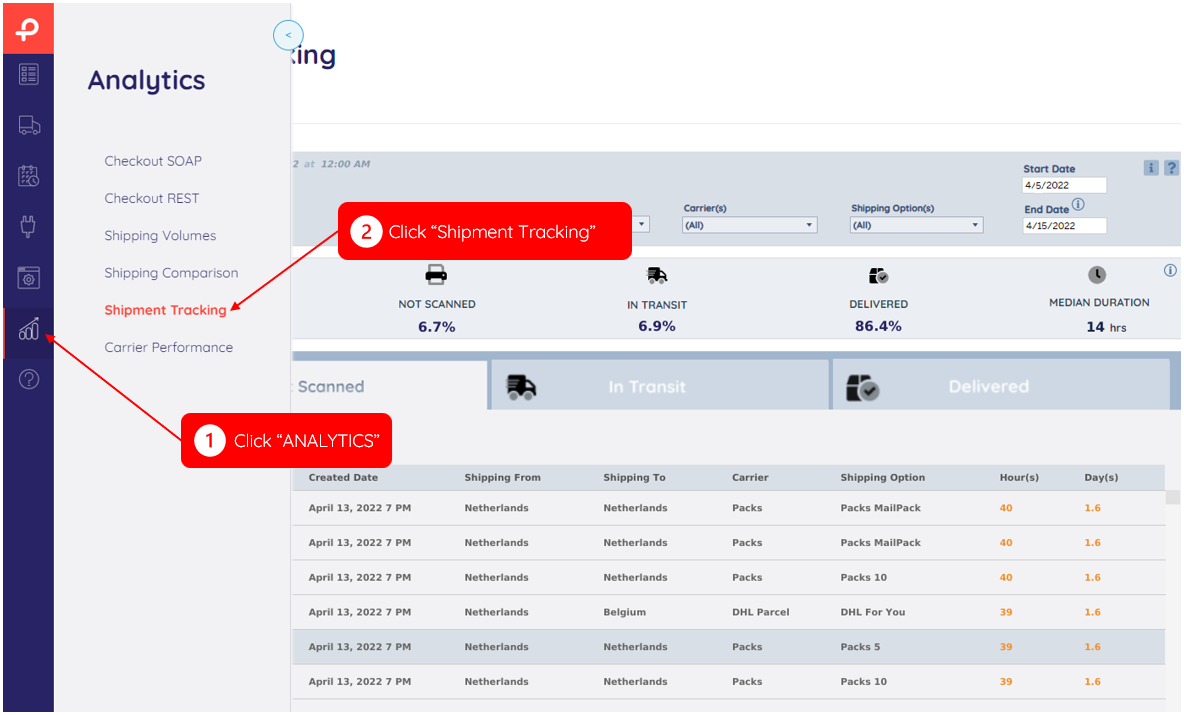
This dashboard offers hourly updates on carrier status, split into different stages from shipment creation to delivery, to help you further discover the potential for lost or delayed packages and deep dive into specific shipments created over the past 30 days.
Note
Return shipments and mailbox shipments are not included in this dashboard.
Main Menu
Select the variables you want to include (or exclude) in the dashboard.
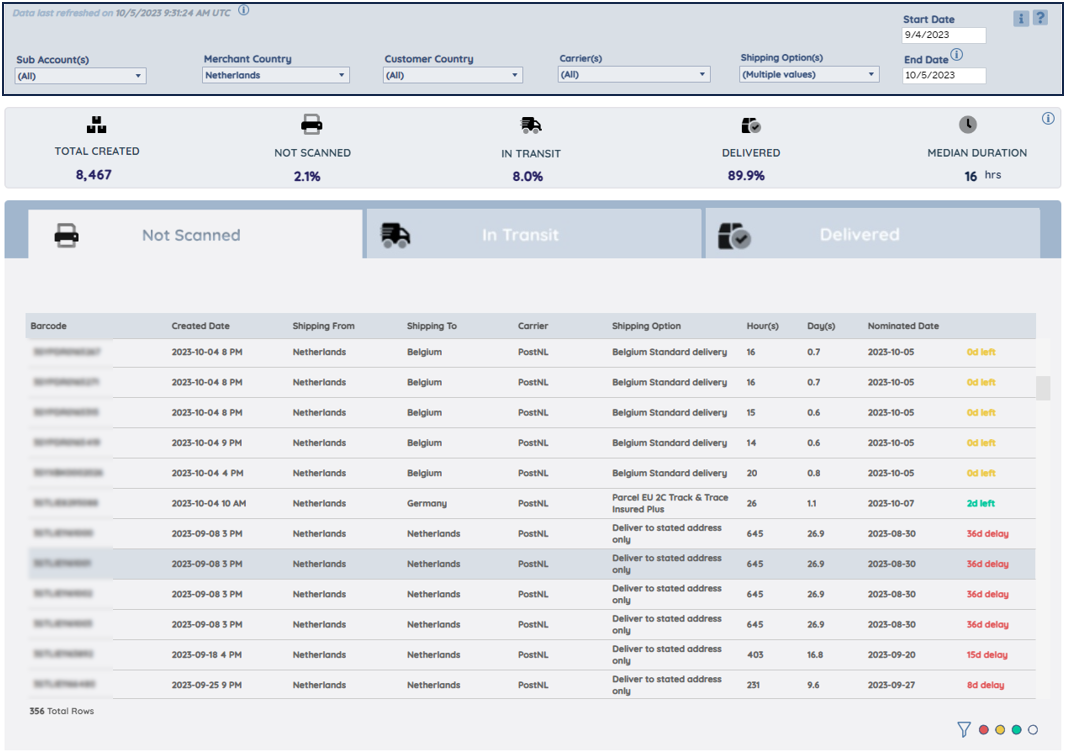
Update Notification

Manual & FAQ page
Go to the manual (information-icon) and FAQ page (question-icon) by clicking on the icons on the right at the top of the dashboard.

You can select the Start Date and End Date to filter the shipments based on their Created Date.
Now you can track the status of shipments created within the last 30 days.

Key numbers
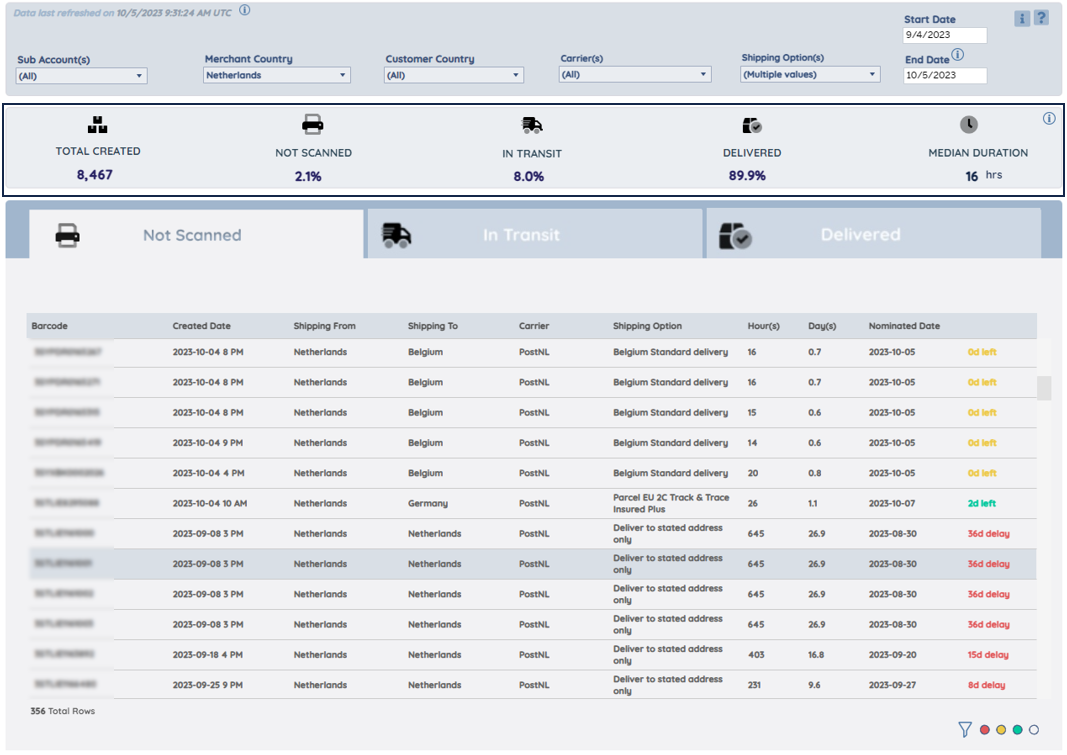
Here you can find the total numbers (created over the last 30 days) of:
- TOTAL CREATED: # of labels that were printed.
- NOT SCANNED: % of labels that were printed but are not scanned by the carrier(s) yet.
- IN TRANSIT: % of shipments on their way for delivery, scanned but not yet delivered.
- DELIVERED: % of shipments delivered (e.g. @home, @neighbours, @pickup point).
- MEDIAN DURATION: median duration from shipments scanned to delivered.
Note
The median is the middle number in a sorted, ascending, or descending, list of numbers and can be more descriptive of that data set than the average.
Table – Not Scanned
This table contains details on shipments created but not yet scanned.
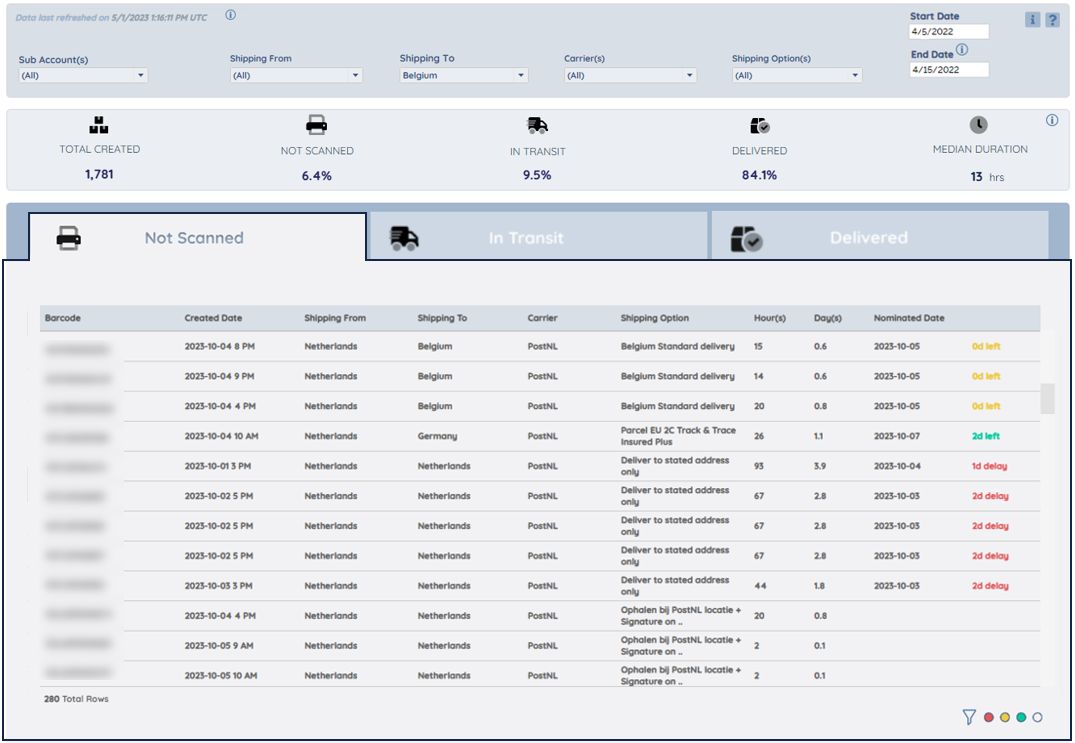
In the Nominated Date column, you can find the Nominated Date and how many days are left/delayed compared with the current date.
- Green: Nominated Date - Current Date >= 2 days. (The Nominated Delivery Date is more than two days from today)
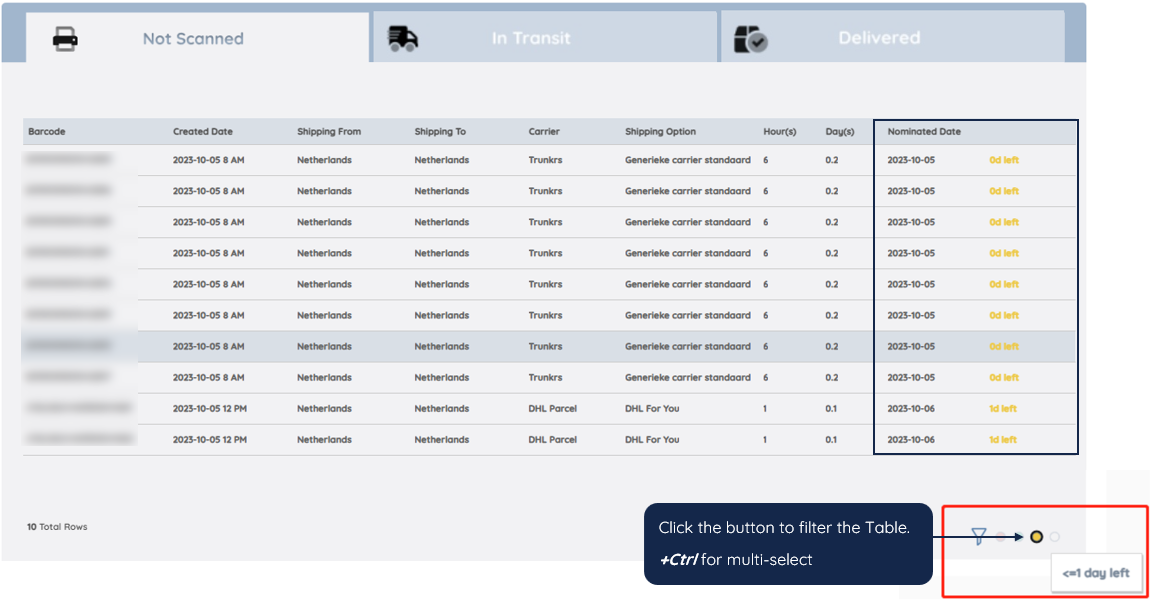
- Yellow: Nominated Date - Current Date >= 0 day AND Nominated Date - Current Date <= 1 day. (The Nominated Delivery Date is either today or tomorrow)
- Red: Nominated Date - Current Date < 0 day. (The Nominated Delivery Date has passed)
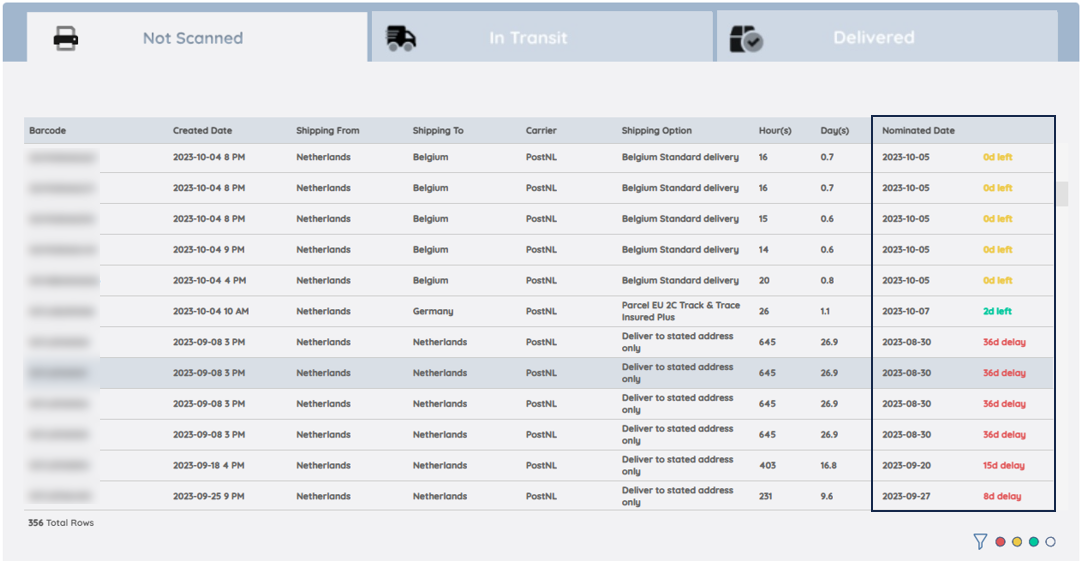
You can use the color buttons in the bottom right corner to filter the Table.
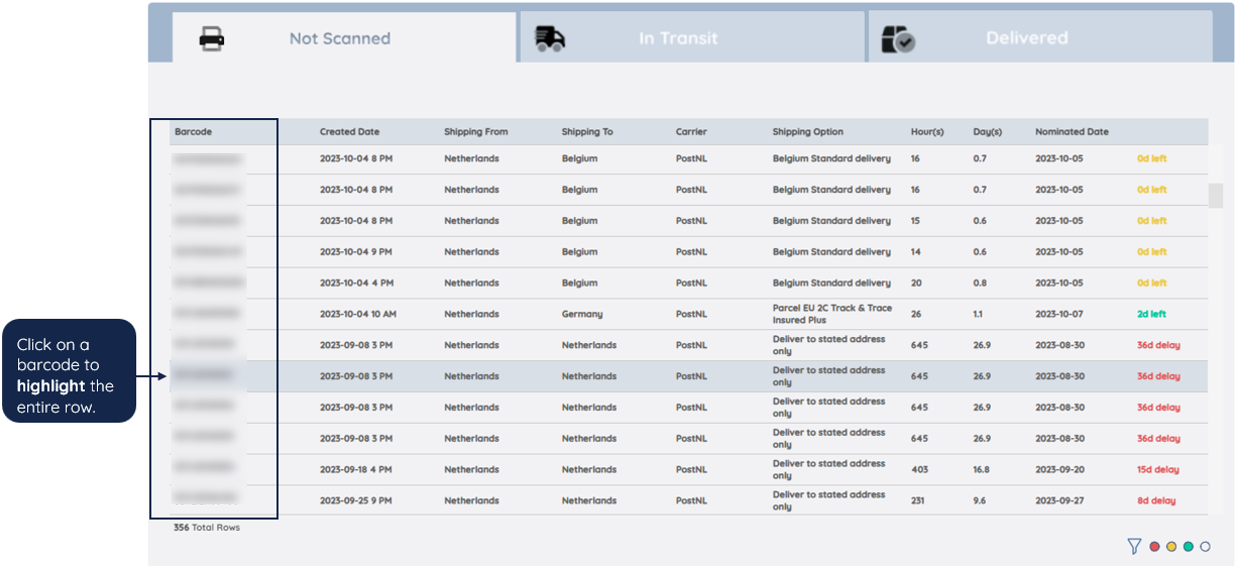
Highlight the whole row by clicking one time on a certain barcode to better focus on a certain shipment.
Note
You can scroll rows in the barcode area.
Create an Excel download of the table Table-Not Scanned by using the Crosstab function. You will now also find the specific Order Reference per shipment in the overview.
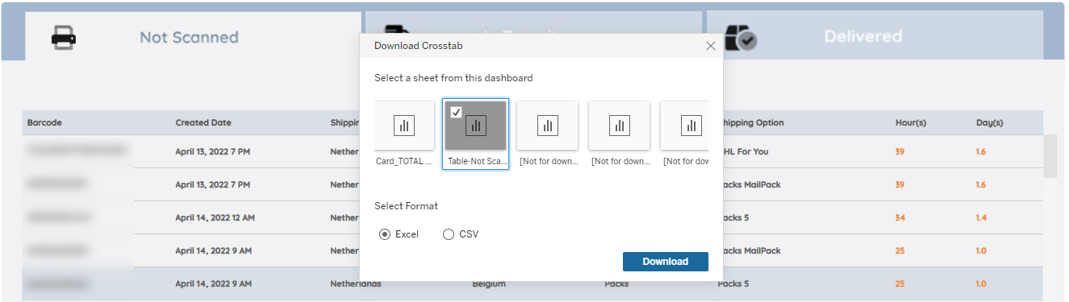
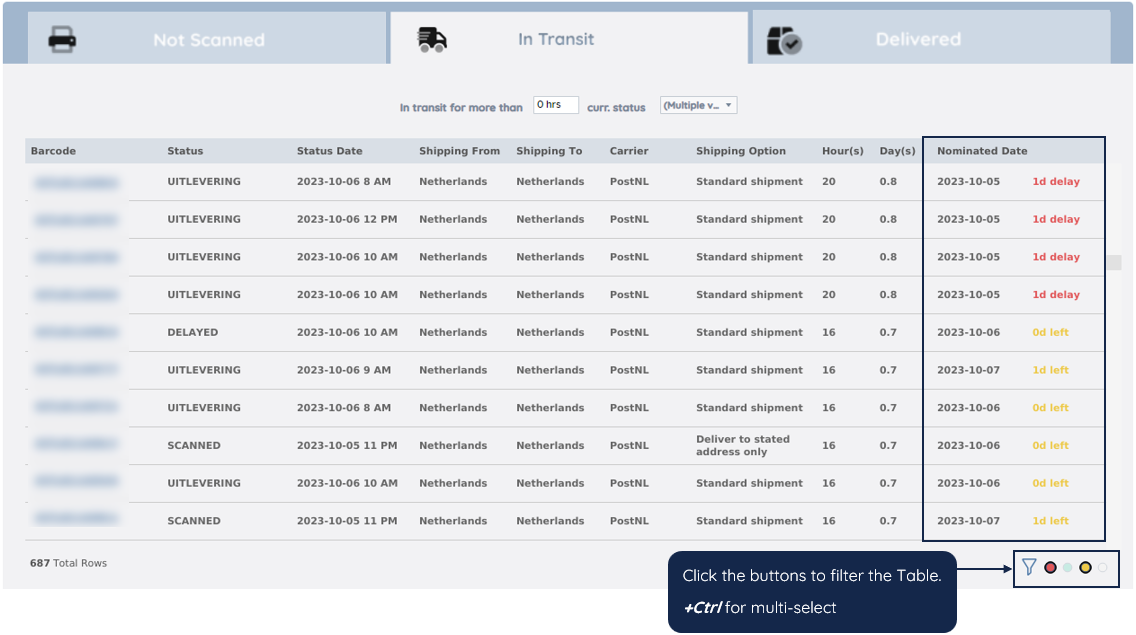
Table – In Transit
This table contains details on shipments that are scanned by the carrier, but not delivered yet.
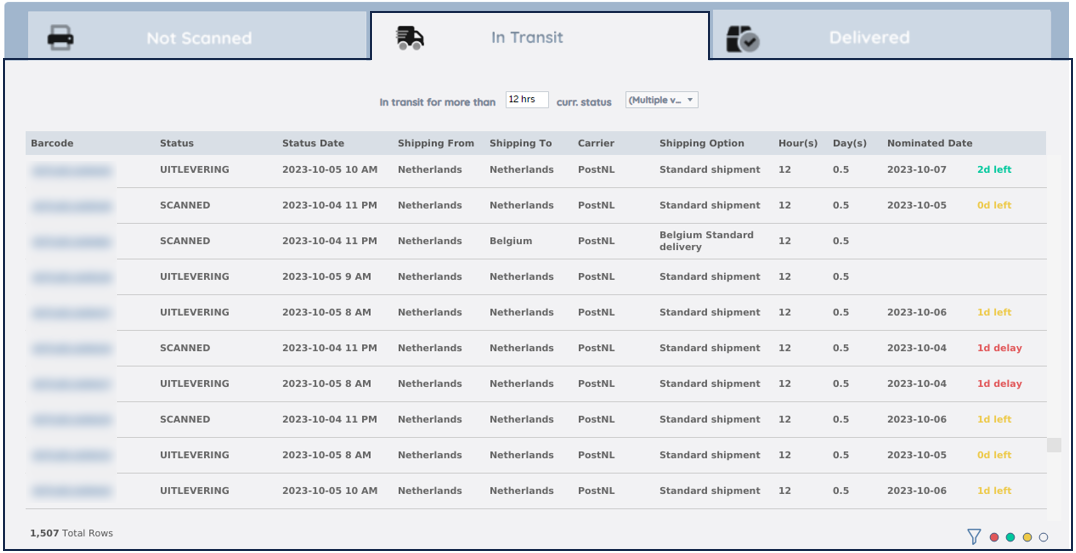
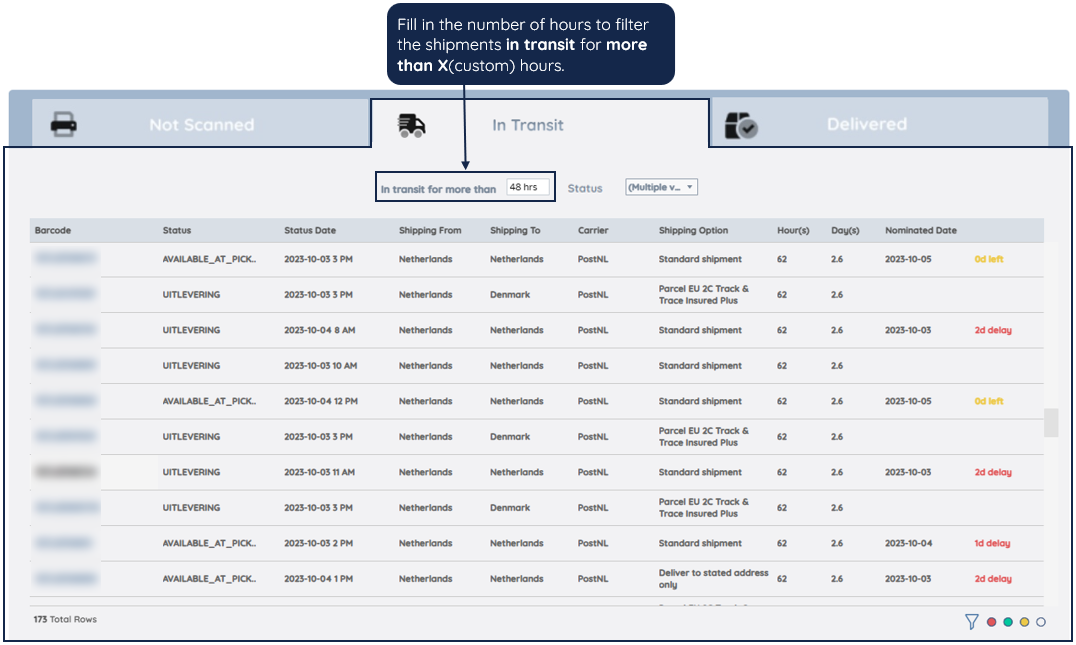
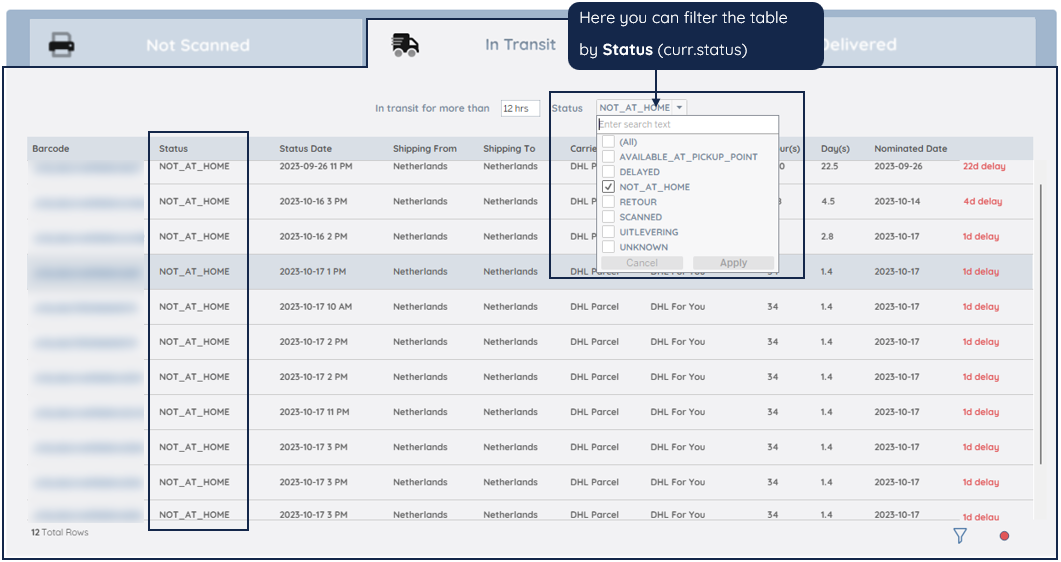
In the Nominated Date column, you can find the Nominated Date and how many days are left/delayed compared with the current date.
- Green: Nominated Date - Current Date >= 2 days. (The Nominated Delivery Date is more than two days from today)
- Yellow: Nominated Date - Current Date >= 0 day AND Nominated Date - Current Date <= 1 day. (The Nominated Delivery Date is either today or tomorrow)
- Red: Nominated Date - Current Date < 0 day. (The Nominated Delivery Date has passed)
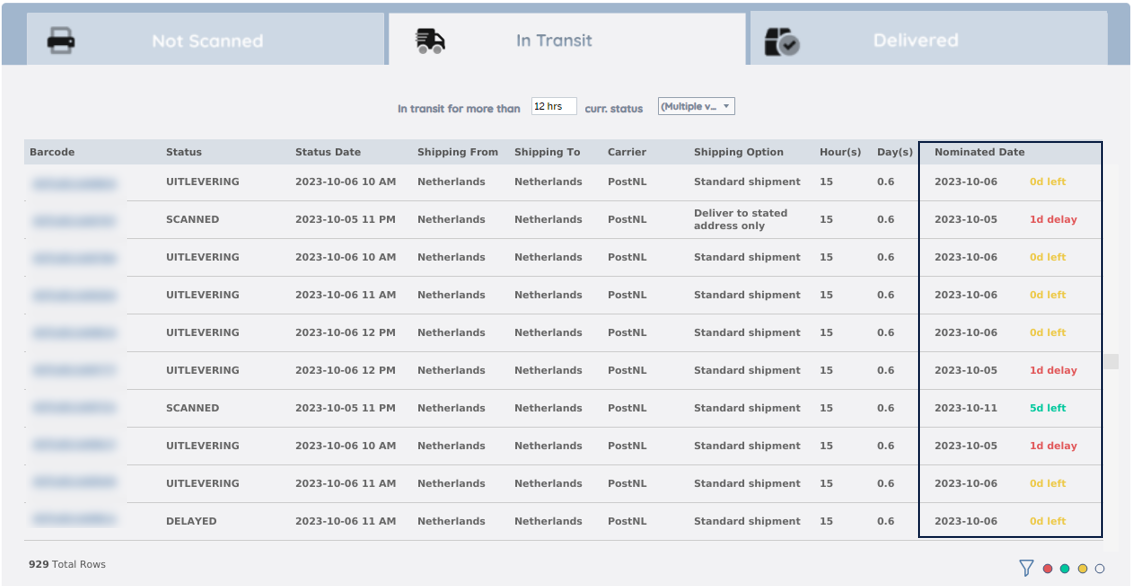
You can use the color buttons in the bottom right corner to filter the Table.
Highlight the whole row by clicking one time on a certain barcode to better focus on a certain shipment.
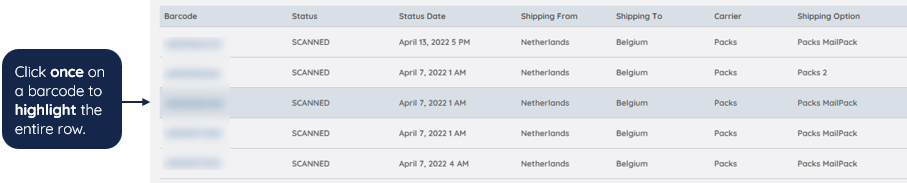
Note
You can scroll rows in the barcode area.
Paazl and Carrier Track and Trace
To show either the Paazl or Carrier's Track and Trace (T&T) link, click again on the same barcode. If the barcode is not highlighted, double-click to view the T&T page.

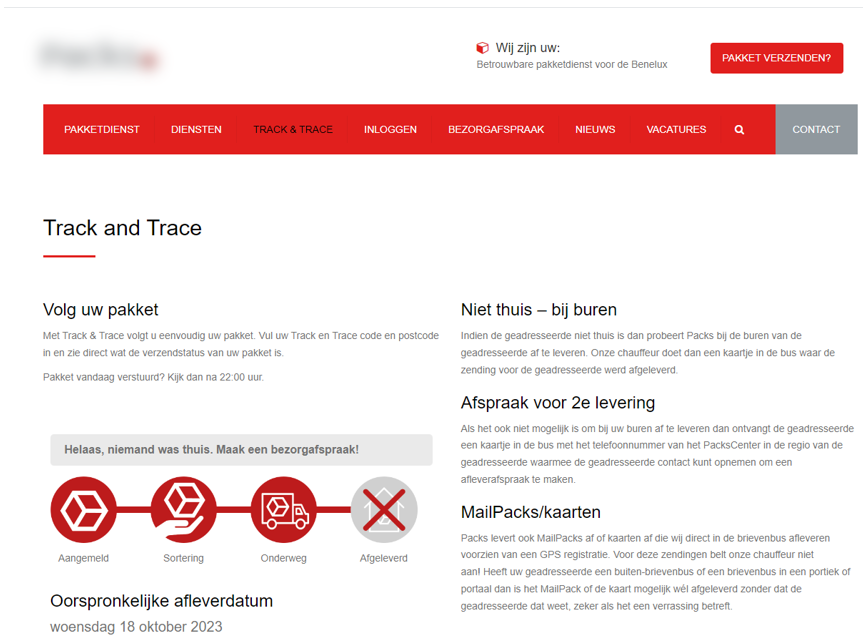
Click to go to the Carrier Track and Trace Page to see more shipment (historical and real-time) status from carriers.

Below is an example of the Carrier Track and Trace Page for detailed information.
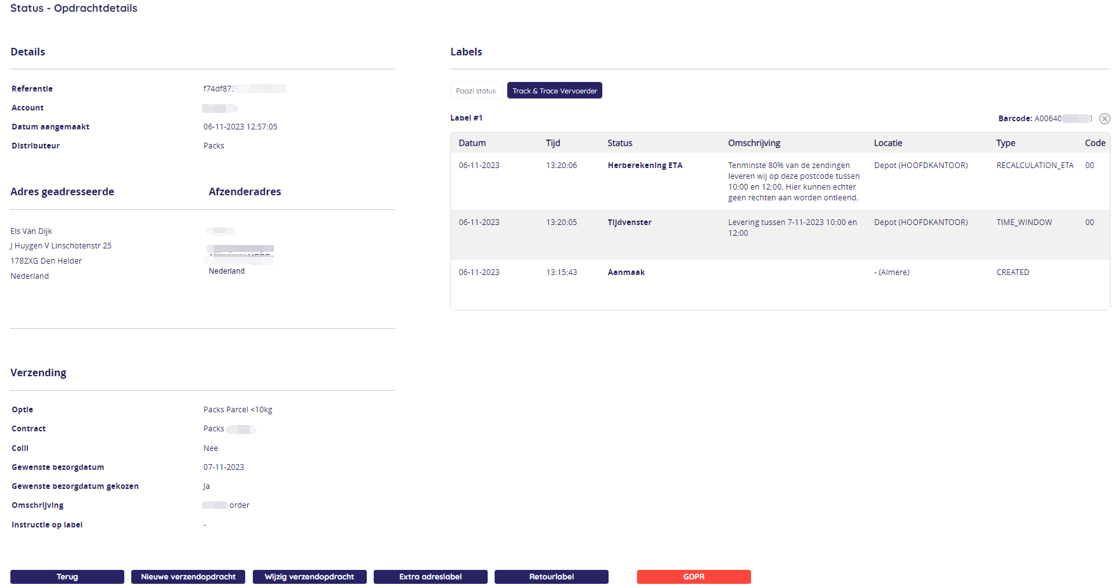
Click to go to Paazl Track and Trace Page to see more shipment (historical and real-time) status from Paazl.

Below is an example of the Paazl Track and Trace Page for detailed information.
Download the Table-In Transit by using crosstab
You will also find the Shipment Created Date and Order References in the downloaded file.
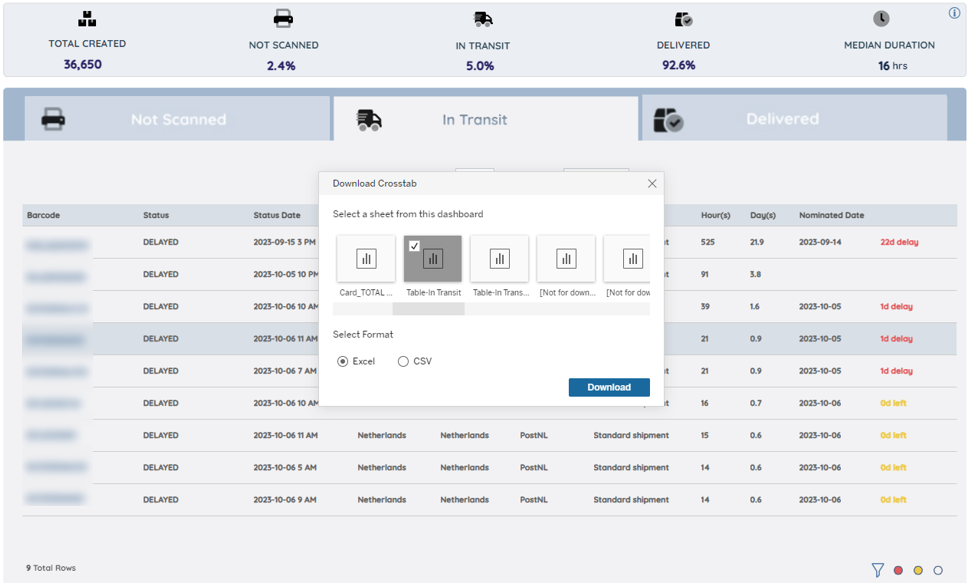

Table – Delivered
This table contains details on shipments that have already been delivered.
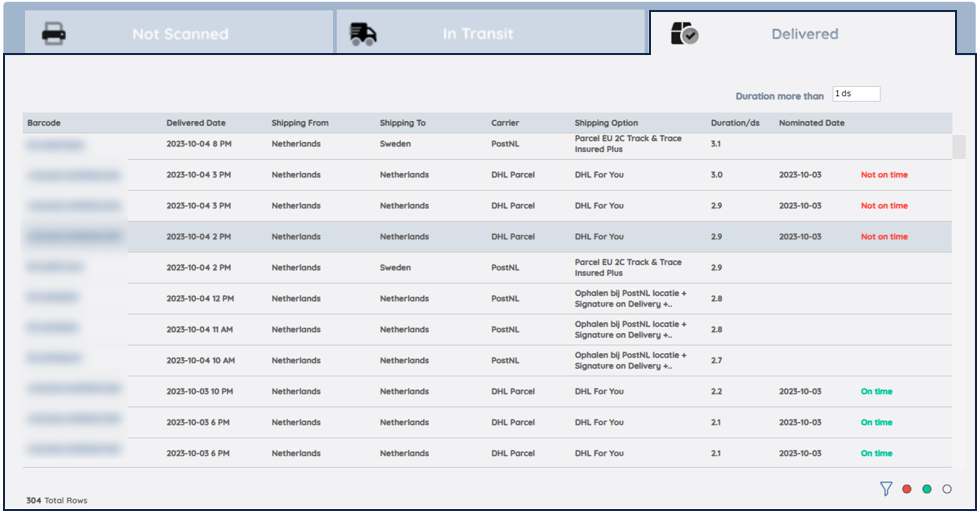
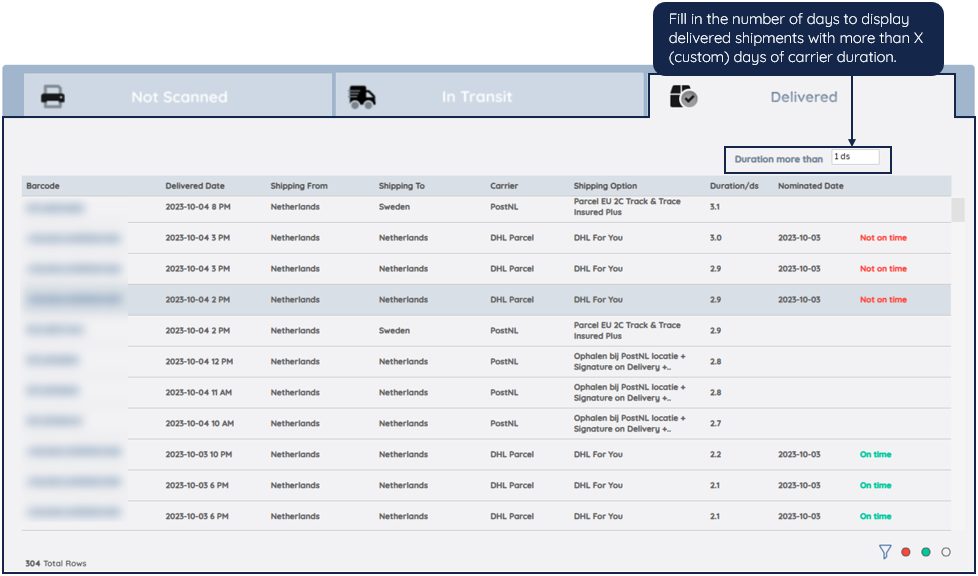
In this table, you can find the Nominated Date the consumer chose and whether the shipments were delivered on the Nominated Date.
- Green (On time): Delivered Date is equal to Nominated Date
- Red (Not on time): Delivered Date is not equal to Nominated Date
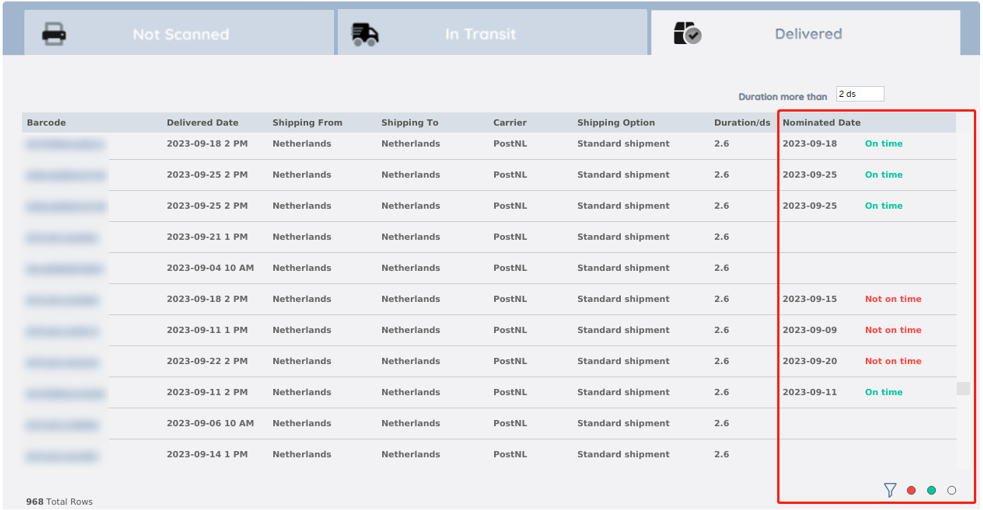
You can use the color buttons in the bottom right corner to filter the Table.
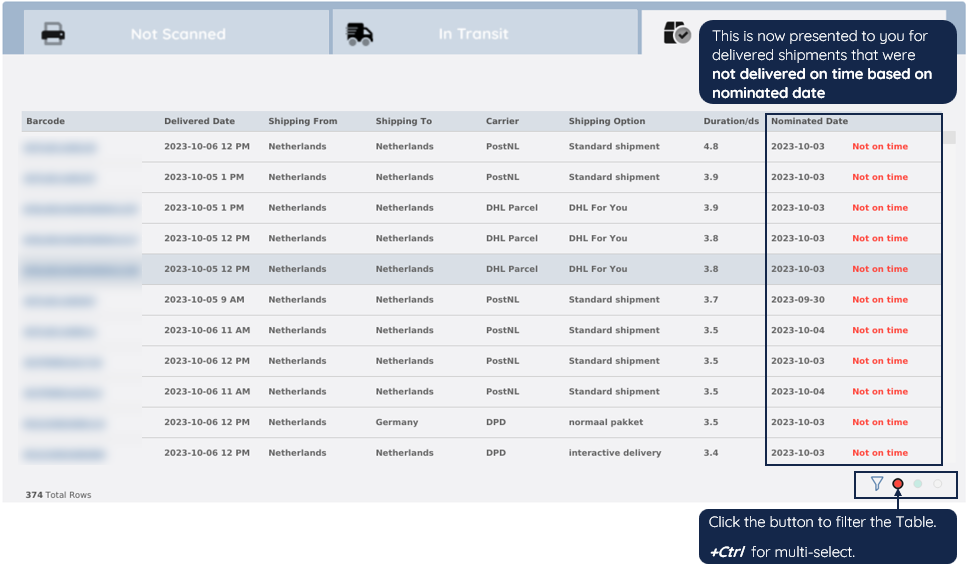
Highlight the whole row by clicking one time on a certain barcode.

Paazl and Carrier Track and Trace
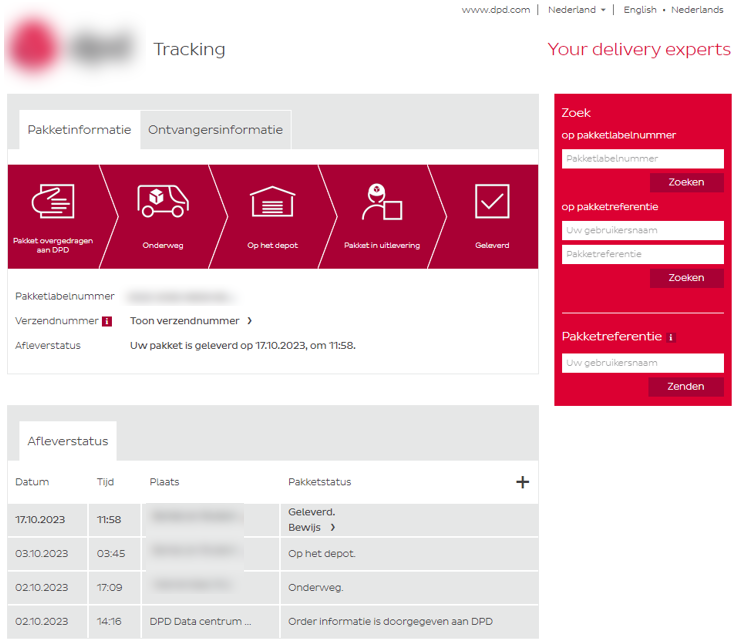
To show either the Paazl or Carrier's Track and Trace (T&T) link, click again on the same barcode. If the barcode is not highlighted, double-click to view the T&T page.

Click to go to the Carrier Track and Trace Page to see more shipment (historical and real-time) status from carriers.

Below is an example of the Carrier Track and Trace Page for detailed information.
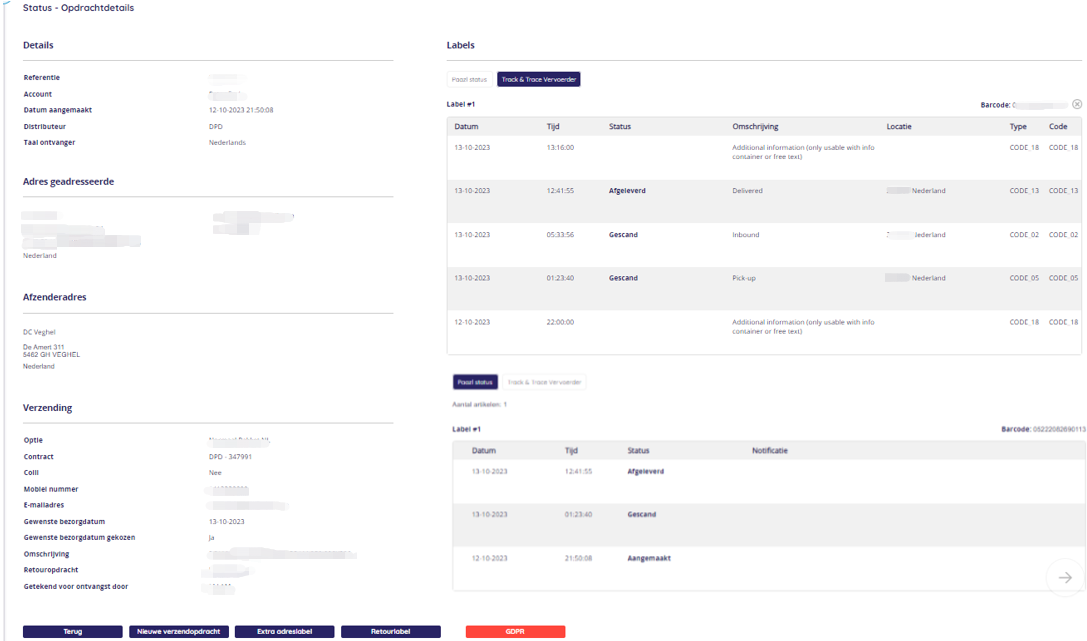
Click to go to Paazl Track and Trace Page to see more shipment (historical and real-time) status from Paazl.

Below is an example of the Paazl Track and Trace Page.
Download the Table-Delivered by using crosstab
You will also find the Shipment Created Date, Scanned Date, and Order References in the downloaded file.
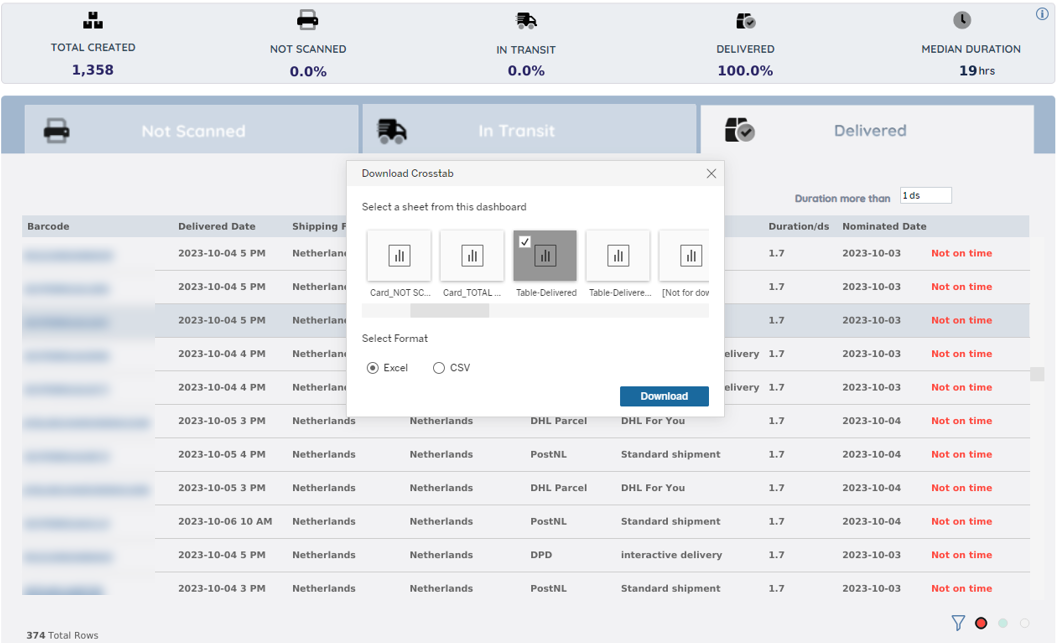
Above is an example of downloading the shipments details that were not delivered on their Nominated Date AND the shipping durations were more than one day.
Was this article helpful?
That’s Great!
Thank you for your feedback
Sorry! We couldn't be helpful
Thank you for your feedback
Feedback sent
We appreciate your effort and will try to fix the article