This article explains how to generate labels (including return labels) in your Paazl web app account. About labels points you to other methods for generating shipping and return labels with Paazl.
Note
It is recommended that you only use the web app to generate labels in exceptional situations where orders are changed on the fly or your webshop hasn't integrated Paazl's API.
Note
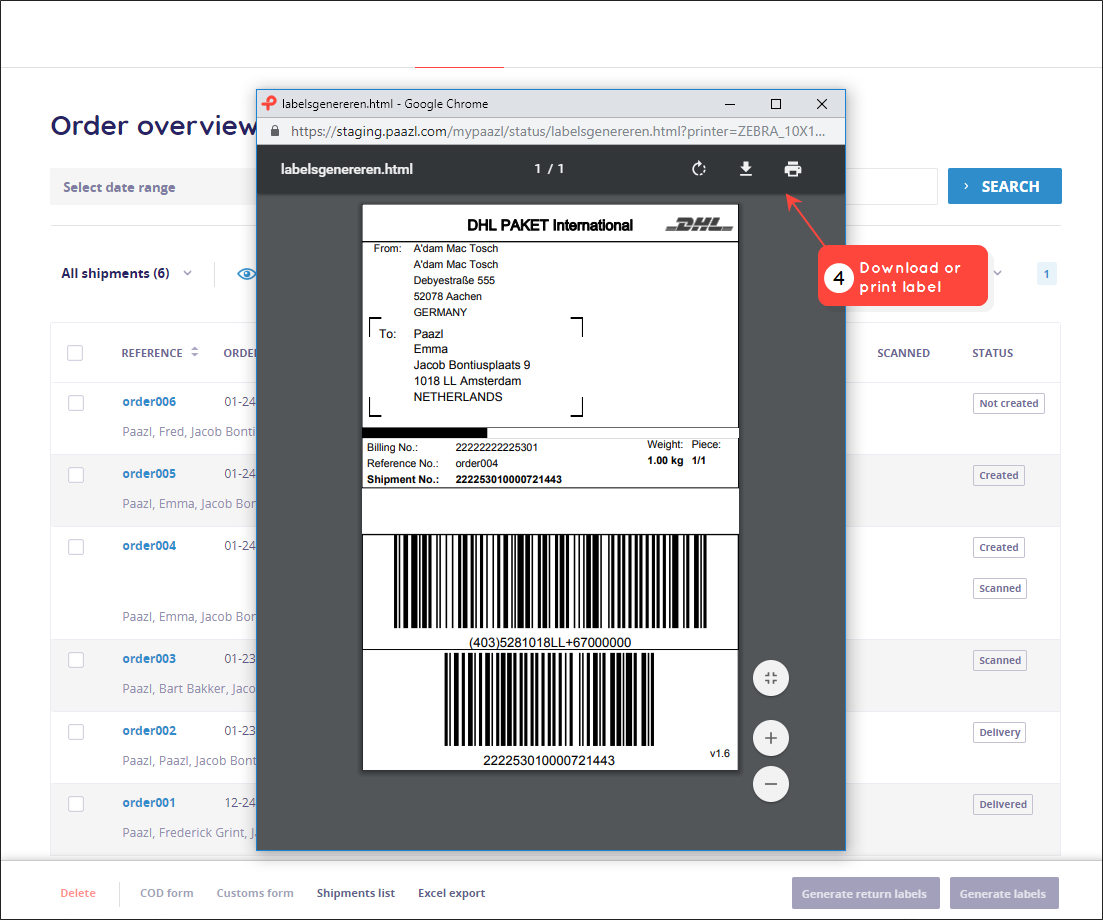
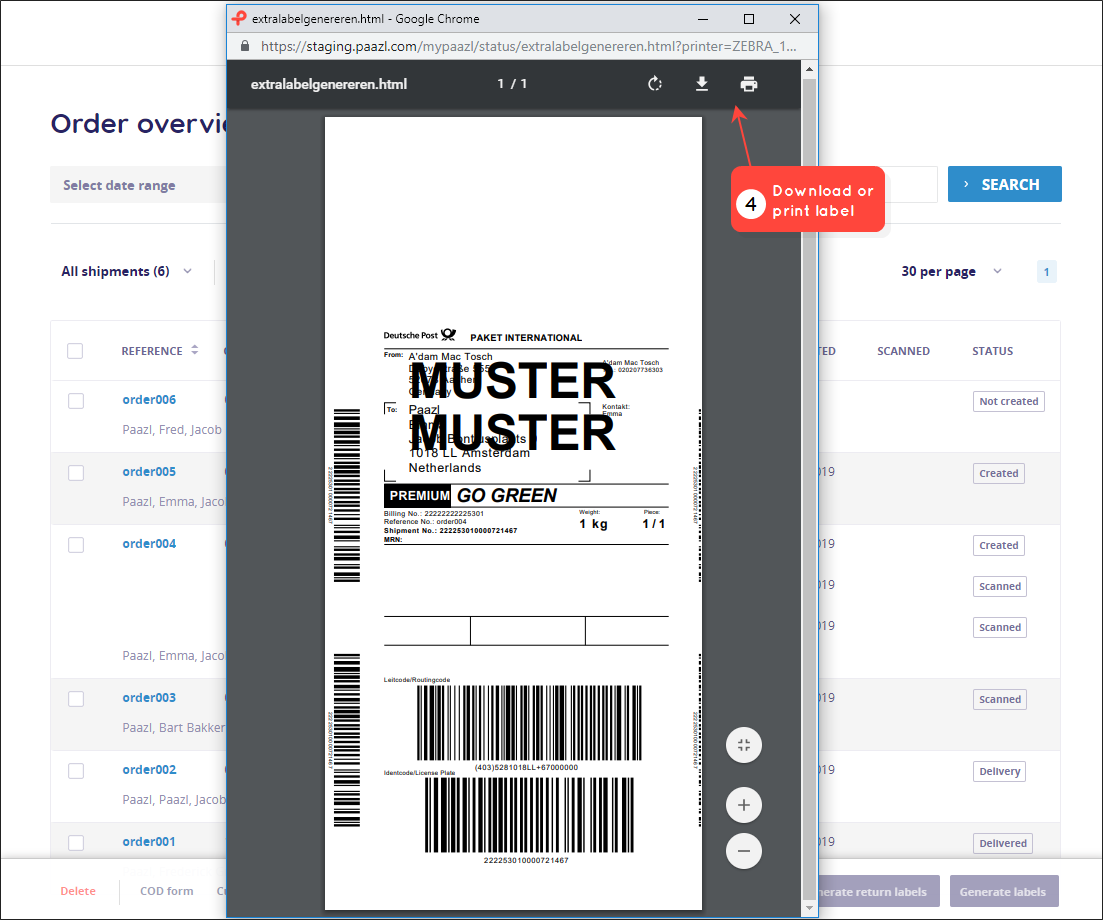
Your browser may not display a generated label when you first access your Paazl web app account, or when you are accessing it for the first time from a different computer. This is caused by the browser's pop-up blocker, which you will have to disable in order to see the label. Consult your browser documentation on how to do this.
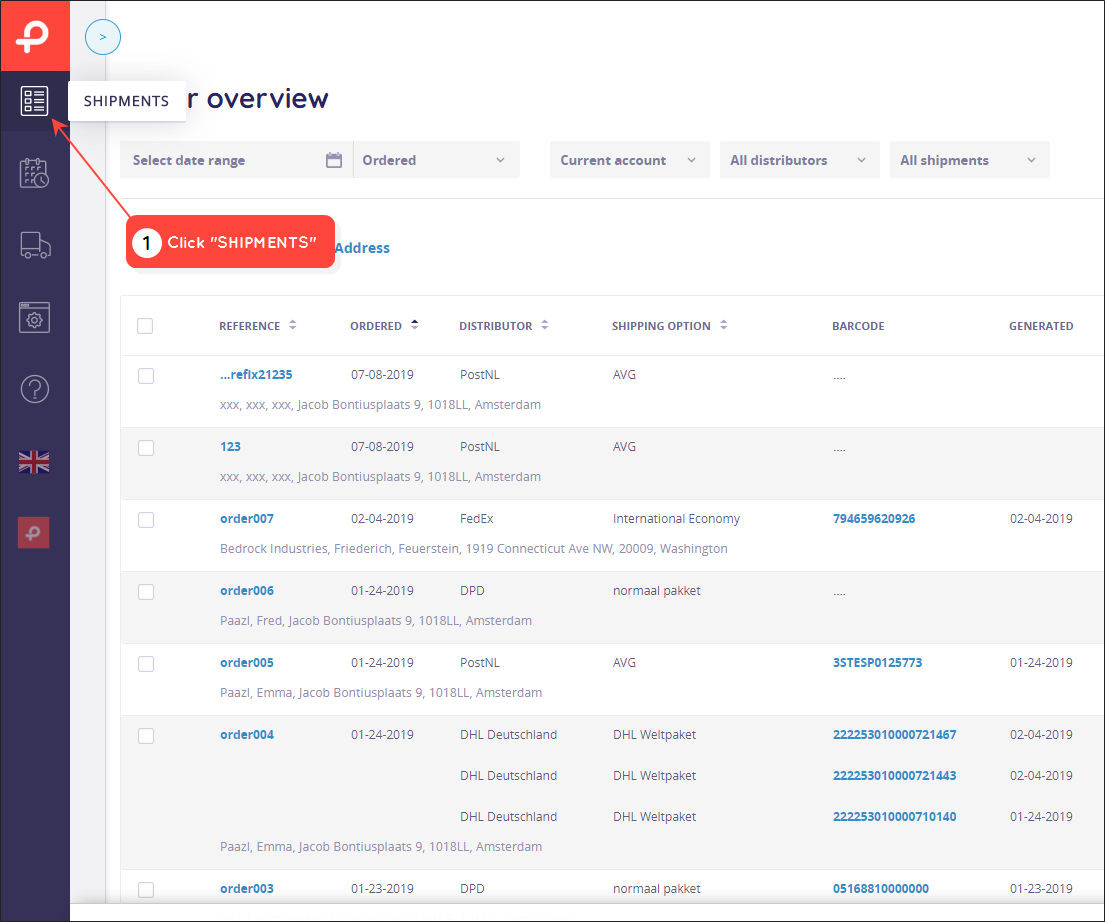
You can generate labels in three different places in your Paazl web app account:
- Order overview
- Order details
- Create shipment
Order overview
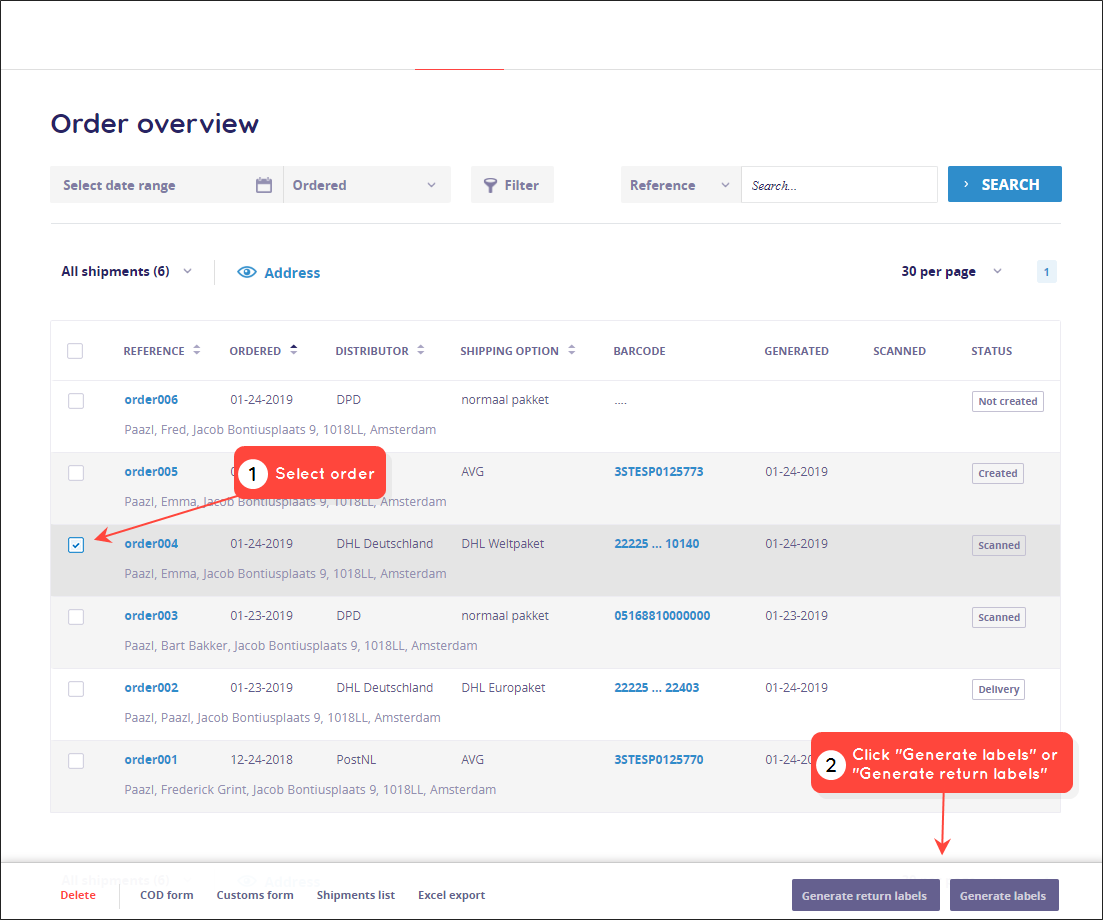
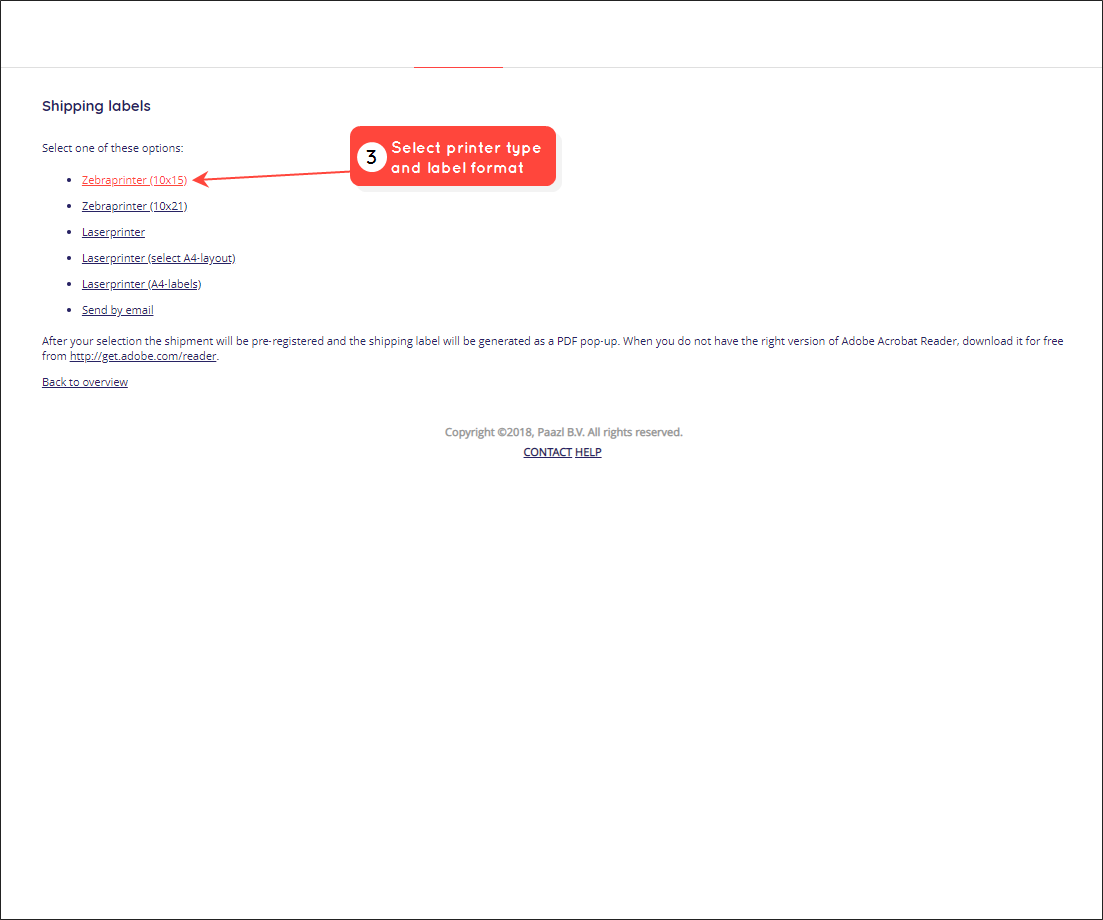
To generate labels on the "Order overview" page, follow the steps below.
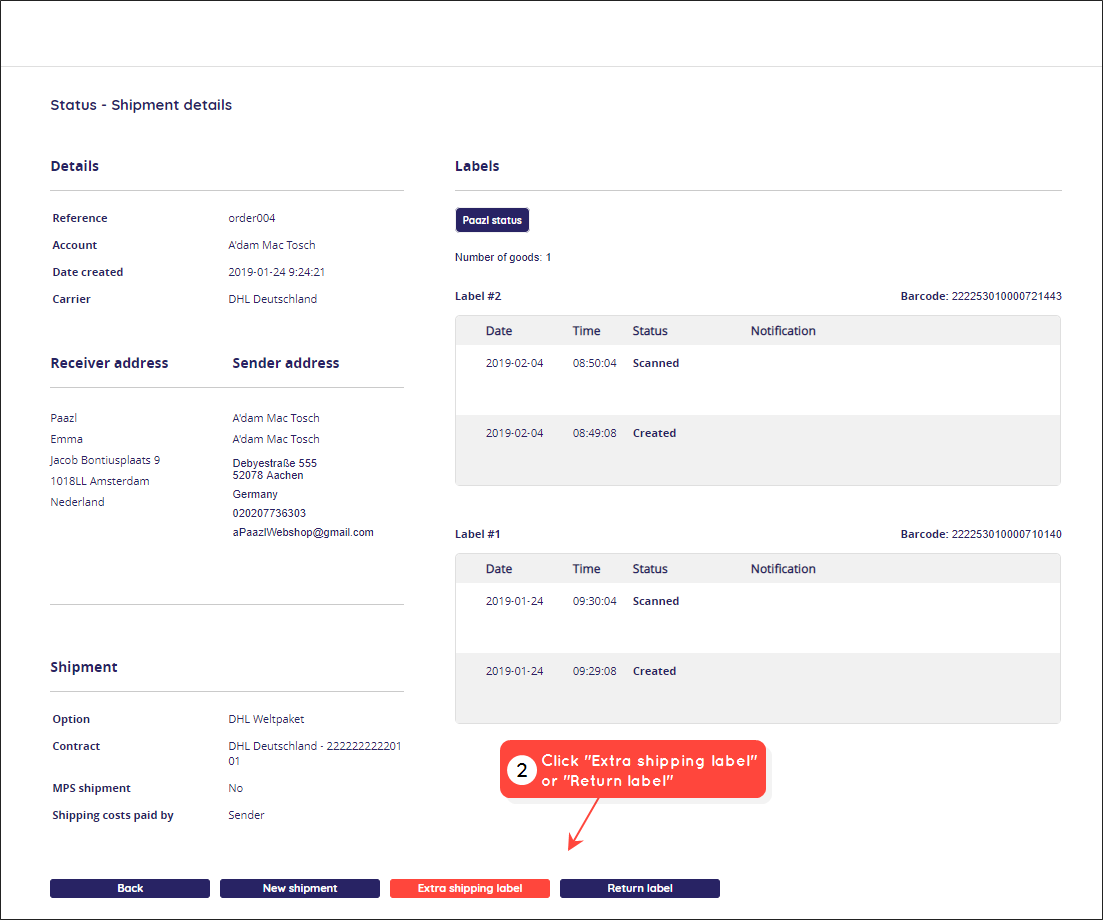
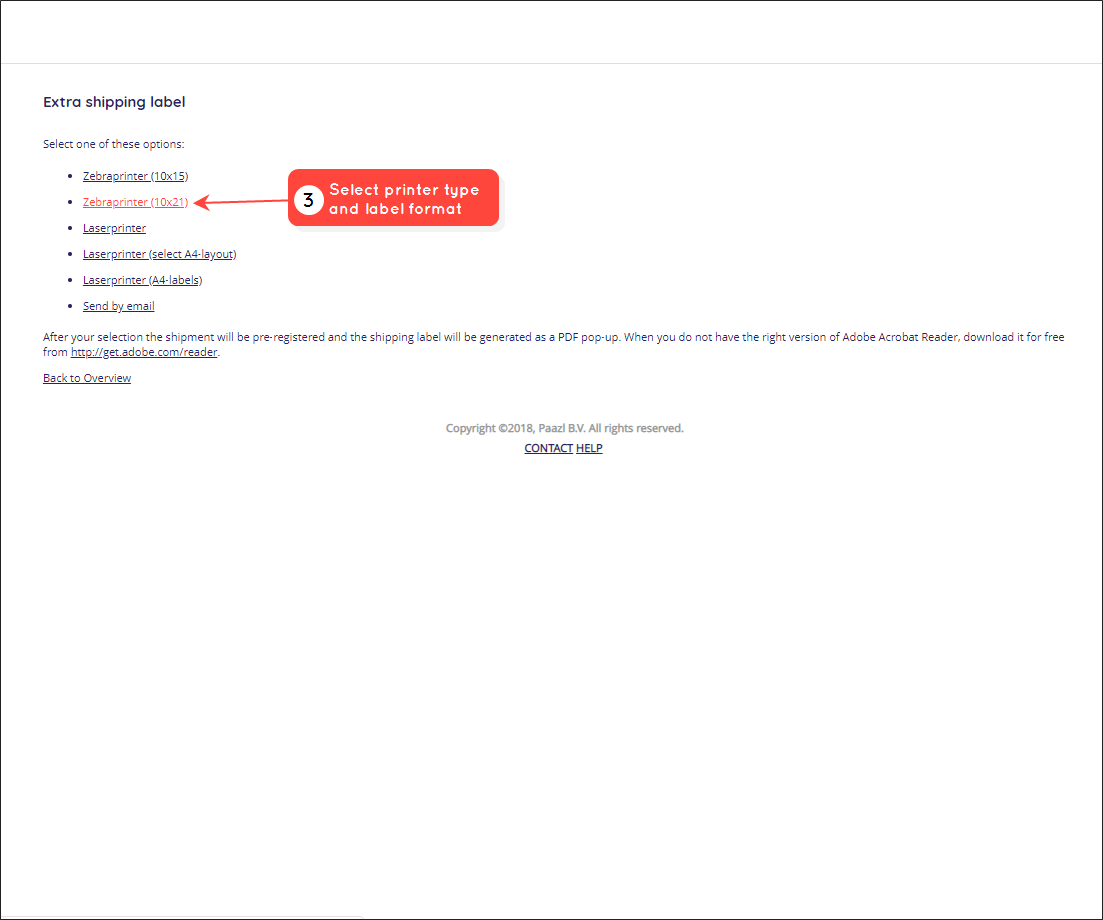
Order details
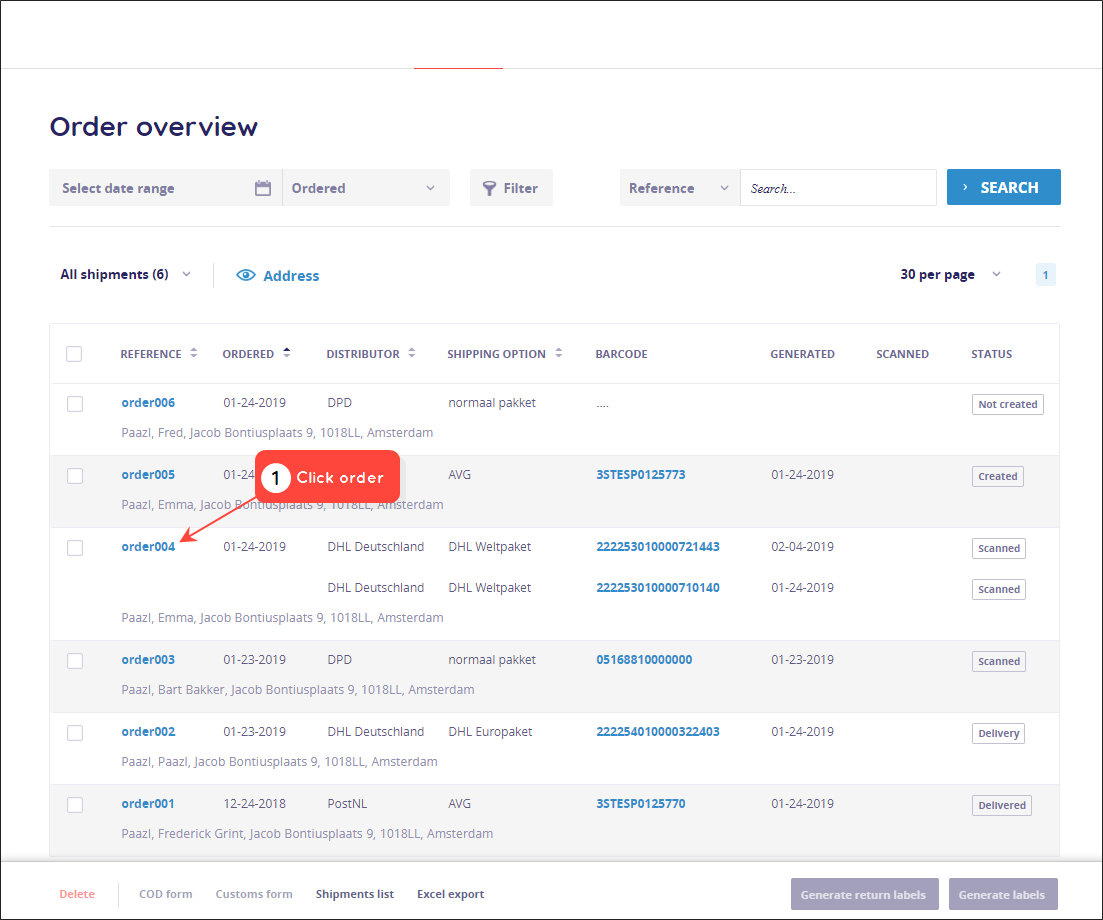
To generate labels on the "Order details" page, follow the steps below.
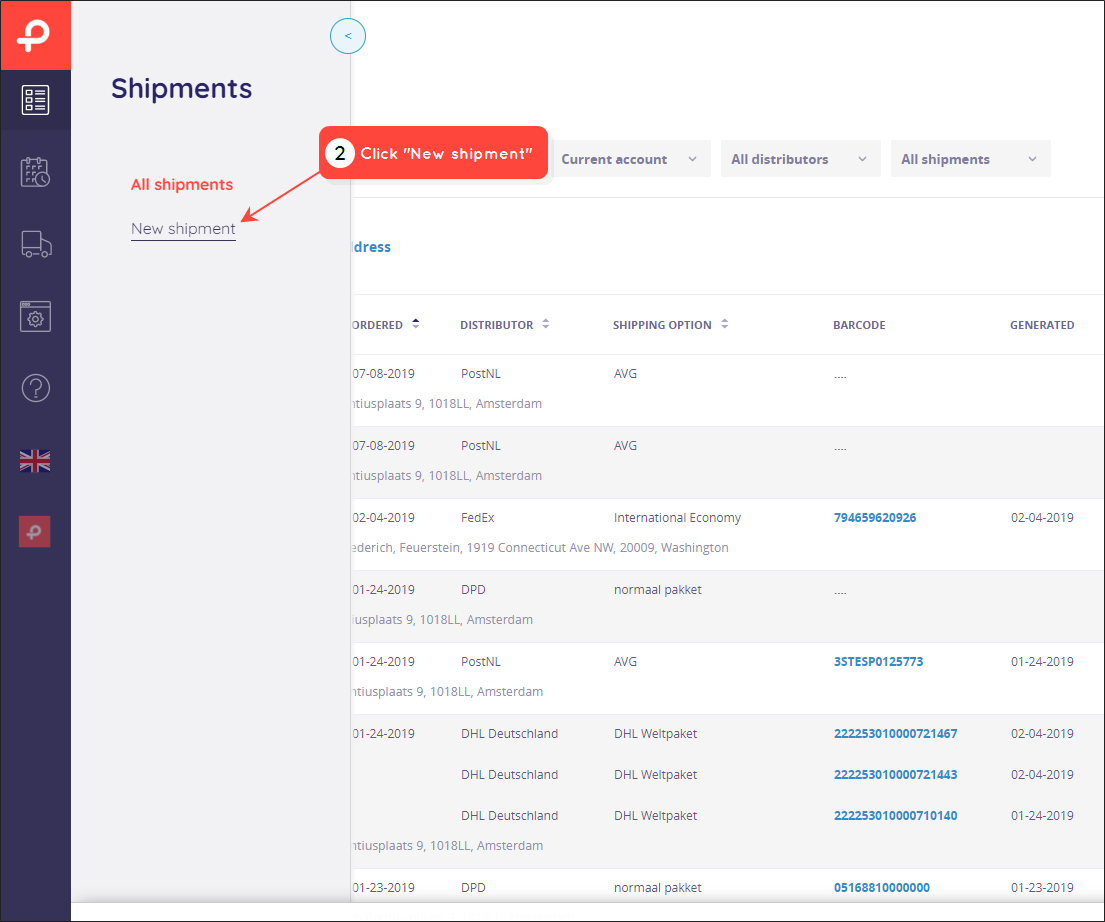
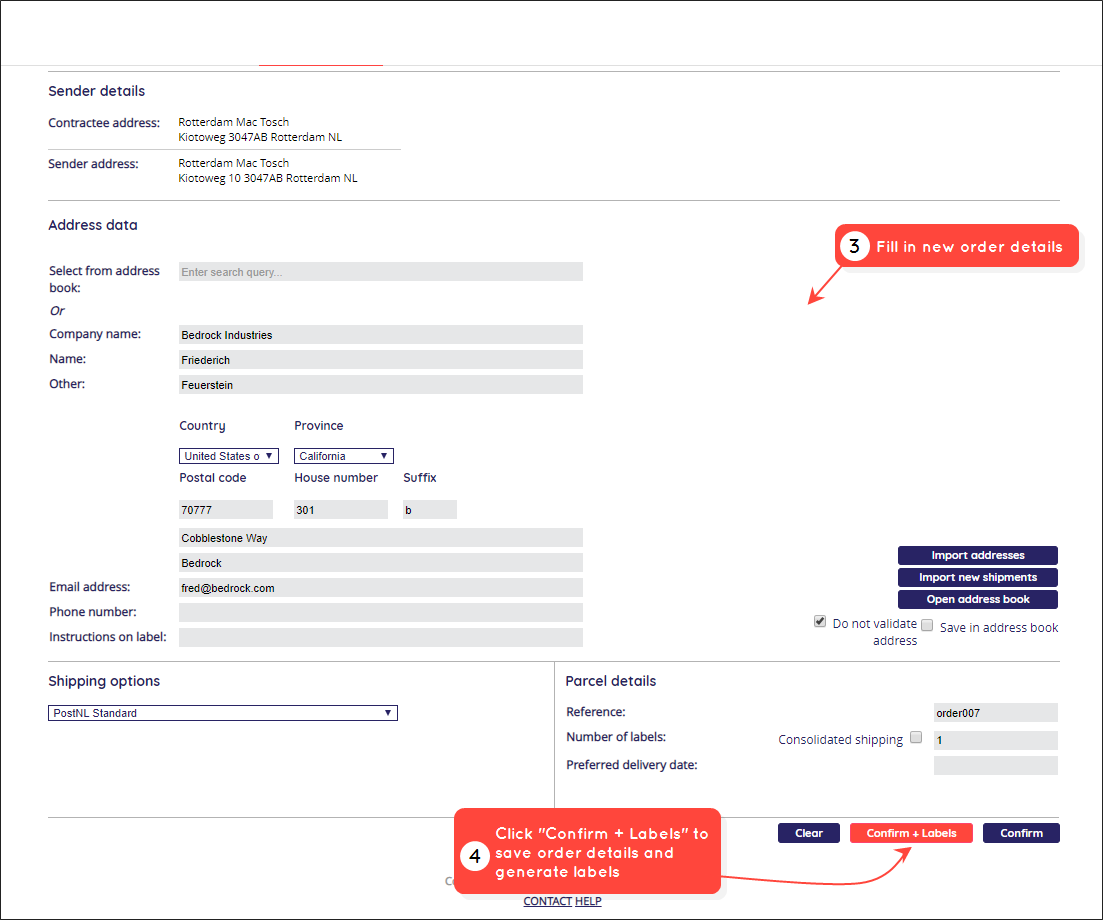
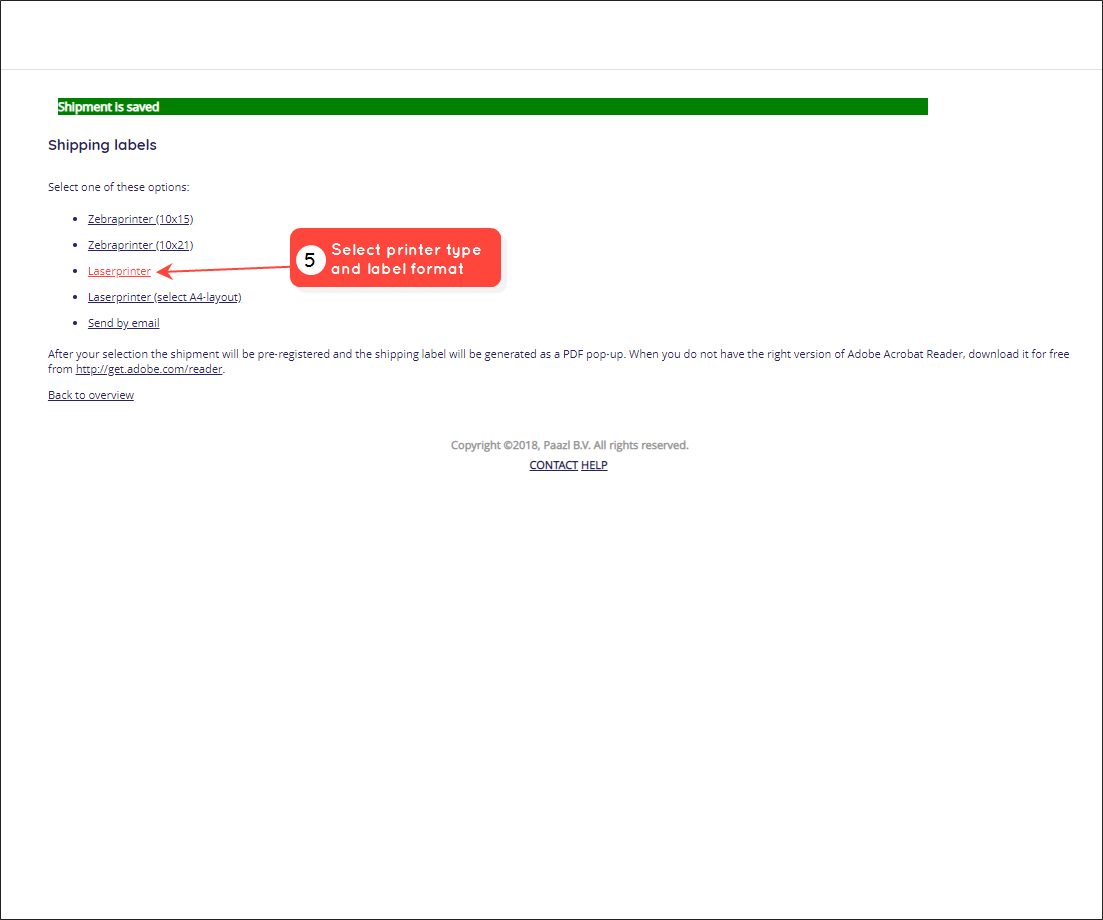
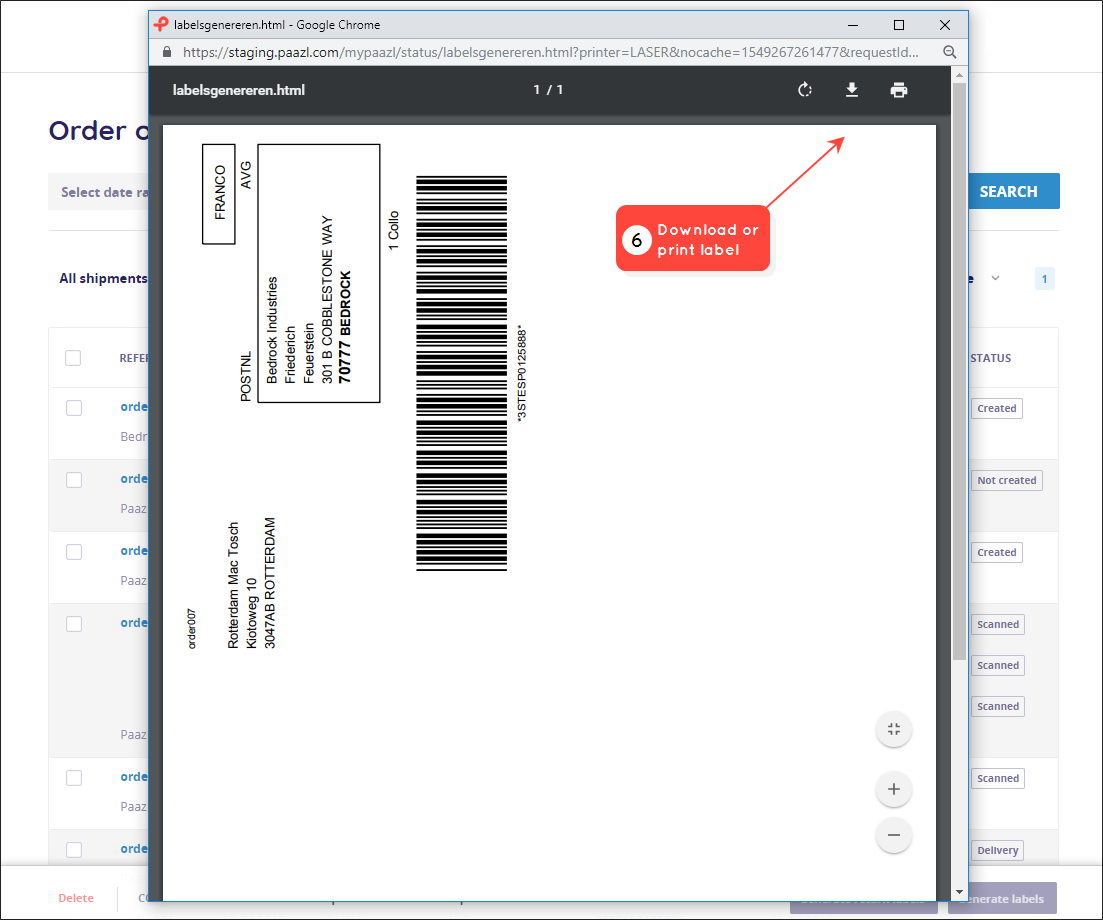
Create shipment
To generate labels on the "Create shipment" page, follow the steps below.
Was this article helpful?
That’s Great!
Thank you for your feedback
Sorry! We couldn't be helpful
Thank you for your feedback
Feedback sent
We appreciate your effort and will try to fix the article