With the following information you can easily connect Shopify and start sending your products via Wuunder straight away. At the push of a button, you can send documents, parcels and pallets with the most suitable carrier. Want more information first? Read on here.
SHOPIFY SHIPPING MODULE
- Wuunder has both a test and a production environment. We recommend testing your shop properly in the test environment before you go live. Activate the test environment via Separate production and test environments in Wuunder.
- Make a backup of your webshop and download the Shopify plug-in from the Shopify Marketplace.
From 1 January 2023, Wuunder's Dynamic Checkout is no longer available on the Shopify Starter and Basic plans.
One more important thing! After activating the plug-in, you need to connect your webshop to Wuunder. Keep the following in mind: the Wuunder Webshop Connector and Wuunder's booking system have different login details. If you don't have login details, you'll first need to go through the onboarding process. You can't log in to the Wuunder Webshop Connector with your MyWuunder account login details. This is fully explained from step 3 of "Connecting Shopify to Wuunder".
CONNECTING SHOPIFY TO WUUNDER
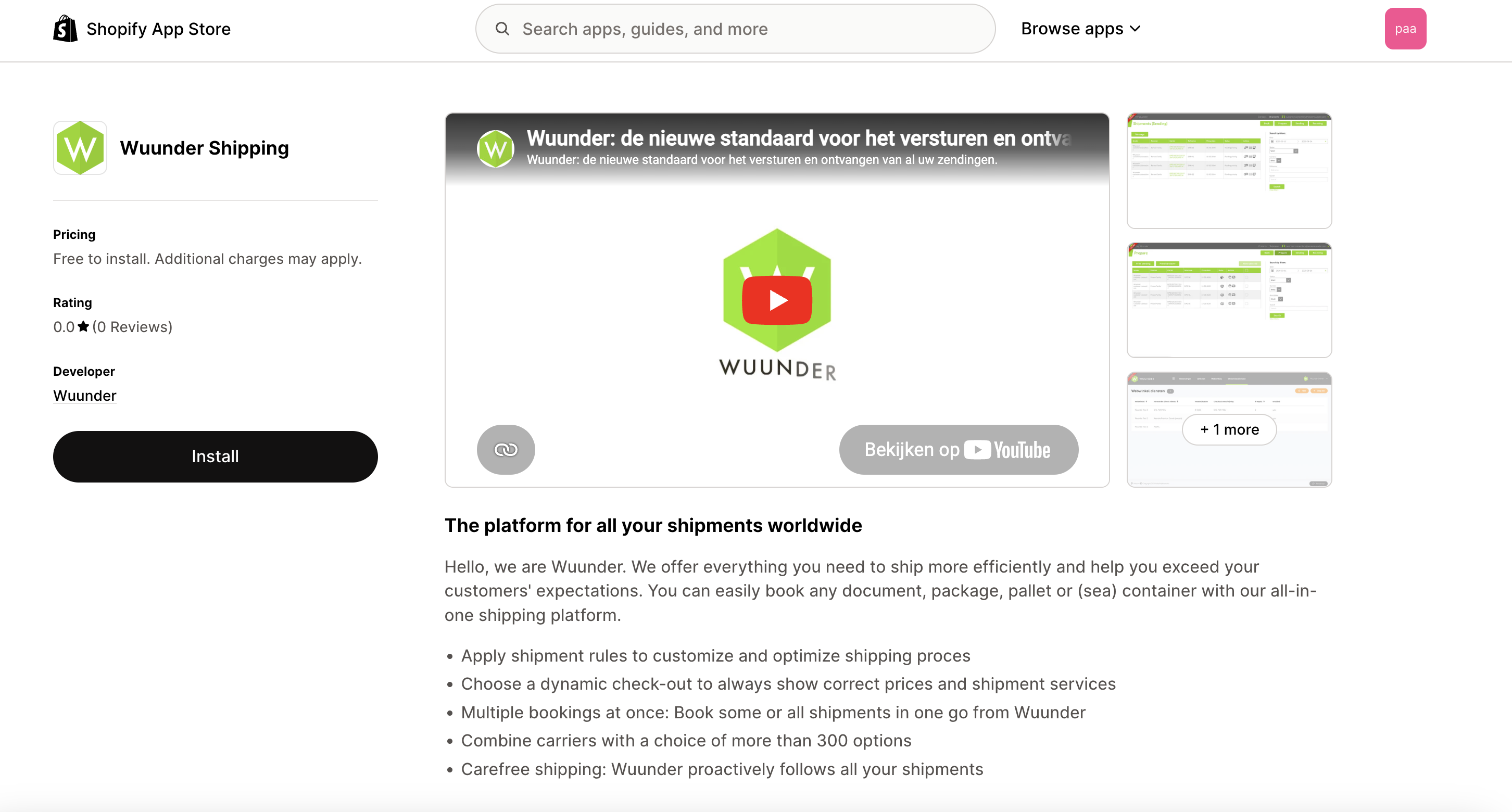
- Step 1 – Log in to the admin area of your Shopify shop. Go to apps and search for the Wuunder Shipping app. You can also go straight to the marketplace by clicking here. Make sure you're logged in to the Shopify marketplace. To install the plug-in, click Add app.
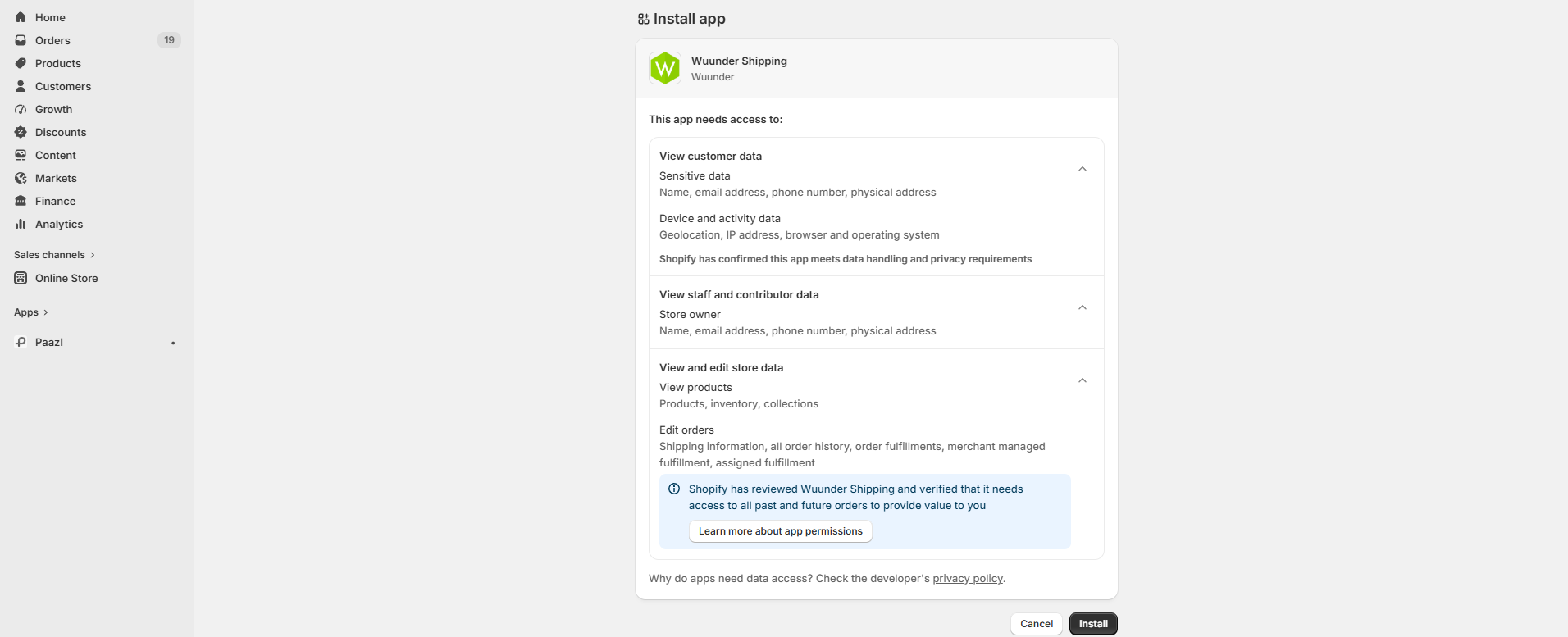
- Step 2 – Once you've clicked Add app, you're sent back to your shop's admin. You'll then see a screen asking whether you want to download the plug-in. It also shows which data from your shop the plug-in will use. To continue, click "Install".
- Step 3 – After pressing the button for the environment, you'll see a page asking you to log in to the 'Wuunder Webshop Connector'. Don't have login details yet? Click Onboarding. (Please note! Wuunder's booking system has a different login; at the moment they're not the same.) If you do have login details, log in and continue to step 6.

- Step 4 – Once you've clicked Onboarding, the wizard for connecting your webshop starts. Complete all the steps.

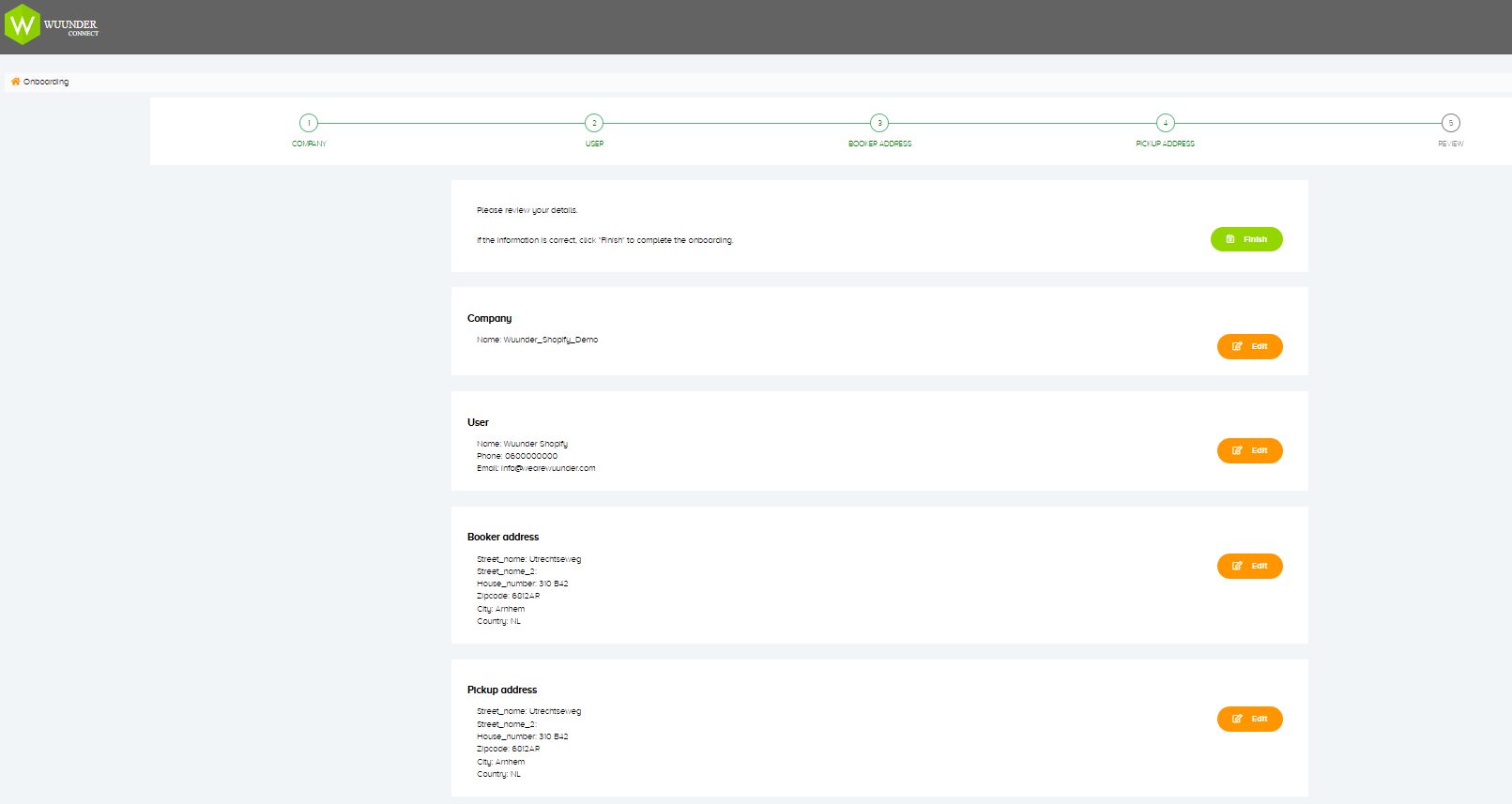
- Step 5 – At the end of the wizard, you'll see an overview page with all the information you've entered. You can check whether everything is correct. All good? Click Complete onboarding. If something isn't right, change it.
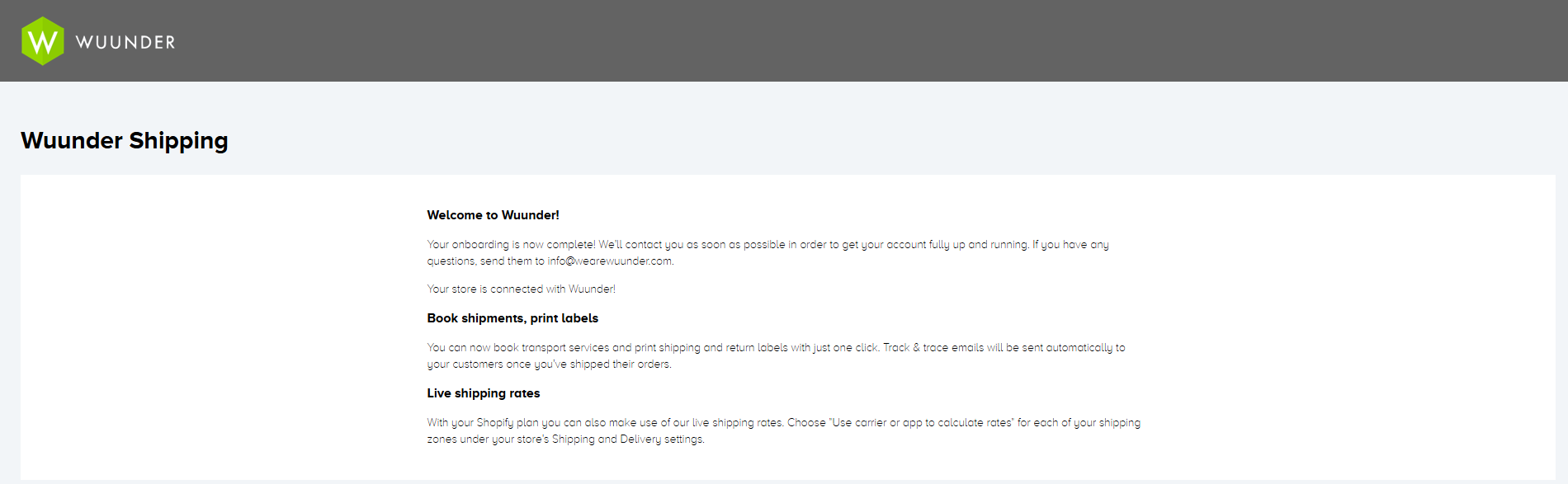
- Step 6 – After clicking 'Complete onboarding', you'll see the Welcome to Wuunder screen. At that point, your webshop is connected to our 'Wuunder Webshop Connector' system. Our team will then get to work setting up your account further. We'll also get in touch with you to decide which carriers and transport services need to be set up.
CONNECTING THE SHOPIFY INTEGRATION TO MYWUUNDER
- Step 1 – Sign up or log in via MyWuunder.
- Step 2 – Once you're logged in, Wuunder will get in touch with you and activate your account.
IMPORTING ORDERS INTO MYWUUNDER
Once your shop is connected to Wuunder, you can book orders quickly and easily. Here's how:
- Step 1 – Once you're logged in to your MyWuunder account, go to Shipments. You'll see a dropdown menu here. Select Book.
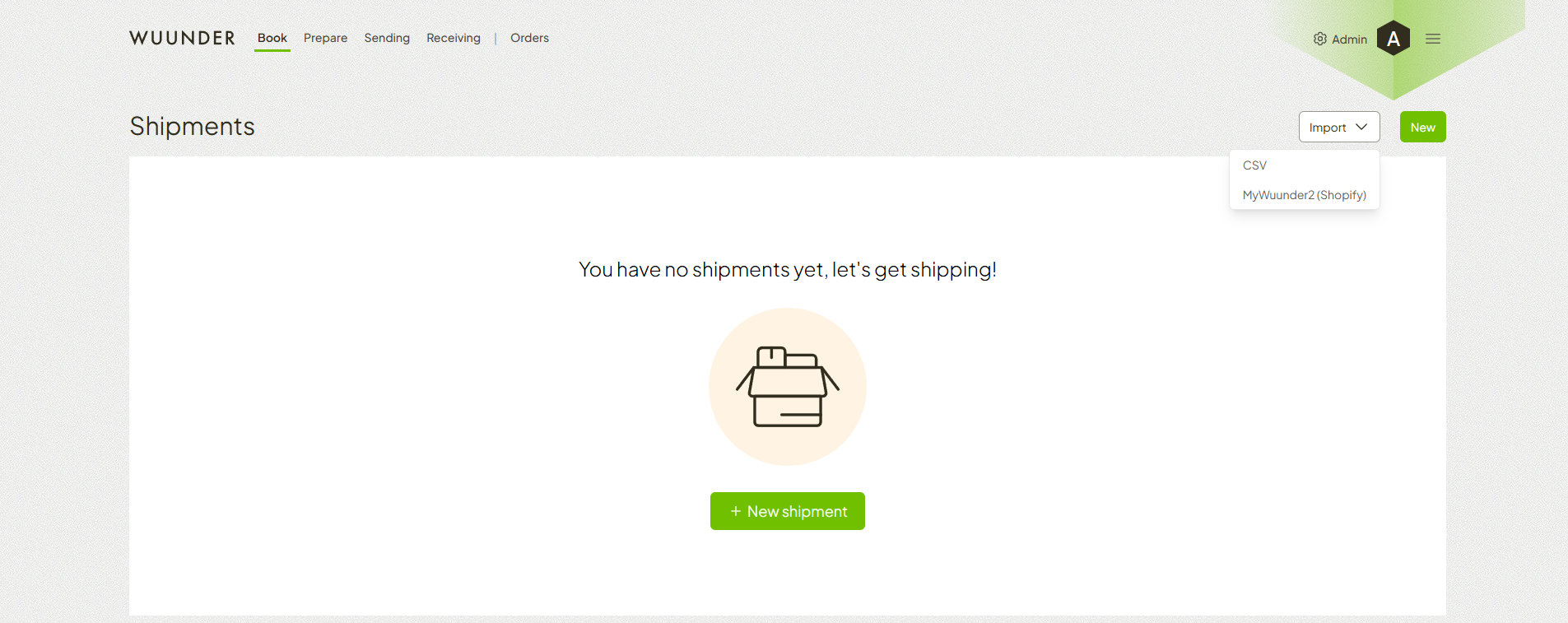
- Step 2 – Click Import and select Shopify (MyWuunder2).
- Step 3 – You're now on the import page. Click the arrow symbol next to Import orders to choose how you want to import the orders. Want to book all orders manually? Select Import shipments as drafts. Want all orders to be booked straight away without you having to do anything else? Select Import and book shipments automatically.
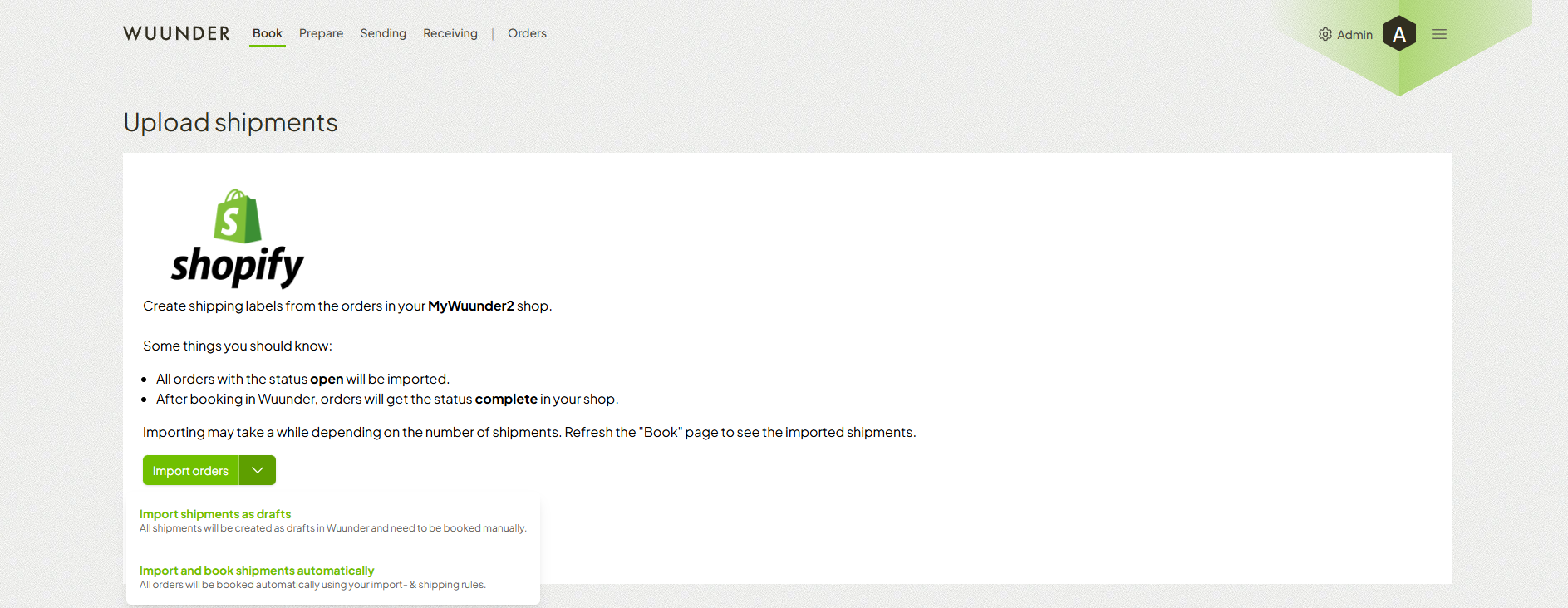
- Step 4 – Once you've chosen how to import the orders, click Import.
- Step 5 – You'll now see the Book page, showing all imported orders. If you chose Import and book shipments, the status of the orders shows Booked. You can continue to step 7. If you selected Import shipments as draft, you still need to book the orders manually. The status of these orders is Draft. Now continue with step 6.
- Step 6 – You can now book each order separately by hand. You'll find out how here. You can also choose to book several draft shipments at the same time. You can find more information about this here.
- Step 7 – Once you've booked the shipments, you can go to Prepare. Here you can print the shipping labels. Want to know more about printing shipping labels? Click here.
Was this article helpful?
That’s Great!
Thank you for your feedback
Sorry! We couldn't be helpful
Thank you for your feedback
Feedback sent
We appreciate your effort and will try to fix the article
