
Great that you're going to test our WooCommerce plug-in! This guide explains step by step how to connect your WooCommerce webshop to Wuunder.
Want more information first? Read more about our webshop module for WooCommerce or take a look at the Frequently Asked Questions about WooCommerce.
ONE MORE IMPORTANT THING
After activating the plug-in, you need to connect your webshop to Wuunder. Keep the following in mind: the Wuunder Webshop Connector and Wuunder's booking system have different login details. If you don't have login details, you'll first need to go through the onboarding process. You can't log in to the Wuunder Webshop Connector with your MyWuunder account login details. This is fully explained from step 4.
TIPS AND ADVICE
This guide explains that you can have the previous plug-in and the new plug-in active at the same time. We therefore recommend keeping both plug-ins activated in the early stage (test phase) and making sure the previous plug-in is set up and working. That way you can easily switch between the plug-ins, see step 8.
BENEFITS OF THE NEW PLUG-IN
- Many more transport services available, so your customers have more choice.
- More realistic shipping rates thanks to more options than table rates offer, which increases conversion in your webshop.
- More realistic shipping rates.
- If there are issues with a particular carrier (for example, if shipping to the UK is temporarily not possible), we can switch off booking with that carrier straight away.
- Less maintenance needed on the plug-in when the shop is updated.
- In time, dynamic rates and realistic delivery times based on volume, weight, destination, etc. will be possible.
CONNECTING WOOCOMMERCE TO WUUNDER
- Step 1 – Download the Wuunder Plugin
Download the Wuunder plugin via this direct download link. - Step 2 – Upload the Wuunder Plugin in the admin area of your WooCommerce shop
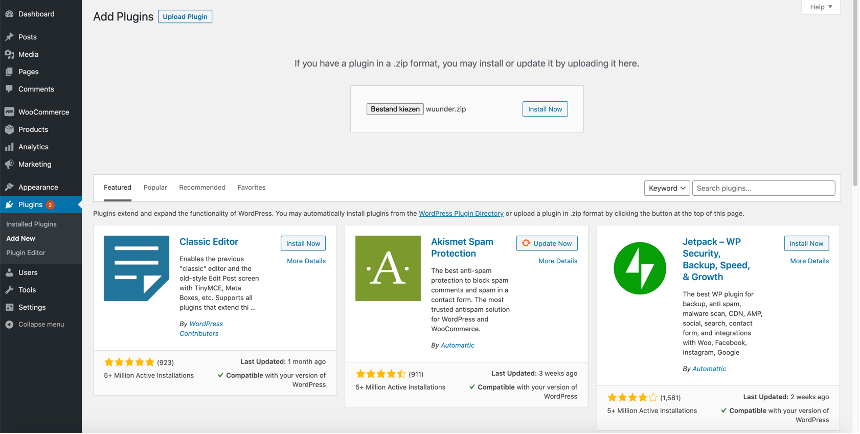
Go to Plugins and click ‘Add New’. Upload the file you've just downloaded by clicking ‘Upload Plugin’. Then select the file on your computer. Once you've done that, click ‘Install Now’.
- Step 3 – Activate the plug-in
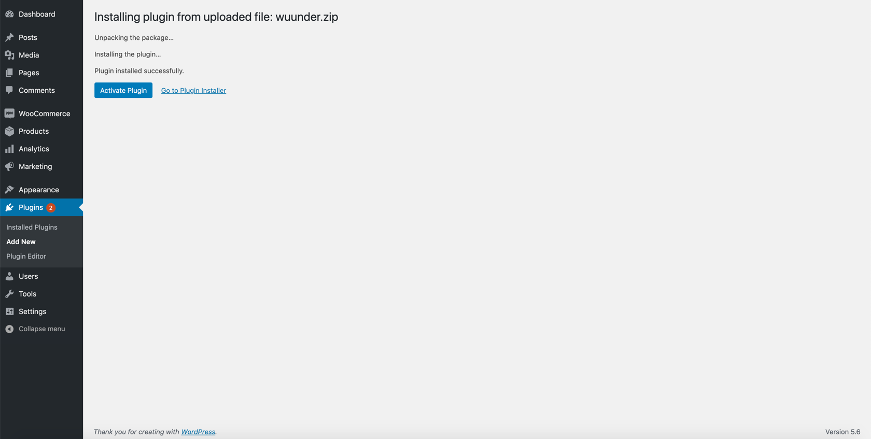
After uploading, click Activate Plug-in as shown in the image below. Or go to the plug-in overview and activate the Wuunder Shipping Module there.
- Step 4 – Choose the environment you want to connect to
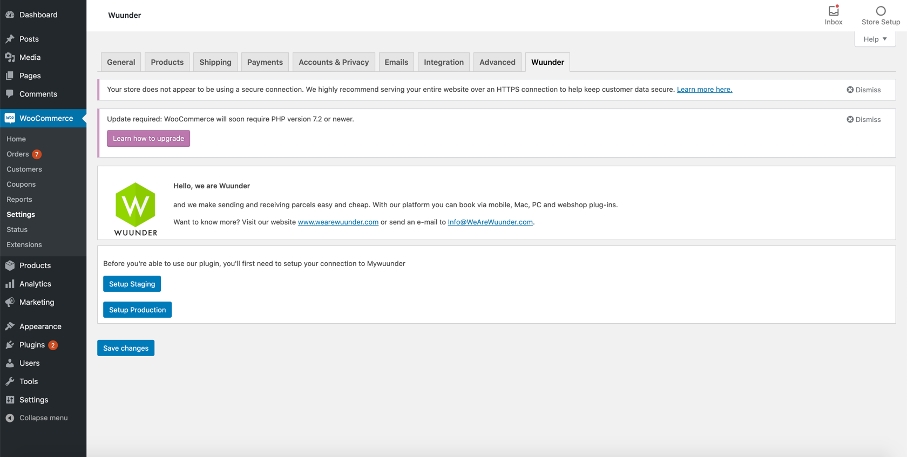
Go to the WooCommerce settings and open the Wuunder Connector tab. Here you can choose between Production and Staging. Want to try out our system first? Choose Setup Staging. Otherwise, you can connect straight to the production environment by clicking Setup Production. As soon as you click either button, you'll be taken to the onboarding process. You can also install the previous Wuunder plug-in alongside the new Wuunder Shipping Module on your WooCommerce shop. Step 8 explains this in more detail.
- Step 5 – Connect your webshop to Wuunder
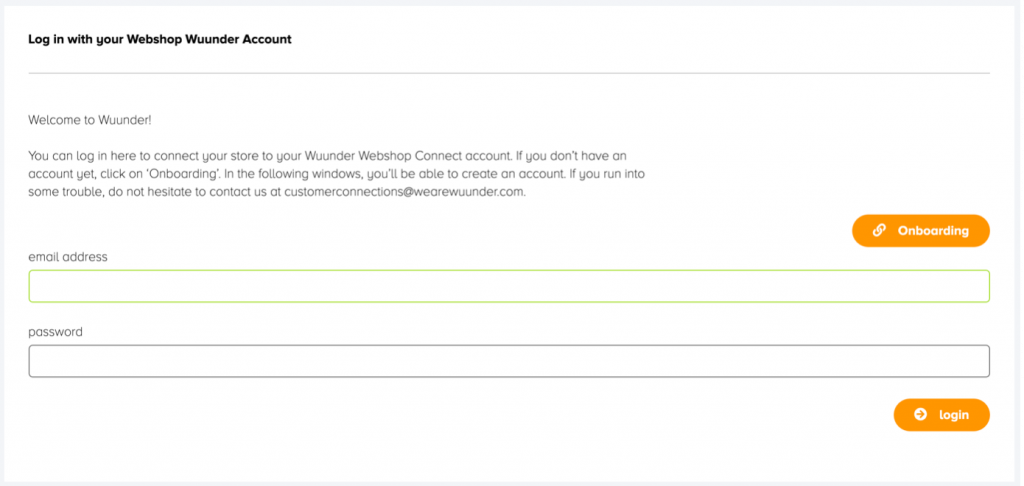
After choosing your environment, you'll see a page asking you to log in to the ‘Wuunder Webshop Connector’. Don't have login details yet? Click Onboarding (please note: Wuunder's booking system has a different login). If you do have login details, log in and continue by clicking Setup Production. As soon as you click either button, you'll be taken to the onboarding process. You can now continue with step 8. You can also install the previous Wuunder plug-in alongside the new Wuunder Shipping Module on your WooCommerce shop. Step 8 explains this in more detail.
- Step 6 – Onboarding wizard
Once you've clicked Onboarding, the wizard for connecting your webshop starts. Complete all the steps.
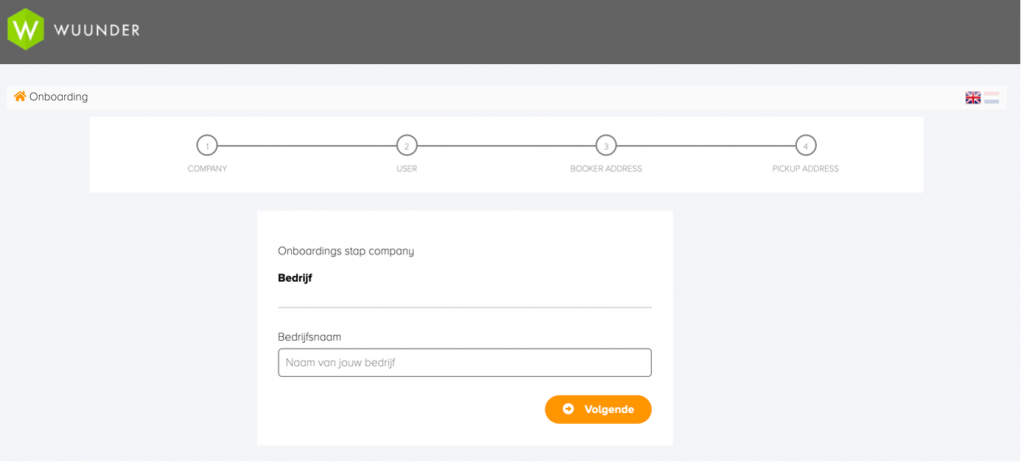
- Step 7 – Onboarding overview
At the end of the wizard, you'll see an overview of all the information you've entered. You can check whether everything is correct. All good? Click ‘Complete onboarding’.
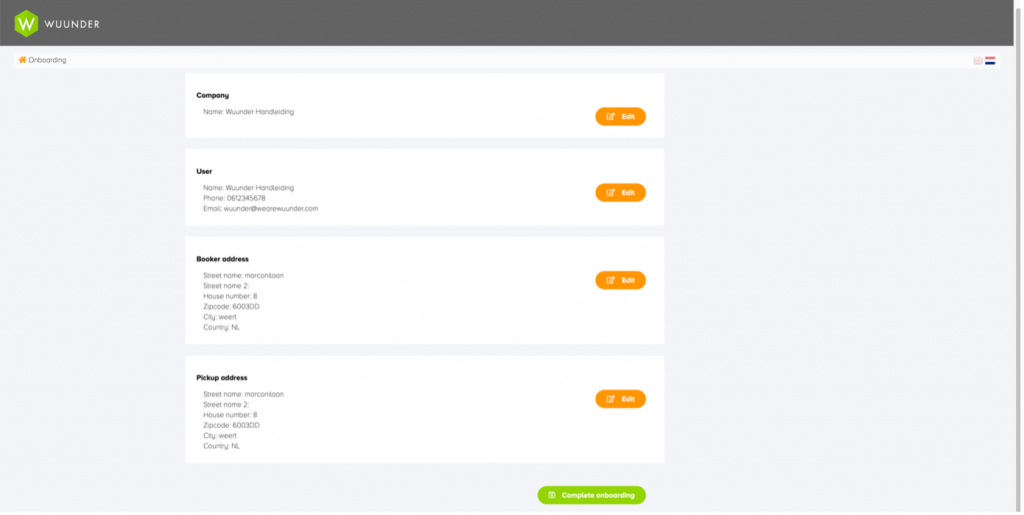
- Step 8 – Finishing onboarding
After clicking ‘Complete onboarding’, you'll see the Welcome to Wuunder screen. At that point, your webshop is connected to our ‘Wuunder Webshop Connector’ system. Our team will then get to work setting up your account further. We'll also get in touch with you to decide which carriers and transport services need to be set up. If you're not automatically sent back to your webshop, click the ‘Return to webshop’ button.
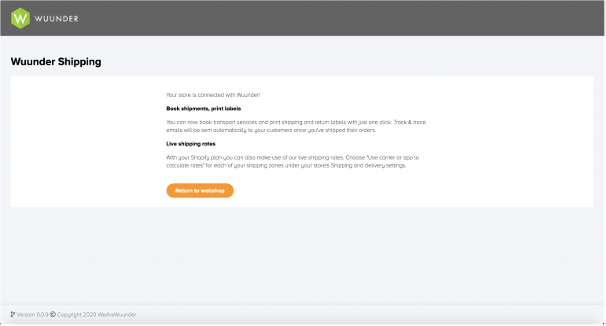
- Step 9 – Setup complete
As mentioned earlier, you can have the old plug-in and the new Wuunder plug-in active at the same time. Want to use the new plug-in? Make sure the ‘Enable’ option is selected under status in the Wuunder Connector plug-in settings. Want to use the old plug-in? Select ‘Disable’. After making any changes, always check that everything in your checkout still works.
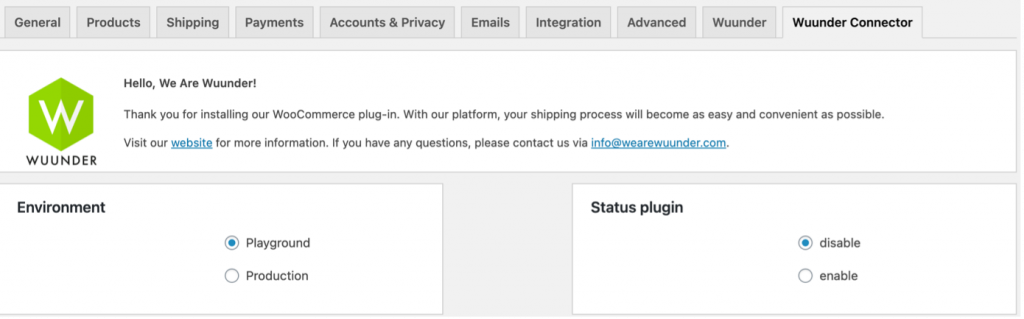
Any questions? Get in touch with our customer service at info@wuunder.com.
IMPORTING ORDERS INTO WUUNDER'S BOOKING SYSTEM
Once your shop is connected to Wuunder, you can book orders quickly and easily. Here's how:
- Step 1 – Logging in
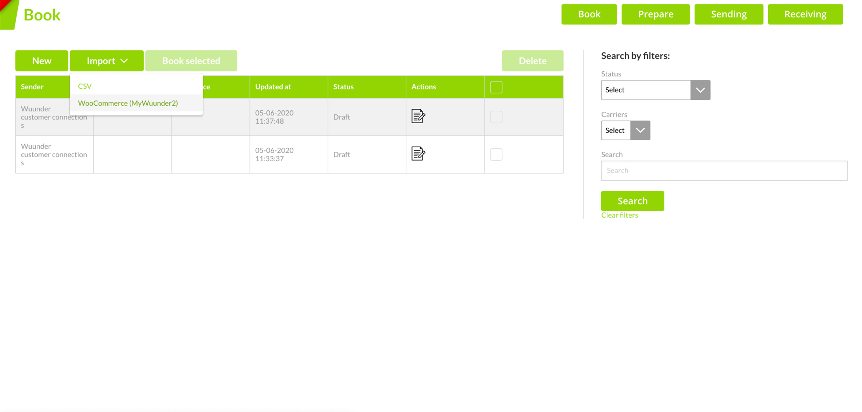
Once you're logged in to your MyWuunder account, go to Shipments. You'll see a dropdown menu here. Select ‘Book’. - Step 2 – Importing
Click Import and select ‘WooCommerce’.
- Step 3 – Import page
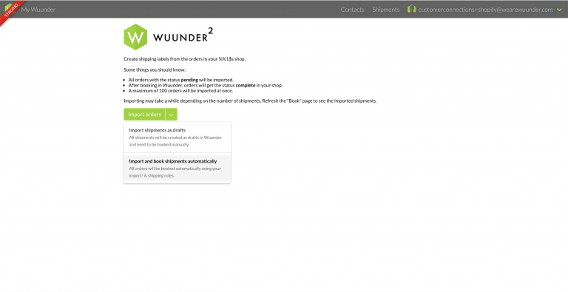
You're now on the import page. Click the arrow next to Import orders to choose how you want to import the orders. Want to book all orders manually? Select ‘Import shipments as drafts’. Want all orders to be booked straight away? Select ‘Import and book shipments’.
- Step 4 – Choosing how to import
Once you've chosen how to import the orders, click ‘Import’. Importing can take a moment while our system collects and checks the orders. - Step 5 – Order overview
You'll now see the Book page, showing all imported orders. If you chose Import and book shipments, the status of the orders shows Booked. You can continue to step 7. If you selected Import shipments as draft, you still need to book the orders manually. The status of these orders is Draft. Now continue with step 6. - Step 6 – Booking
You can now book each order separately by hand. You'll find more information about booking a shipment in the guide Worry-free shipping. You can also choose to book several draft shipments at the same time. You'll find more information in the guide Quickly book a shipment. - Step 7 – Shipping labels
Once you've booked the shipments, you can go to Prepare. Here you can print the shipping labels. Want to know more about printing shipping labels? Read the guide Save time printing shipping labels.
ACTION BUTTONS
Use the action buttons in your WooCommerce order overview to work more efficiently. With the action buttons you can easily book shipments, print labels and track them:
| Action button | Icon | More information |
|---|---|---|
| Book |  | Clicking this icon takes you to MyWuunder, where you can book the shipment straight away. |
| Booking started |  | Your shipment has been sent to MyWuunder via bulk booking. The order is ready to be booked in the MyWuunder drafts area. |
 | There are several ways to print, including in your shop environment itself, of course. Pressing this button prints the shipping label for the order. | |
| Track |  | You can go straight to the carrier's page to track a shipment from your shop. Even easier is tracking a shipment through the “Shipment Overview” in MyWuunder. |
Was this article helpful?
That’s Great!
Thank you for your feedback
Sorry! We couldn't be helpful
Thank you for your feedback
Feedback sent
We appreciate your effort and will try to fix the article