With the following information you can easily connect Picqer and start sending your products via Wuunder straight away. At the push of a button, you can send documents, parcels and pallets with the most suitable carrier.

CONNECT WUUNDER TO PICQER
To use Wuunder through Picqer, you first need to connect the Wuunder integration to your Picqer environment. Here's how.
- Step 1 – First, go to Settings in Picqer.
- Step 2 – Once you're on the settings page, scroll all the way down. You'll see the heading Integrations. Below it is Shipping providers: click it.
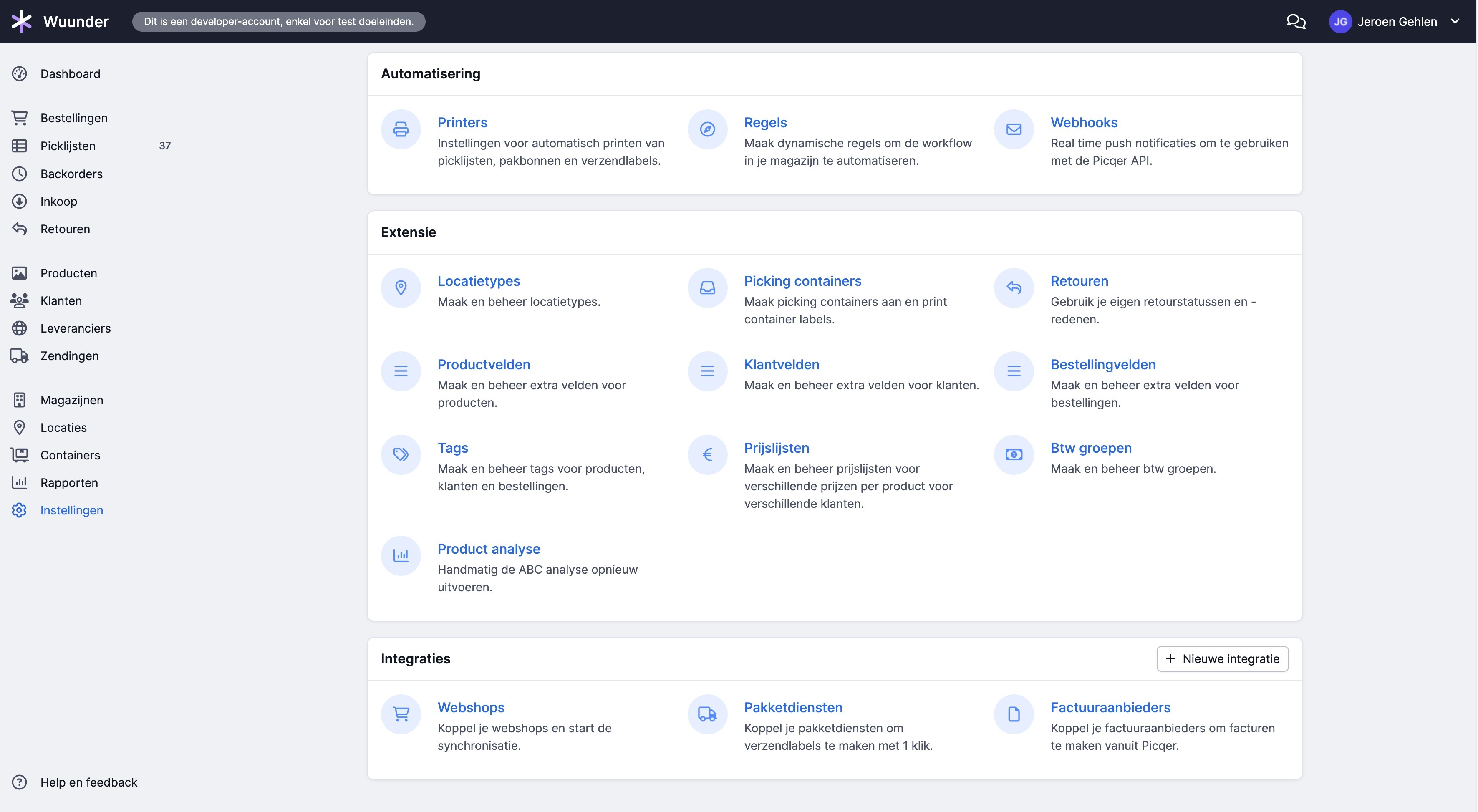
- Step 3 – Once you're on the shipping providers page, click +Add new shipping provider.
- Step 4 – Scroll down again. Here you'll see Wuunder.
- Step 5 – Once you've chosen it, give the integration a name. Check that the Active option is selected.
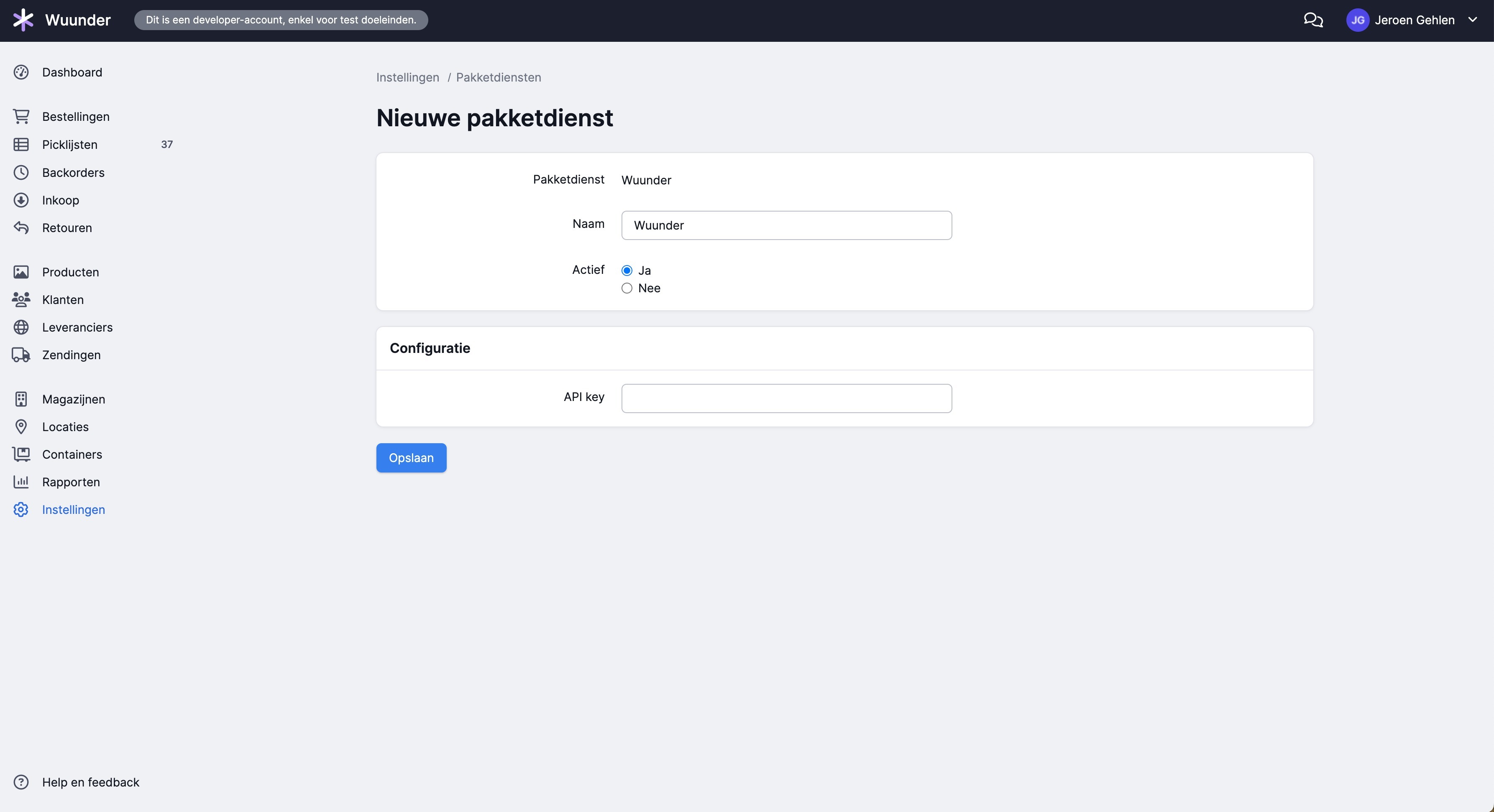
- Step 6 – Then enter the API key you received from us.
- Step 7 – Click Save. You'll now see the profile page, where you need to fill in various details. Everything you enter here is imported into MyWuunder when you make a booking. These details also appear on the shipping label.
- Step 8– Fill in the following details:
- Carrier filter name: the correct filter name for the carrier. You can find it in the guide Automatically choose the right service and carrier.
- Number of items: enter 1 if you want 1 label per order, 2 if you want 2 labels per order, and so on.
- Sender Address street name: your street name.
- Sender Address house number: your house number.
- Sender Address zipcode: your postcode.
- Sender Address city: your town or city.
- Sender Address country: enter the country in ISO2 format (e.g. NL, DE, GB).
- Sender Address company name: your company name.
- Sender Address e-mail address: your email address. Leave this empty if you don't want to receive a shipping label by email for every booked order.
- Sender Address firstname: your first name, or for example Customer.
- Sender Address lastname: your last name, or for example Service. The name on the shipping label then becomes “Customer Service”.
- VAT number: this is needed for non-EU shipments. Read more about using the VAT number in the guide Clear customs with ease.
- EORI number: this is needed for non-EU shipments.
- API-key: enter the API key you received from us here.
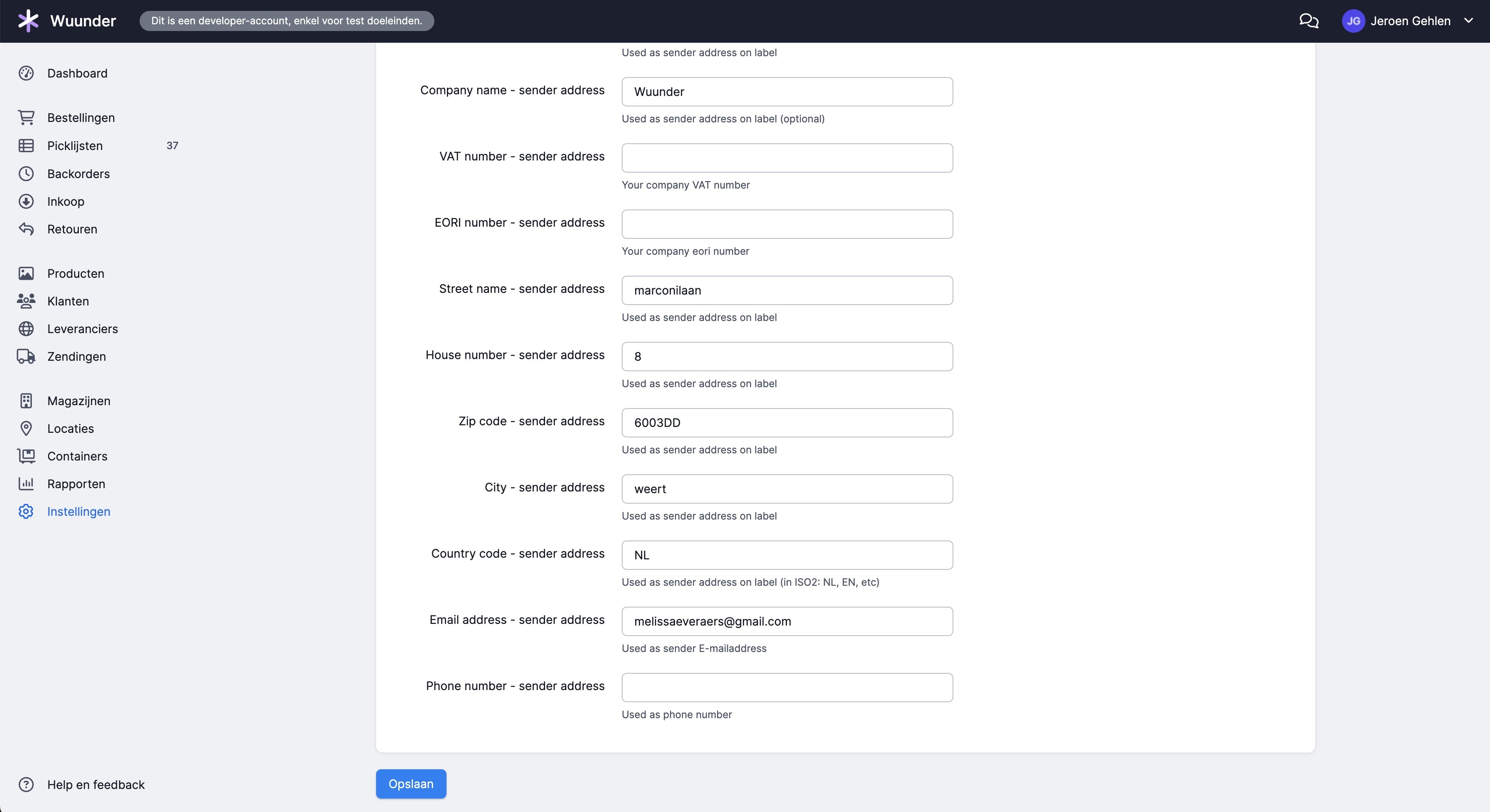
- Step 9 – Once you've filled in all these details, click Save. You'll now see a page with all the details you've just entered.
- Step 10 – To add another shipping profile, click +Add shipping profile. You'll see the same page as before, where you fill in all the details again.
BOOKING ORDERS VIA PICQER
- Step 1 – Go to Orders. Click +New order.
- Step 2 – Select Search customer for an existing customer. Select New customer if you want to create a new customer for this order and save them to use again later. Then fill in the customer's details as needed, depending on your choice.
- Step 3 – Then add the products you want to send to the customer.
- Step 4 – Once everything is filled in correctly, click Save as concept.
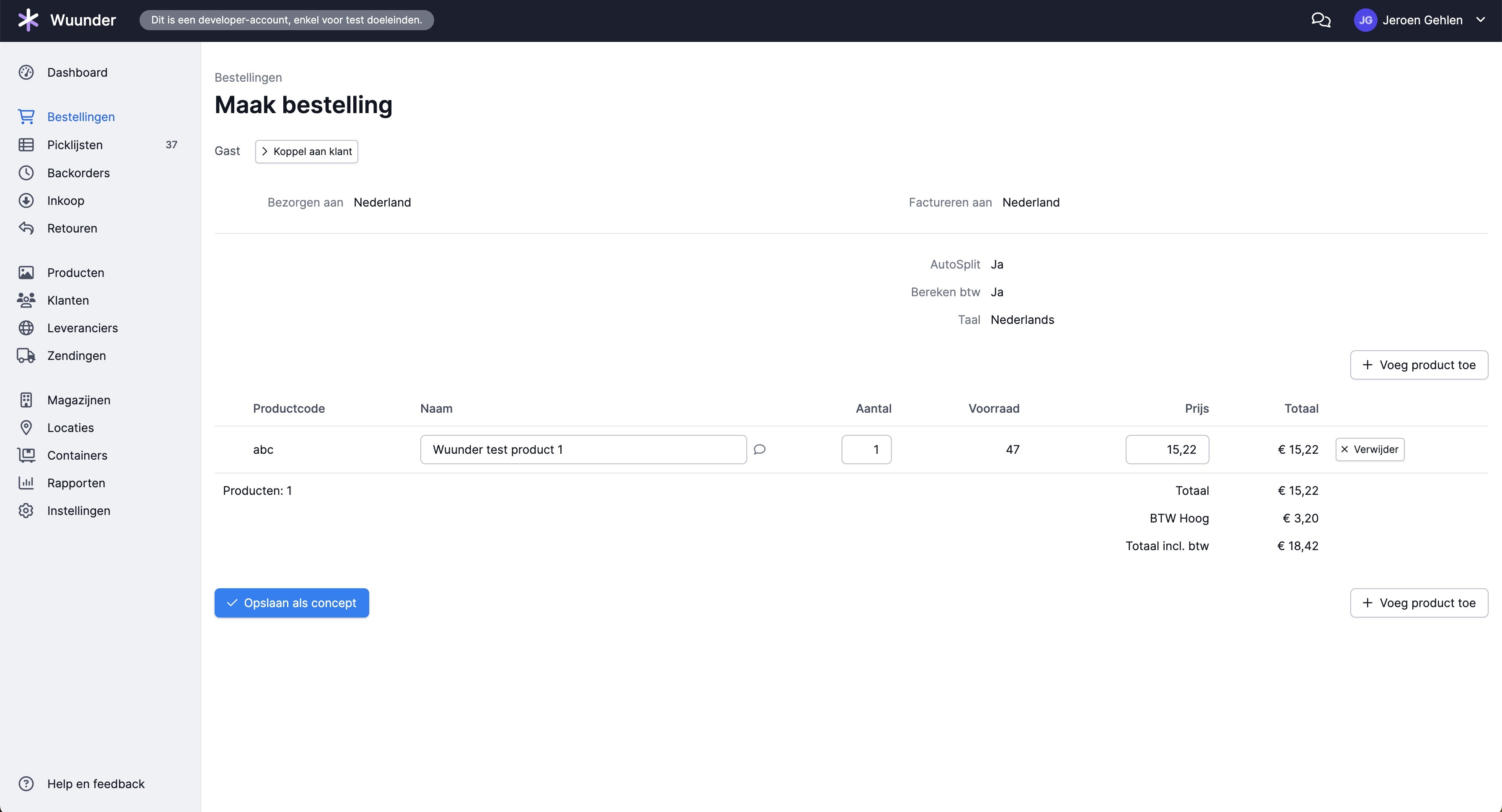
- Step 5 – Then click Process order.
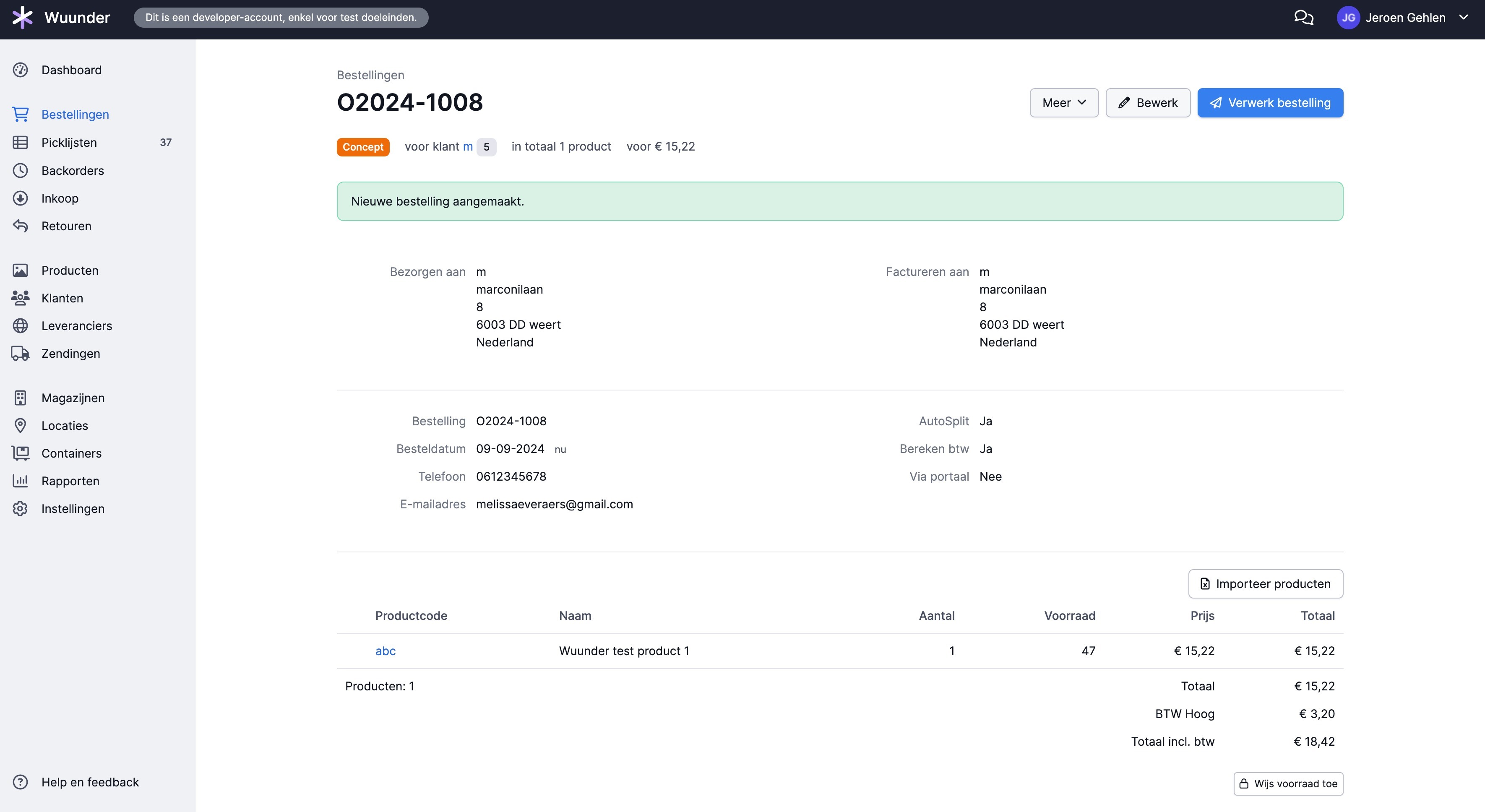
- Step 6 – You can now click Picklist on your order. Click the picklist number shown with your order.
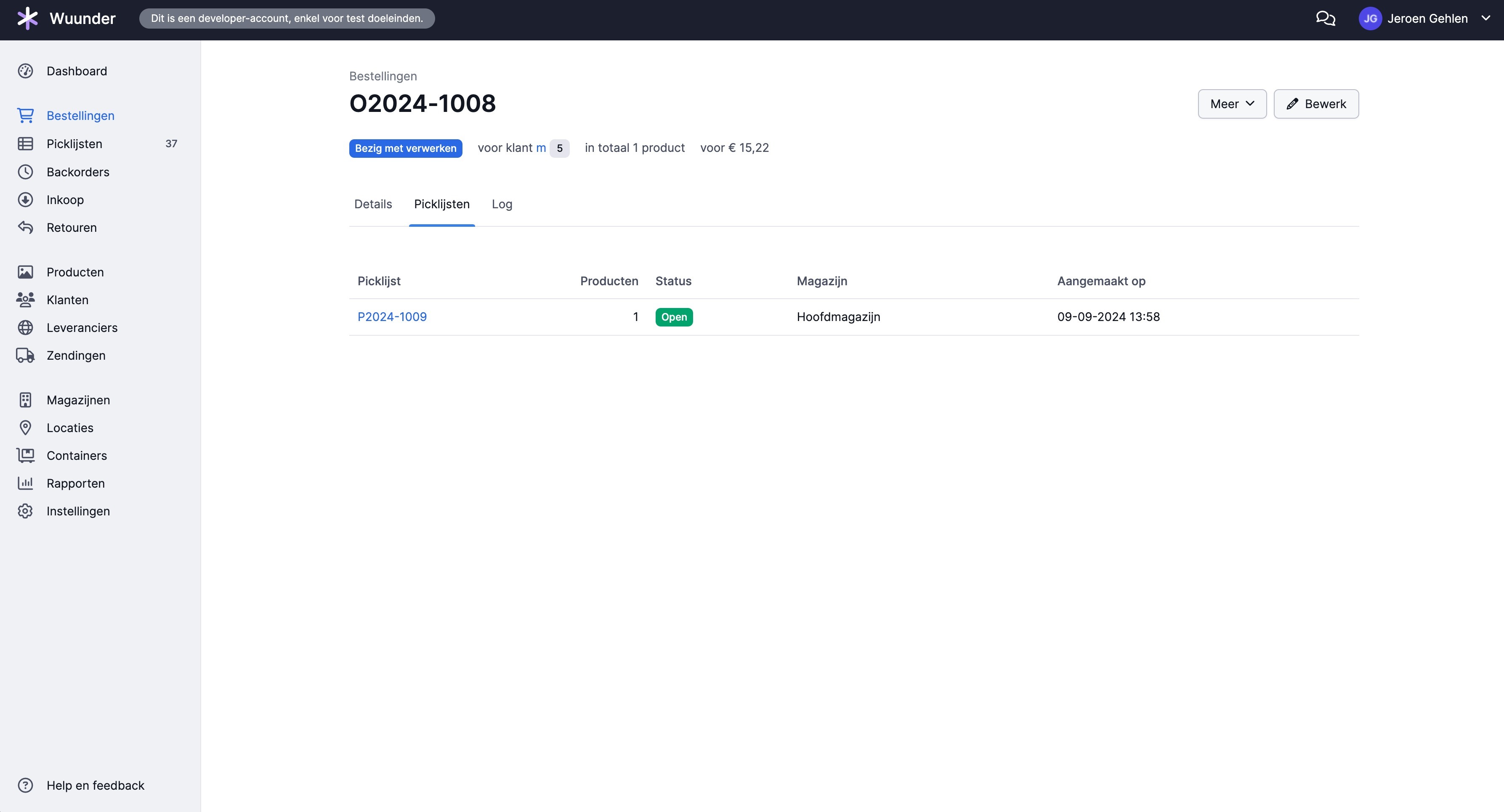
- Step 7 – If all the products you want to send are in stock, click Pick all.
- Step 8 – Now select the shipping method you want to use.
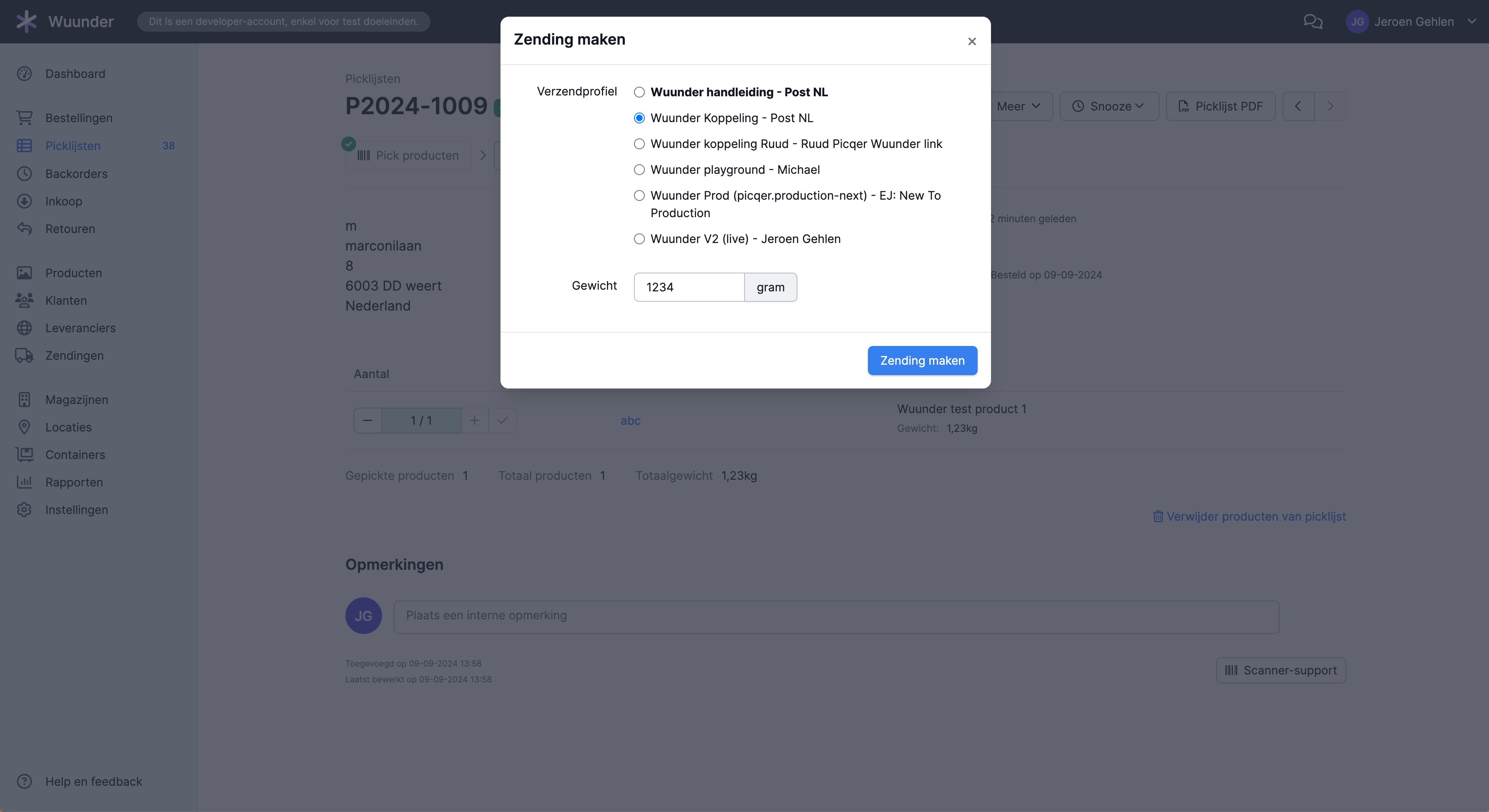
- Step 9 – If the shipment has been created successfully, a message appears in a green window. You can now print the shipping label. If you've booked a shipment to a destination outside the EU, you can also print the commercial invoices. We send these along with the shipping label so you can print them in your Picqer environment. Read more about the content of the commercial invoice in the guide Clear customs with ease.
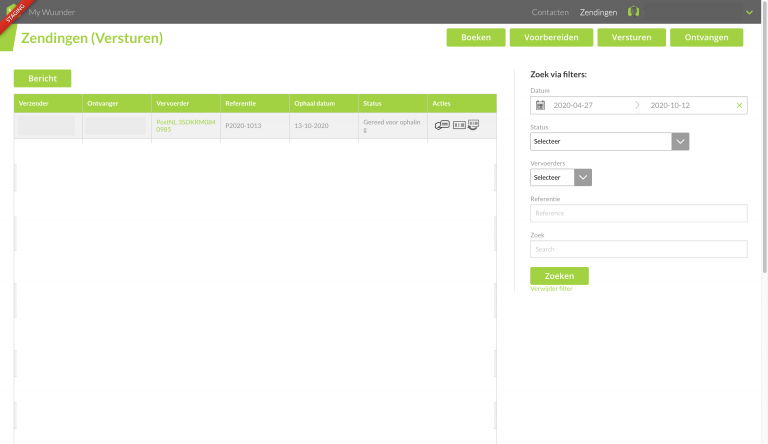
- Step 10 – When you now log in to MyWuunder and go to the shipment, you'll see the order and that it has been booked. You can also print the shipping label from this window.
Was this article helpful?
That’s Great!
Thank you for your feedback
Sorry! We couldn't be helpful
Thank you for your feedback
Feedback sent
We appreciate your effort and will try to fix the article